


Help · Kitchens and catering
Meal plans and packs
Meals sold ahead: plans of so many days a week, the customers’ picks for each day, and packs to spend at checkout.
Included in: StandardProBusiness
Meal plans lets a kitchen sell meals ahead. A plan is lunch (or the meals you choose) on set days of the week, for a number of meal-days. A pack is a number of meals, such as ten lunches, spent at checkout. Plans take their dishes from your daily menu: while it is off, only packs are on sale. Customers pay you in cash or by transfer, your own sale; no card is charged. The owner and managers open these pages; staff read Meals by day.
Switching meal plans on
- Open Settings, tab Your business, and find What you run. Only the owner can change it.
- Under Also offer, tick Meal plans and packs and press Save. The kitchen type ticks it for you.
- Meal plans joins your admin menu. Once something is on sale, your site gets a Meal plans link.
Make a plan
- Open Meal plans, tab Plans and packs, and press Add a plan.
- Give it a Name in each of your menu's languages, such as “Lunch, weekdays”.
- Tick the Meals a day and the Days of the week.
- Under Lengths and prices, give up to four lengths in meal-days, each with its price: 5 is a week of weekdays, 20 a month. Customers see the price a day and what the longer ones save.
- Choose How it reaches customers: Delivered, Collected or Delivered or collected, with the window (From, Until). Delivery is offered in your delivery areas, included in the price.
- Set May start within (days), the Days of pause allowed and the Deliveries before it must be paid, then Save.
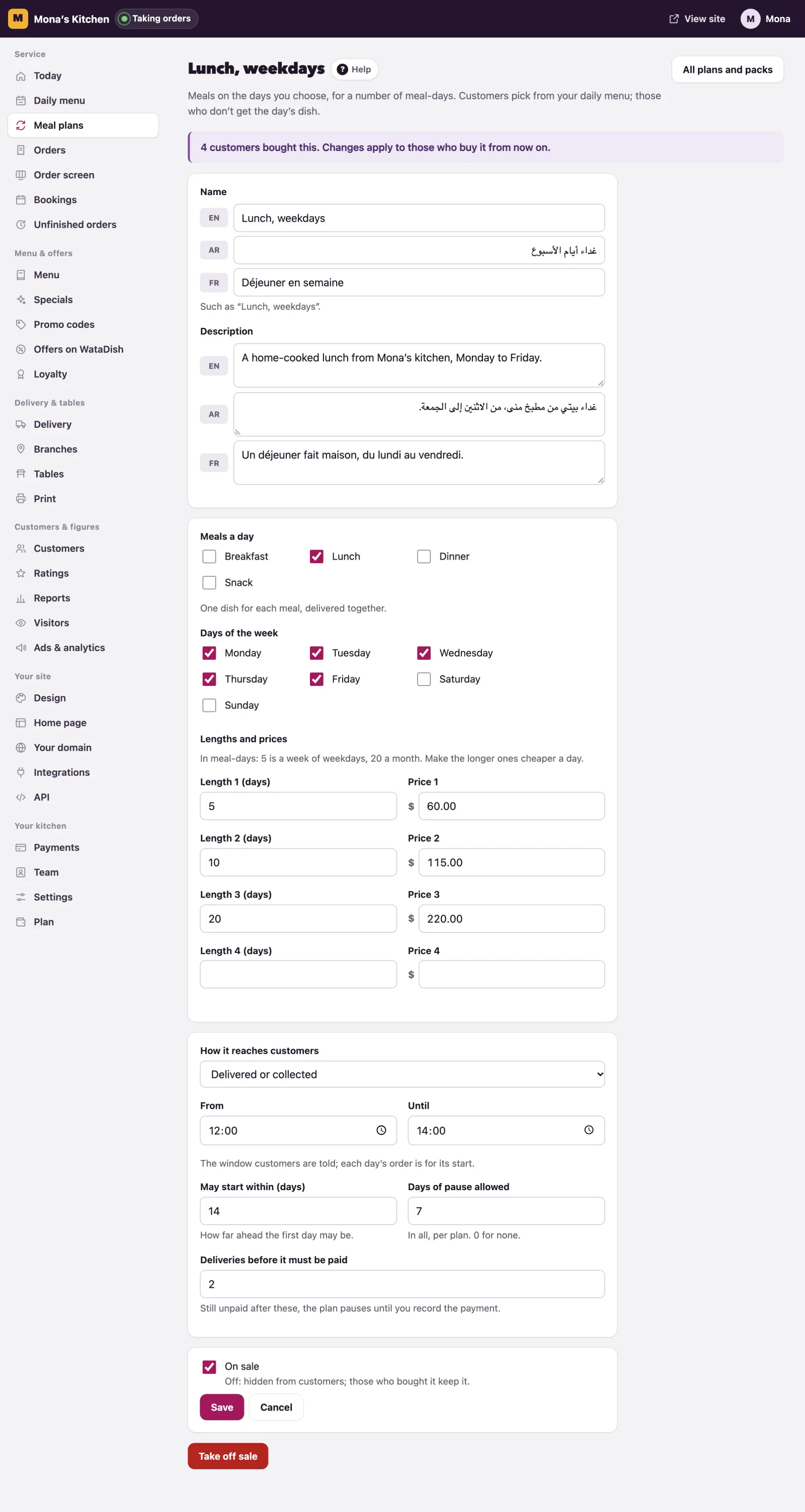
Changes apply to those who buy from then on. A plan someone bought is not deleted, only taken off sale.
What customers do
On your Meal plans page a customer chooses a plan, how long, the first day, delivery or collection, and cash or transfer, and presses Book my plan. They land on their plan's own page (emailed to them if they gave an email), and you are emailed.
There they see the days left, their last day and what they owe, and pick each day's dish from that day's daily menu before its order-by time. A day left alone gets the Chef’s choice, the day's dish you set. They can Skip this day or pause within what you allow: their last day moves later. Nothing is refunded; to stop, they call you.
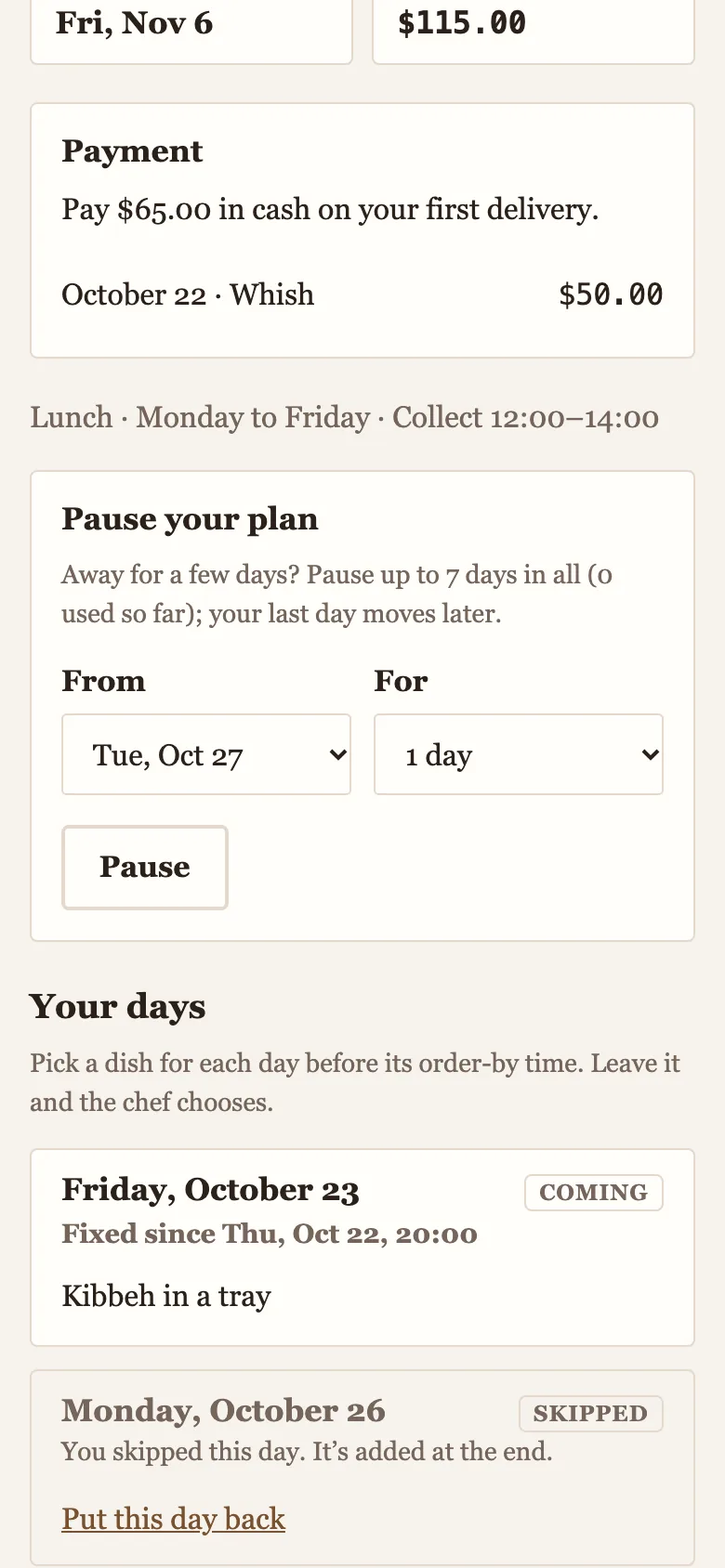
Customers who bought while signed in to a WataDish account also find their plans and packs, at every kitchen, under Meal plans in their account, each with what is left, its end and a link to its page.
Each day's meals
Meals by day shows a date's plan meals: the dishes in all, and each customer's dish, picked or (the day’s dish). Under The day’s dish, choose the Dish for those who pick nothing and Save; with none chosen, the first dish of that day goes out.
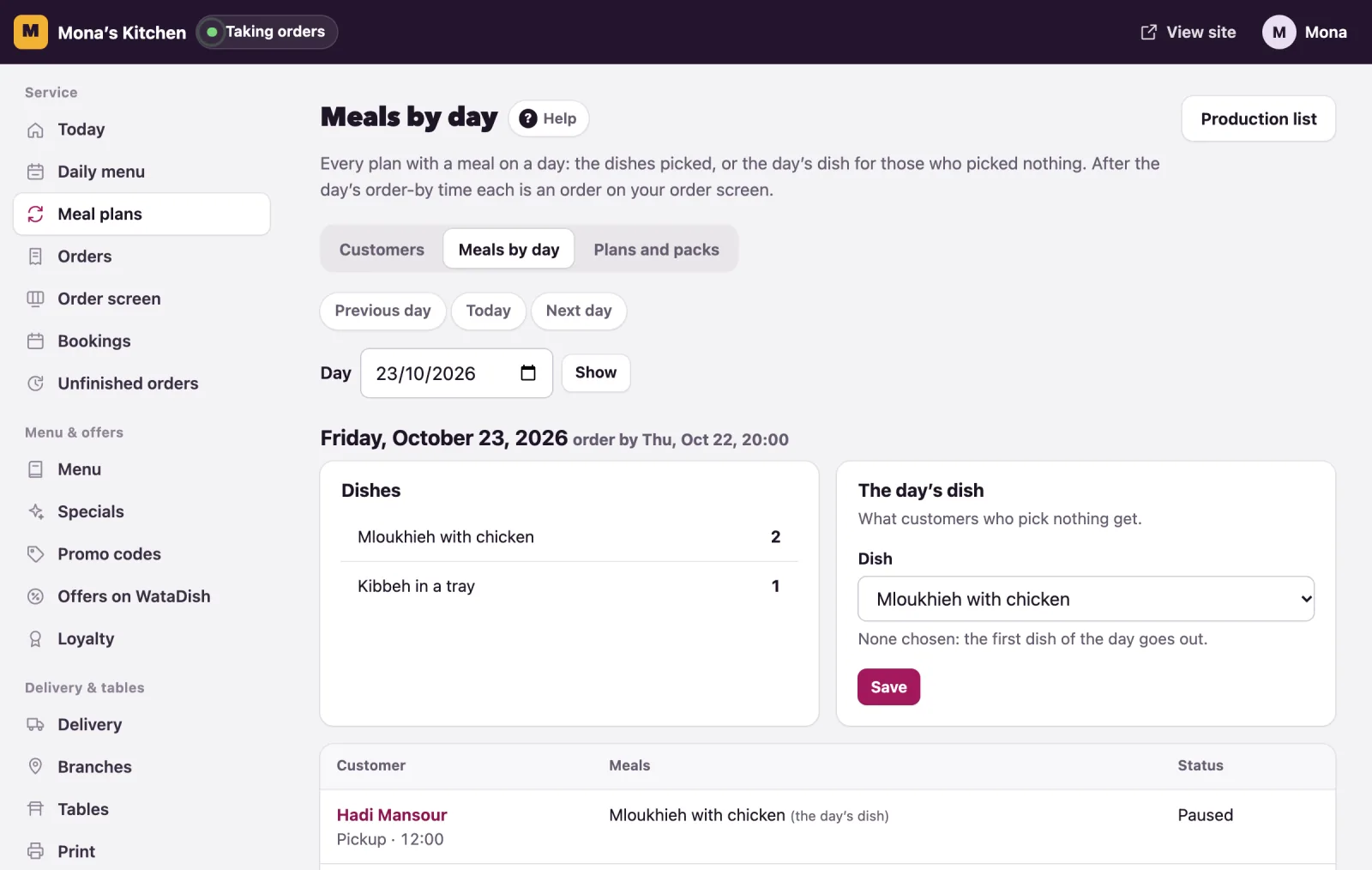
When the day's order-by time passes, each plan's day becomes an order on your order screen, already accepted so nothing rings, with nothing to pay. Its note says Meal plan and the code; the first order of a plan to be paid in cash says what to collect. A day with no dish on your daily menu, or whose order you cancel, moves to the end of the plan.
The customers and their money
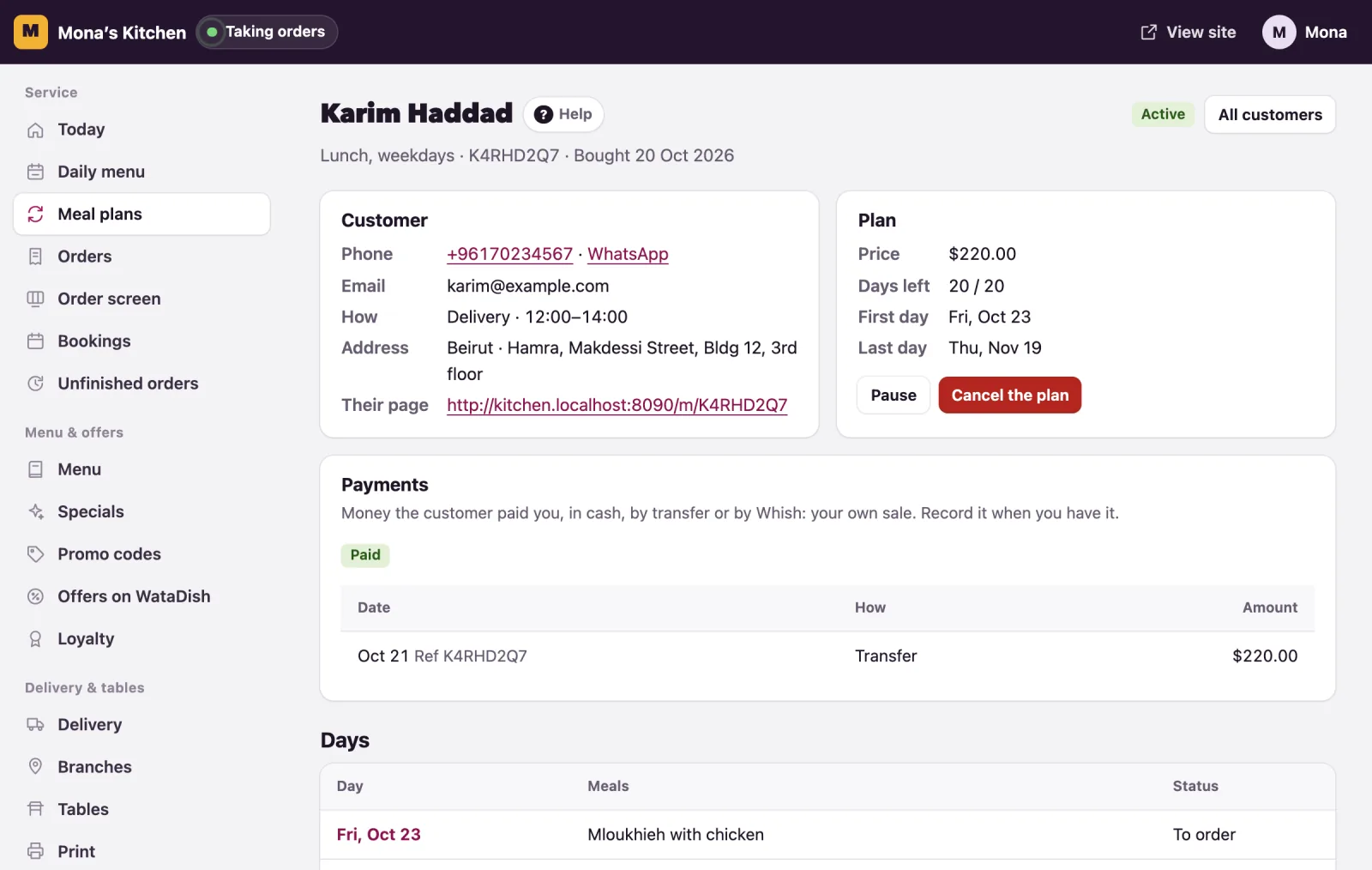
The Customers tab lists everyone who bought: Active, Unpaid, Paused, Ending and Ended.
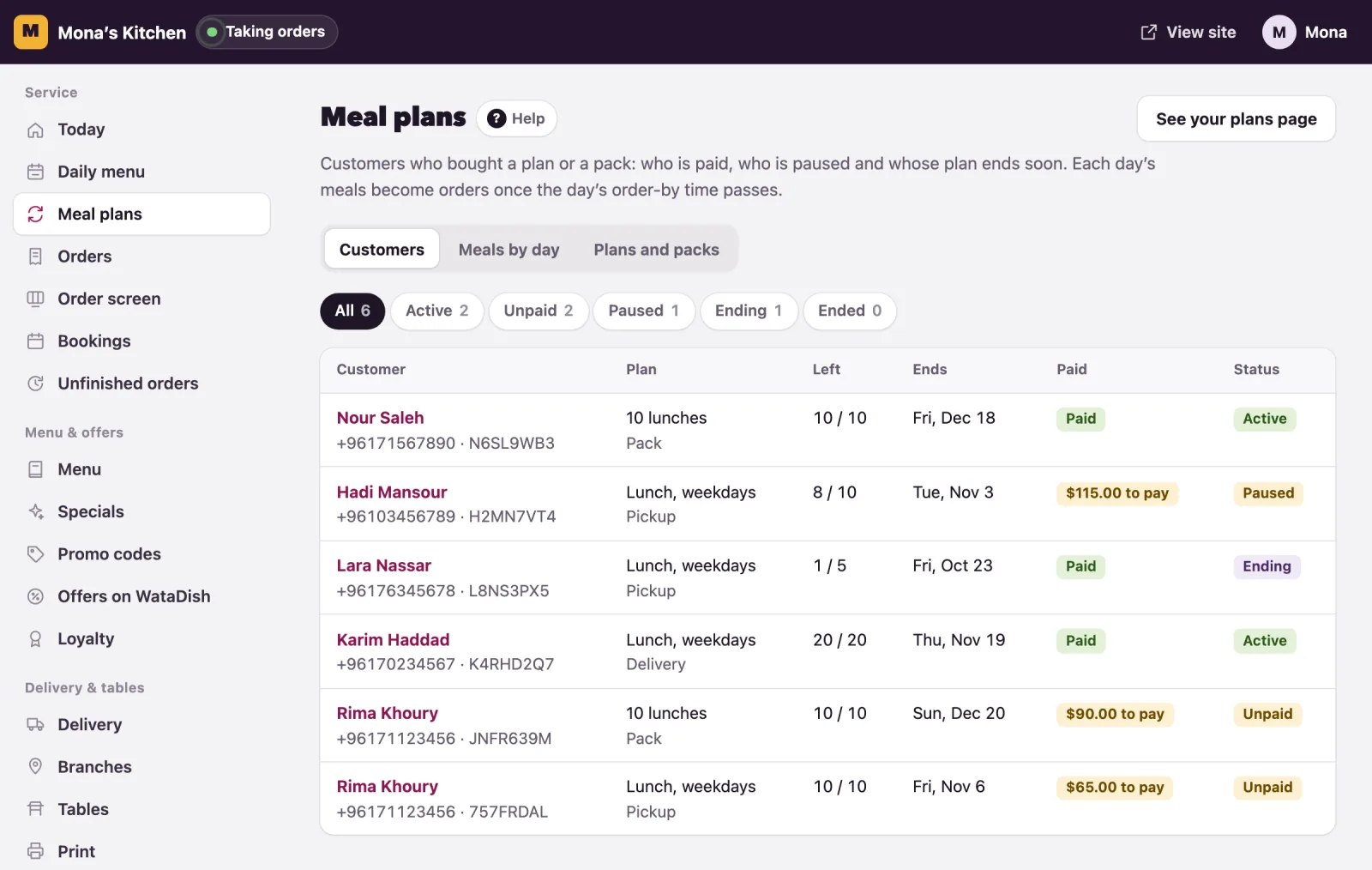
Open one for their details, their days and their Payments. When you have the money, give the Amount received, How (cash, transfer or Whish) and Received on, and press Record the payment.
- A plan still unpaid after its deliveries before payment (two unless you change it) pauses itself, and you and the customer are told. Record the payment and it starts again; the missed days are added at the end.
- Pause and Start again do the same by hand. Cancel the plan stops it: settle any money owed yourself.
- Two days before a plan's last day, a customer who gave an email is sent a link to renew. The Ending tab lists those plans, each with a WhatsApp button that sends the link. Renewing never charges anyone.
Meal packs
Press Add a pack under Plans and packs: its Meals, Price, Use within (days), Orders before it must be paid and the Dishes it pays for. Customers buy it on your Meal plans page.
When they order from your menu, Your meal pack appears at checkout: each meal pays for one portion of a dish the pack covers. Extras and delivery are paid as usual, and the rest in cash or by transfer, never by card. A cancelled order gives its meals back; the pack's page in your admin lists the Meals used.
Note: Plans and packs are paid to you, never by card through WataDish, and nothing is refunded by itself: days missed are added at the end.
Not found what you were looking for? Write to us at support@watadish.com or message us on WhatsApp: WhatsApp