Help · Your menu
Promo codes
Codes customers type in their basket for money off the dishes: a percentage or an amount, within your limits.
Included in: StarterStandardPro
A promo code takes something off the dishes of an order: ten percent for your Instagram followers, two dollars off in a quiet week. It never touches the delivery fee or a tip. You make codes on Promo codes in the admin and share them wherever you like; customers type them in their basket. The page is a manager's or the owner's, and it says whether your plan includes codes: without them, any codes you have are kept, switched off for customers, until your plan has them again.
Making a code
- Open Promo codes and fill in Make a code.
- Code: letters, digits and dashes, 3 to 24 of them. It is kept in capitals and customers can type it in small letters too, so "summer 10" and "SUMMER10" are the same code.
- Off the dishes: A percentage with Percent off (a whole number, 1 to 100), or An amount with Amount off. A percentage is rounded down to the cent; an amount never takes more than the dishes come to.
- Only for orders of at least (optional): the dishes' total, before the code.
- First day (optional) and Last day (optional), counted in your own days: a code ends at midnight after its last day.
- How many times it can be used (optional): leave it empty for no limit. An order turned away gives its use back.
- Press Make the code. The code SUMMER10 is ready., and it is on from that moment.
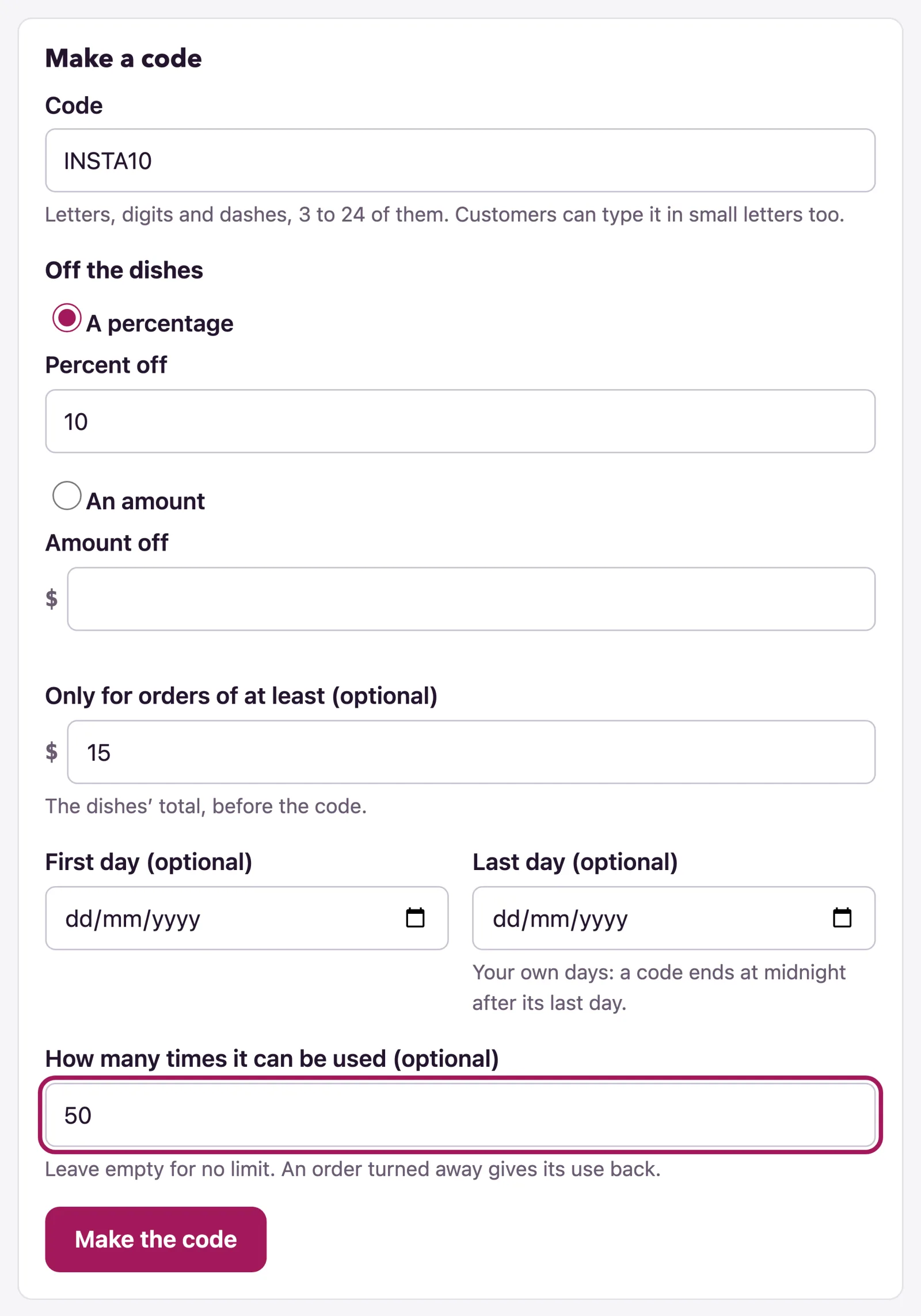
Every mistake is said under its field at once, with what you typed kept: You have a code SUMMER10 already., Give a whole number from 1 to 100., The last day is before the first. Edit on a code opens the same form as Change the code SUMMER10; Save keeps orders already placed as they were.
The list
Each code shows its state beside it, On, Off, Not started, Ended or Used up, then Off the dishes (10% or $2.00), When (orders of $15.00 or more · until Sun 1 Nov 2026, or Any order, any day) and Used, as a count or 12 of 50.
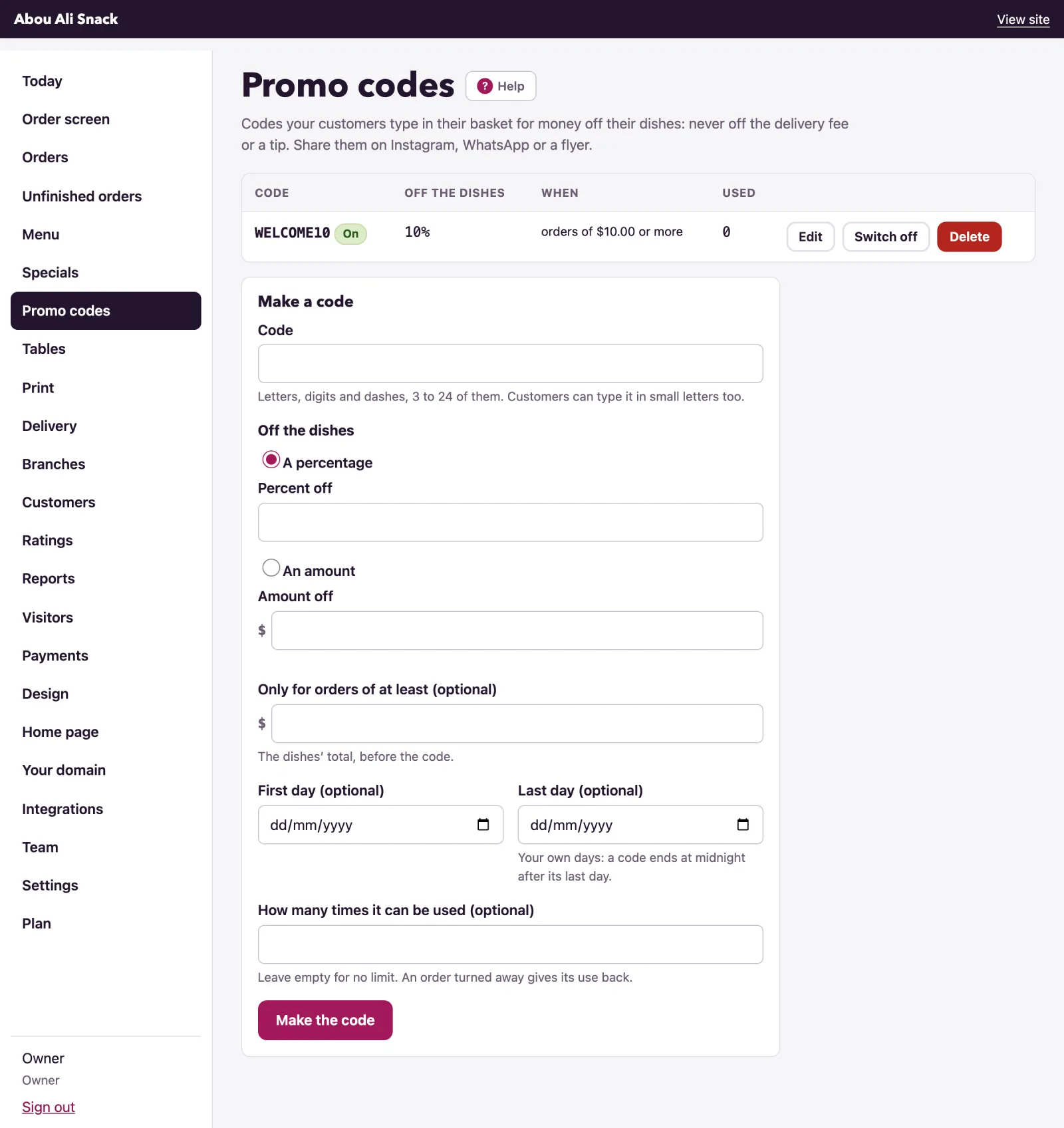
Switching a code off
Switch off stops it at once: The code SUMMER10 is off: customers can no longer use it. Orders placed with it keep what it took off. Switch on brings it back; a code past its last day or used up stays off by itself, and one whose first day is ahead reads Not started. Delete asks first, and reminds you that orders placed with the code keep their discount.
How a customer uses it
The basket shows a Promo code field with Apply as long as you have at least one code switched on, and the checkout has the same under Have a promo code?. A code that holds says Code SUMMER10 applied: 10% off your dishes., the basket lists Code SUMMER10 −$2.50 and Dishes, after the code, and Take it off removes it.
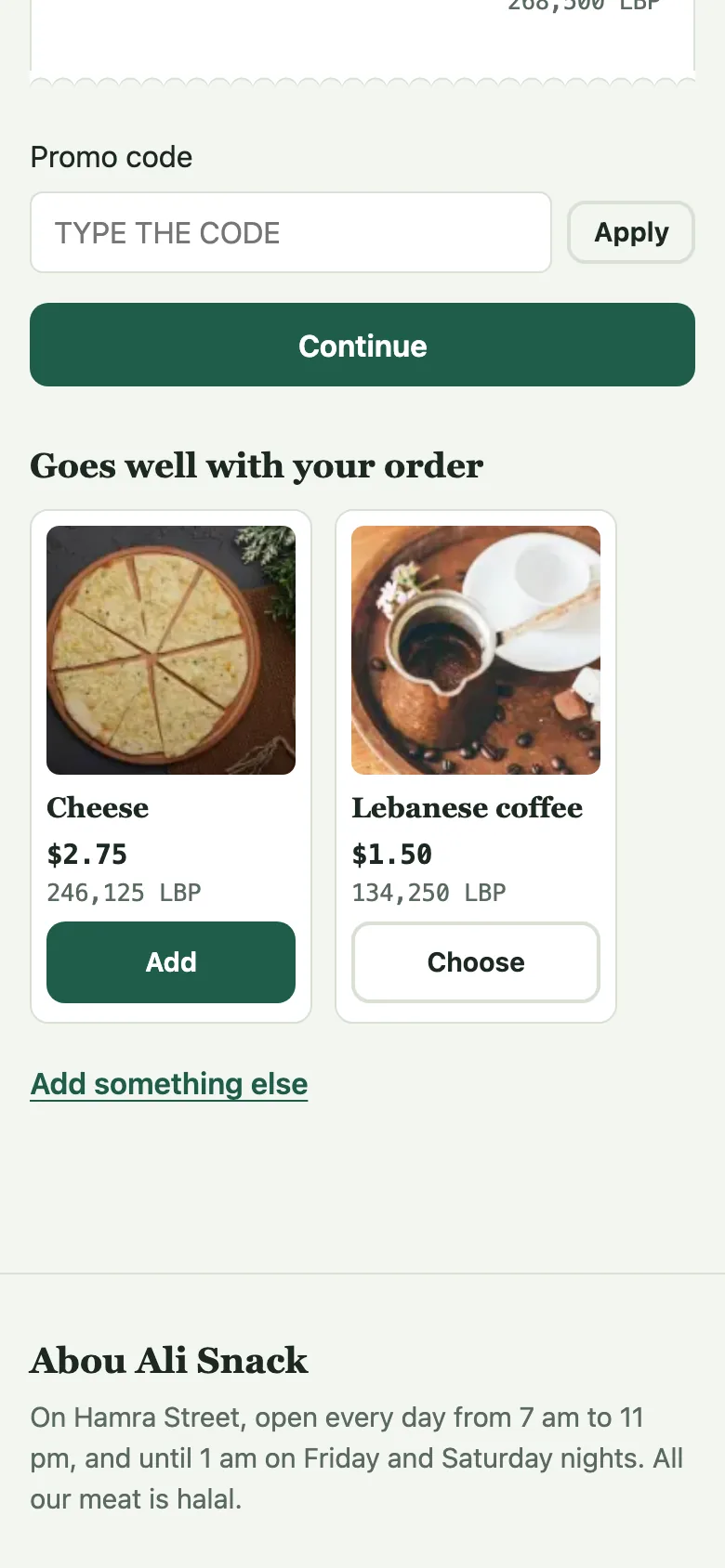
A code that does not hold says why: There is no code NOPE here., The code SUMMER10 is no longer on., The code SUMMER10 has not started yet., The code SUMMER10 has ended. or The code SUMMER10 has been used as many times as it can be. A minimum not reached keeps the code waiting, The code BIG is for orders of $15.00 or more: add $5.00 to use it., so that adding a dish makes it count. Twenty wrong codes in an hour from one phone are refused for an hour.
The order keeps the code and the amount off: as Code SUMMER10 on its page in the admin (see Orders), on the customer's page and in the WhatsApp message. One use is taken when the order is placed, and two customers cannot both take the last one; if the code changed between the checkout and the order, the customer is asked to check the total and place it again.
Not found what you were looking for? Write to us at support@watadish.com or message us on WhatsApp: WhatsApp