Help · Your menu
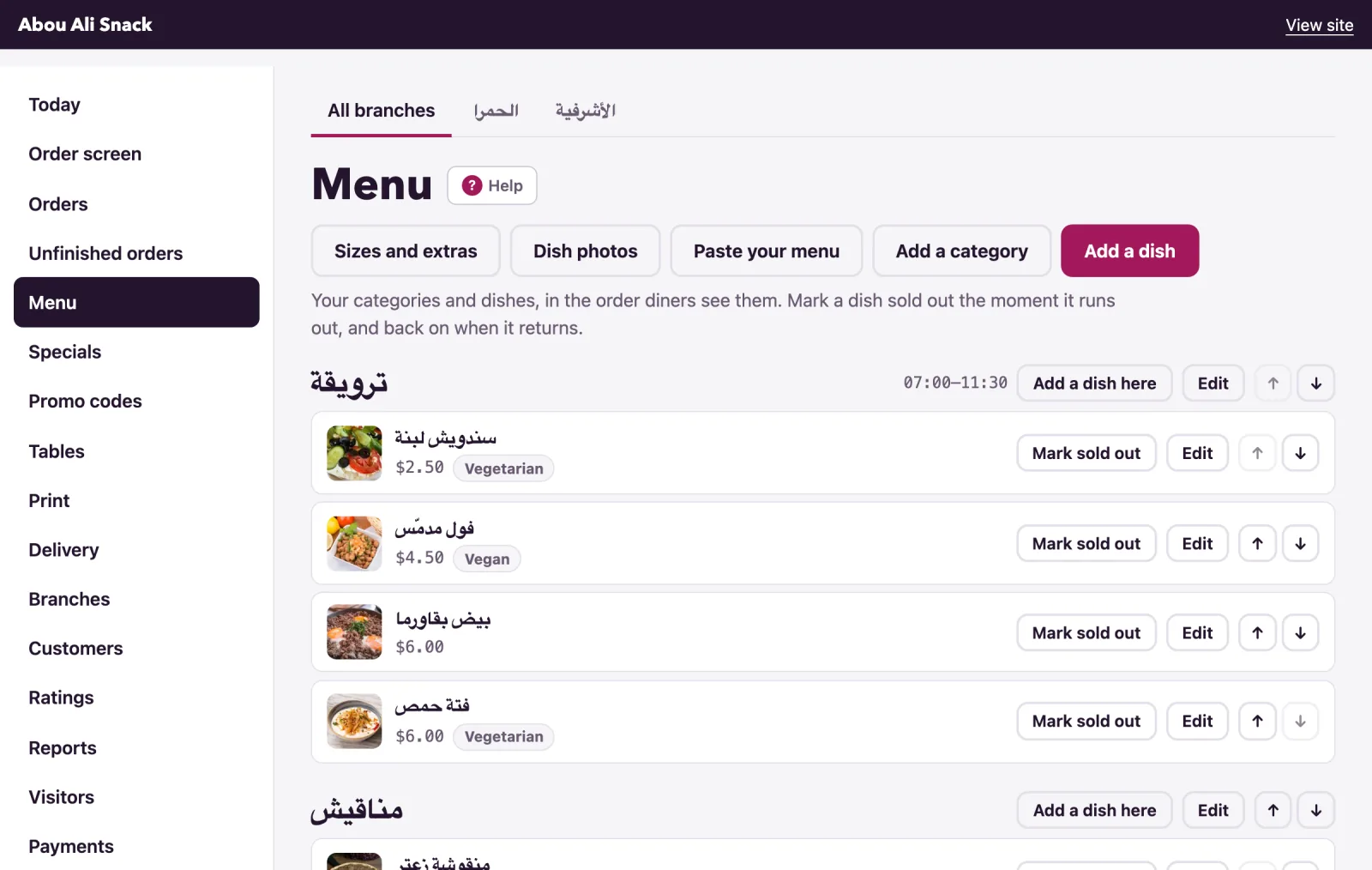
Menu: categories and dishes
Build the menu diners see: categories, dishes, prices, labels, sold out, and what each branch sells.
Included in every plan.
The Menu page is your menu as diners see it: your categories and dishes, in the order they appear on your site. A category is a heading of the menu with its dishes under it; every dish lives in one. The owner and managers shape the menu; staff open the same page only to mark a dish sold out and back.
Note: While your menu is kept in Amberlock POS, the page says so: categories, dishes, prices and choices are saved in the POS first, and only photos, labels, allergens, details, hours and branches are kept here. See the POS link.
Add a category
- On Menu, press Add a category.
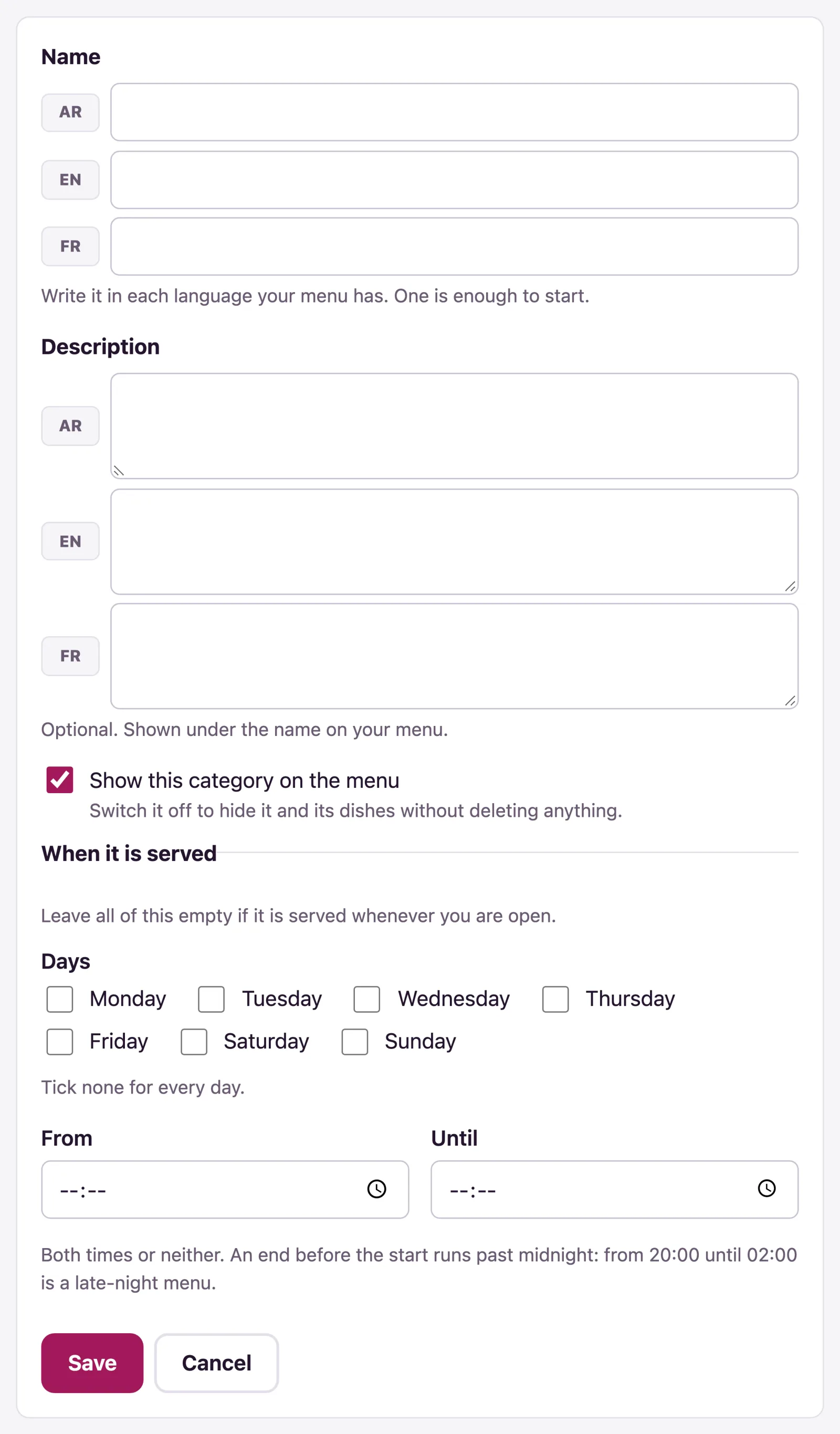
- Give it a Name in each language your menu has; one is enough to start. A Description is optional, shown under the name.
- Leave Show this category on the menu ticked. Unticked, it hides the category and its dishes without deleting anything; the list marks them "Hidden".
- Save. The Move up and Move down arrows beside it on the Menu page put it where you want.
Where your plan includes serving a category on some days or at some hours only, the form also has When it is served: tick Days (none for every day) and give From and Until, both or neither; from 20:00 until 02:00 runs past midnight. Diners see "Served 07:00–11:30" and, outside those hours, "Not served right now" (with "order it for later" where they can order ahead). Without the plan, every category is served whenever you are open.
To remove a category, open it with Edit and press Delete this category: its dishes go with it, and this cannot be undone.
Add a dish
- Press Add a dish, or Add a dish here on its category.
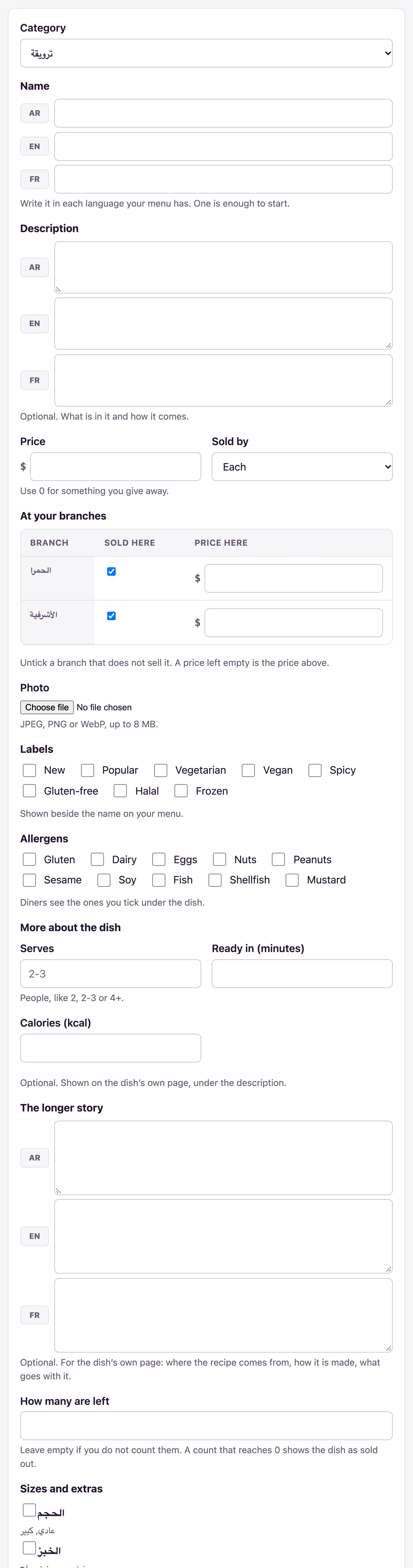
- Choose its Category, give its Name in each language and, if you like, a Description.
- Type its Price, such as 8.50; 0 for something you give away. Sold by is Each, The pack or The kilo; the menu tags a dish "By the pack" or "By the kilo".
- Add a Photo (JPEG, PNG or WebP, up to 8 MB). To give every dish one in one place, see Dish photos.
- Tick its Labels (New, Popular, Vegetarian, Vegan, Spicy, Gluten-free, Halal, Frozen), shown beside the name, and its Allergens (Gluten, Dairy, Eggs, Nuts, Peanuts, Sesame, Soy, Fish, Shellfish, Mustard), shown as "Contains: gluten, dairy" under the dish.
- Where your plan has dish details, fill in More about the dish: Serves (2, 2-3 or 4+), Ready in (minutes), Calories (kcal) and The longer story, for the dish's own page.
- Under Sizes and extras, tick the groups of choices it offers: see Dish options and extras.
- Leave Show this dish on the menu ticked (unticked hides it without deleting it), and Save.
The arrows beside a dish move it one place. Delete this dish on its form removes it for good.
Branches
With branches, the dish form lists each under At your branches: untick Sold here for a branch that does not sell the dish, and give a Price here where it costs something else there. On the Menu page, the All branches tab and a tab for each branch show the list as that branch sells it, with "Not sold here" on a dish it leaves out.
Sold out, and back
When a dish runs out, press Mark sold out beside it: diners still see it, greyed, with a "Sold out" tag and no Add button. Press Back on the menu when it returns. Staff can do this from the pass. With branches, pressing it on a branch's tab marks the dish out at that branch only ("Zaatar is sold out at Hamra.").
Where your plan counts stock, the dish form has How many are left; leave it empty if you do not count. Each order takes from the count, the list shows "3 left", and at 0 the dish shows as sold out. A fresh count puts it back on; a dish you marked sold out by hand stays out until you press Back on the menu.
The dish limit
Where your plan caps the number of dishes, the page says "18 dishes of the 50 your plan allows." At the limit the Add a dish button goes and adding one is refused: "Your plan allows 50 dishes. Remove one, or move to a larger plan." The owner is offered See the plans; a manager is told the owner can move to a larger plan from the Plan page. On a closed account everything can be looked at, but nothing changed.
What diners see
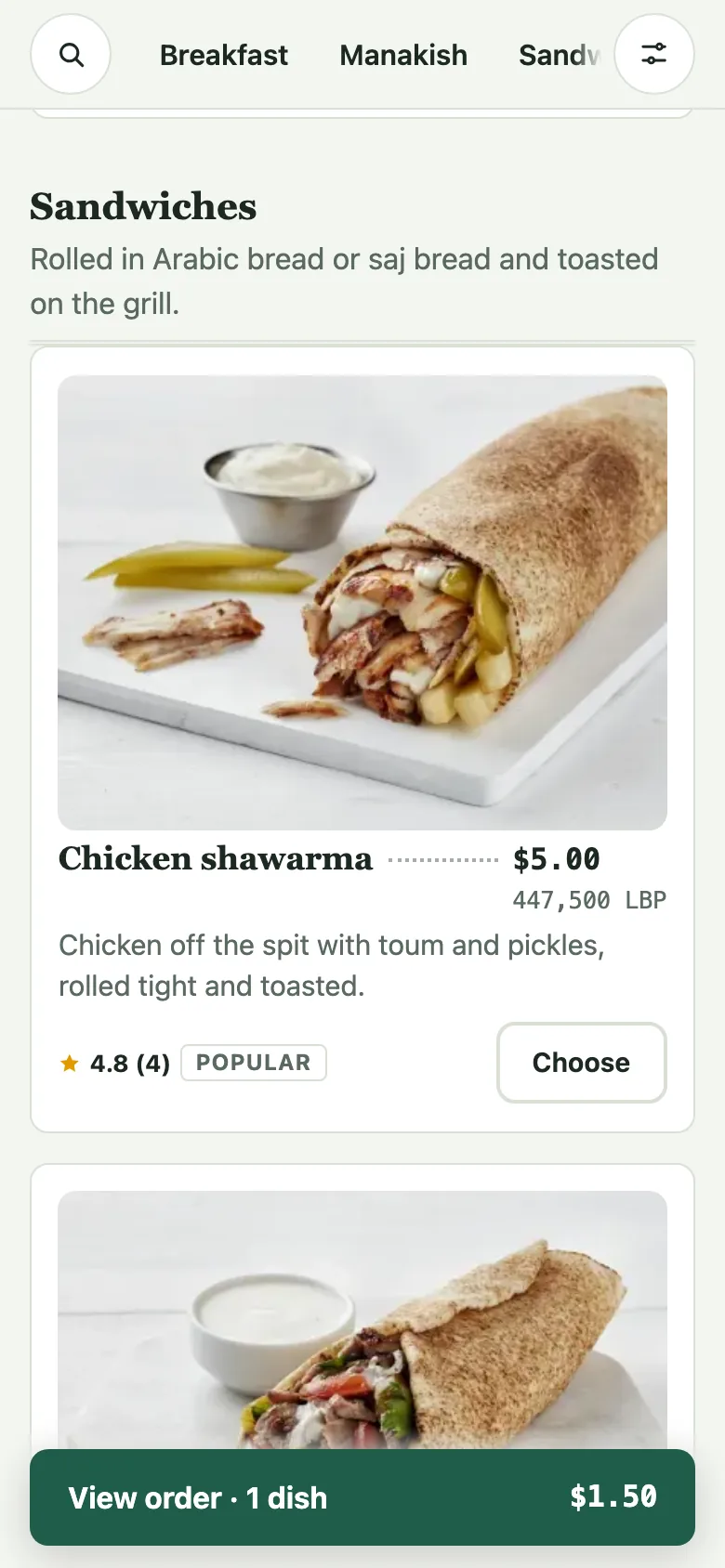
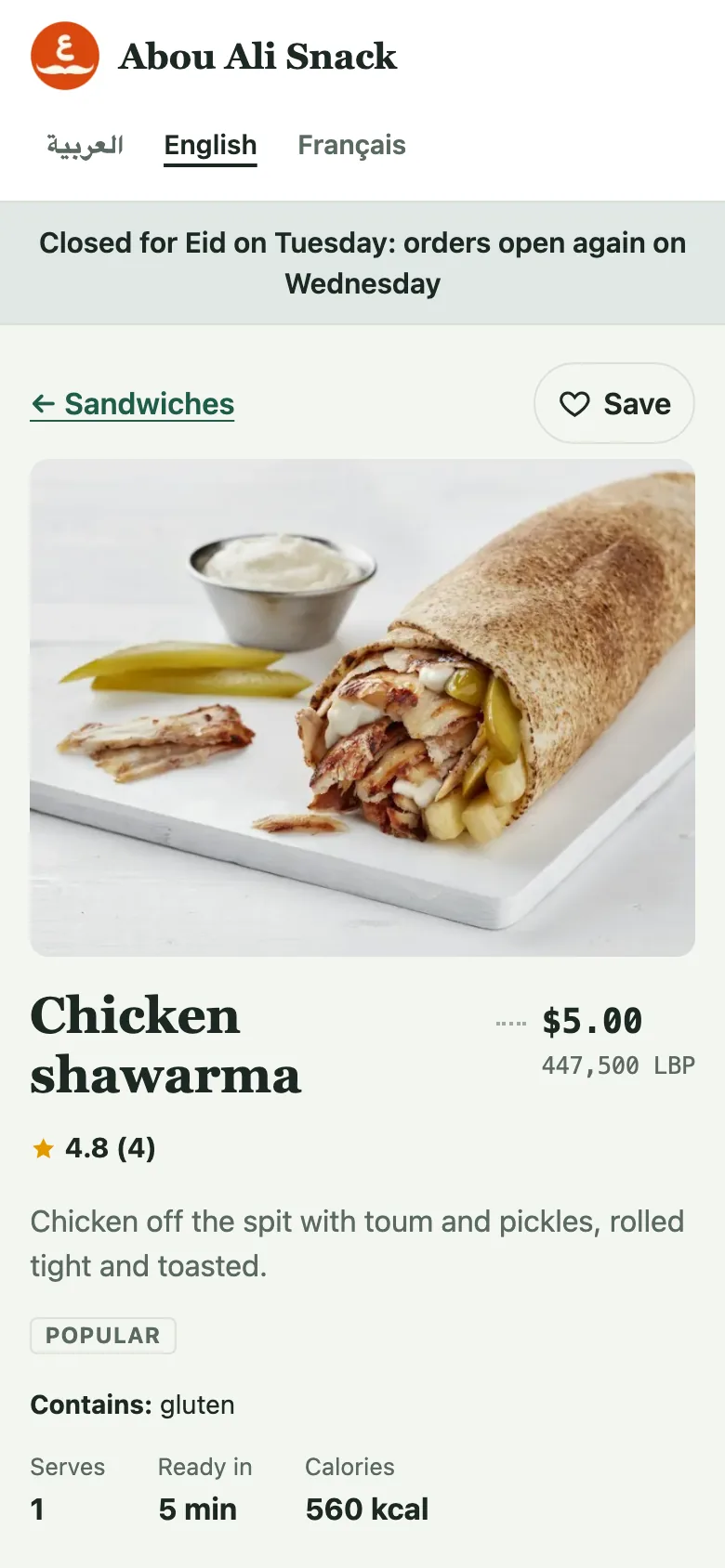
The menu lists your categories in order, with a bar at the top to jump between them; a hidden category or dish, or a category with no dishes, is not there. Each dish shows its name, price, description, labels and photo (or its first letter), with Add, or Choose when it asks for a choice first. Its own page shows the photo wide, the full description, "Contains:", the details and the story.
Not found what you were looking for? Write to us at support@watadish.com or message us on WhatsApp: WhatsApp