Help · Tables, print and delivery
Tables and QR codes
A code on every table, ordering from the table, and a diner calling for the waiter.
Included in: StandardPro
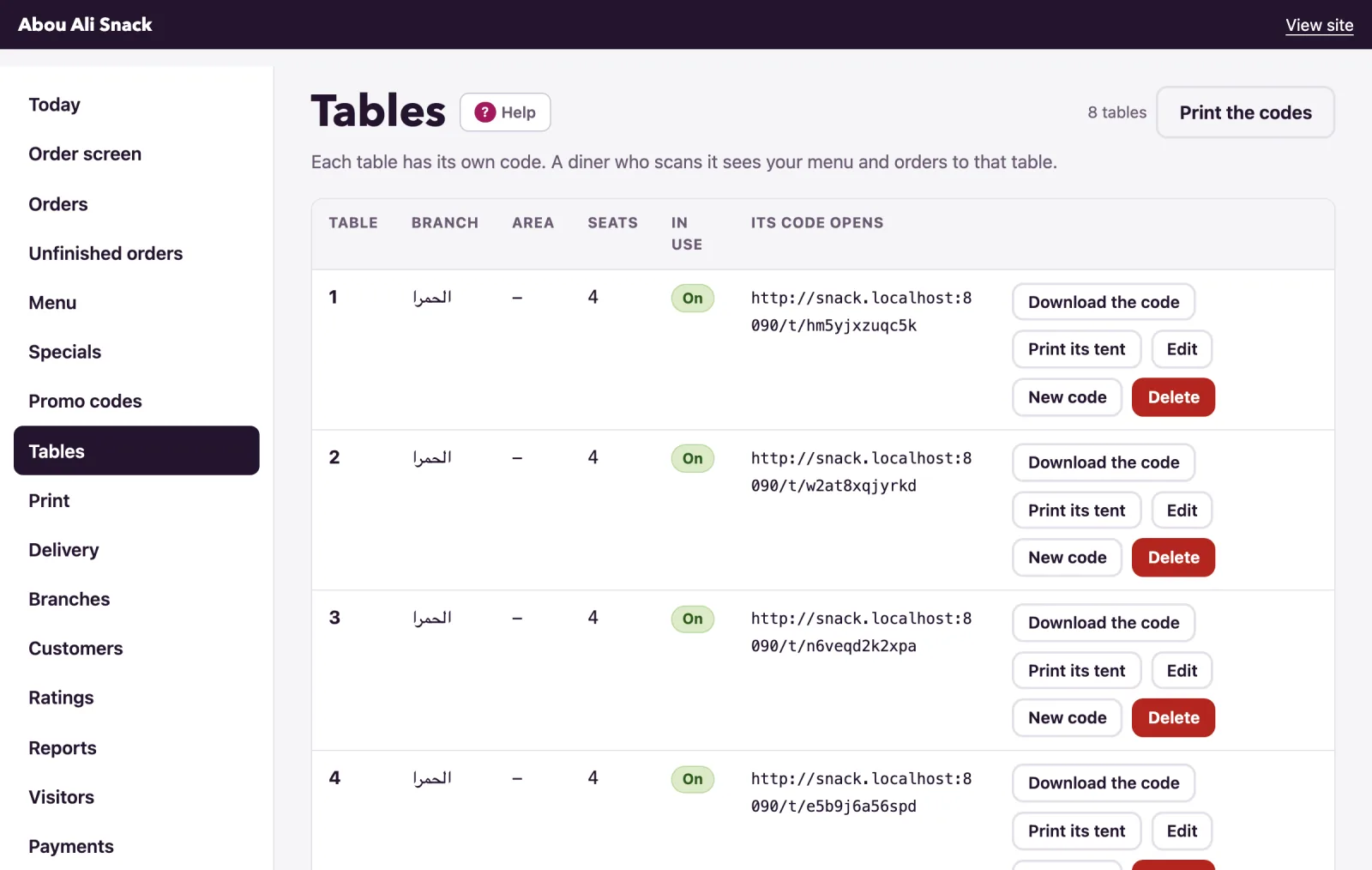
Each table has a QR code of its own. A diner who scans it sees your menu and orders to that table - no app needed - and can call a waiter or ask for the bill from the same page. The Tables page lists your tables, what their codes open and the calls coming in; the codes themselves are printed from the Print page. Everyone on the team sees the tables, downloads a code, prints a tent and answers calls; adding, changing and removing tables is for a manager or the owner.
Add your tables
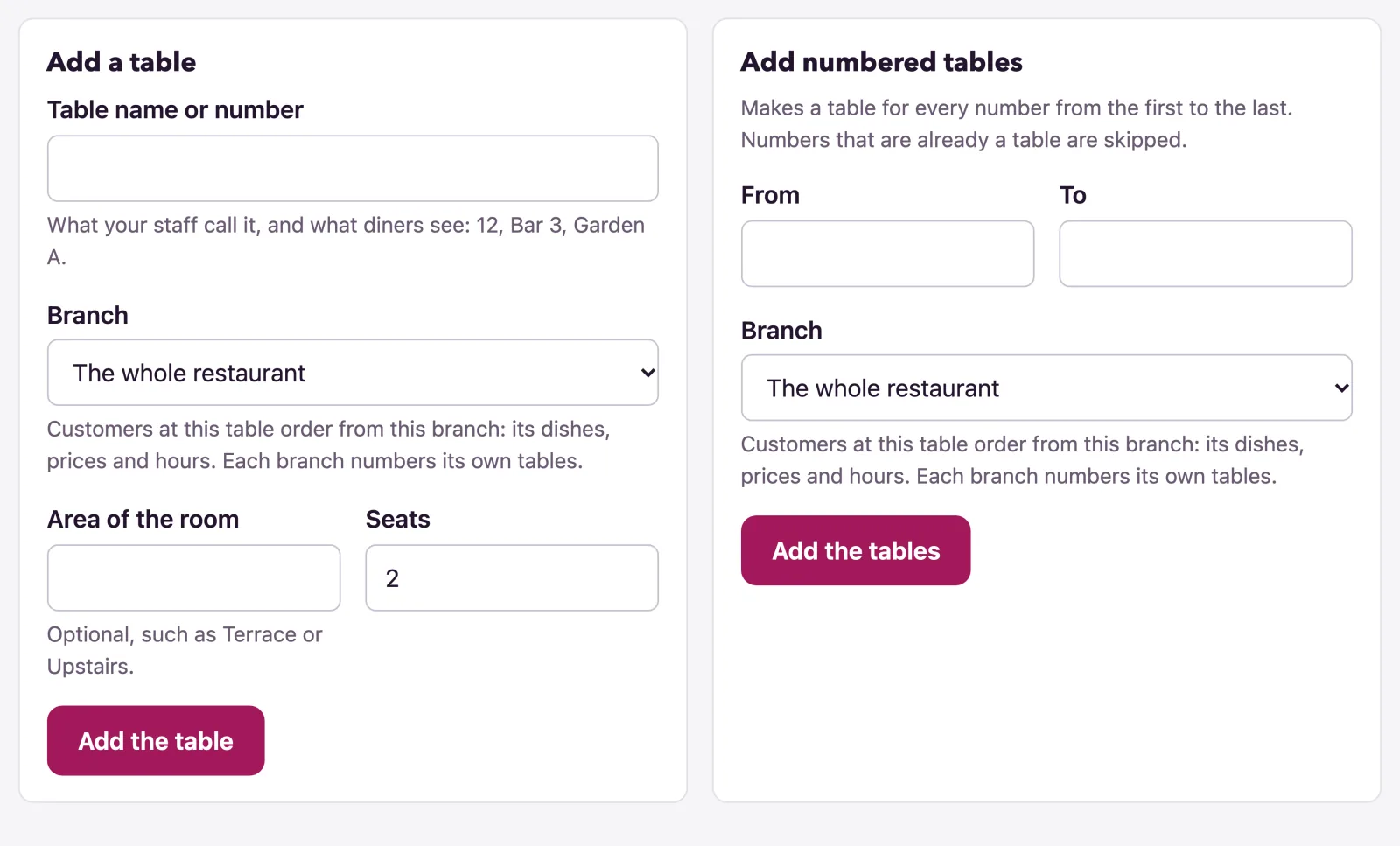
Under the list are two ways to add tables:
- Add a table, for one: its Table name or number - what your staff call it and what diners see, such as 12, Bar 3 or Garden A - the Area of the room if you like, such as Terrace, and its Seats. Then Add the table.
- Add numbered tables, for many at once: From 1 To 20 makes a table for every number between, up to a hundred at a time. Numbers that are already a table are skipped.
Two tables cannot share a name. The count at the top says how many tables your plan allows, as 8 of 15 tables on your plan; at the limit the forms make way for the way to a larger plan.
Each table’s code
Every row shows what Its code opens: an address of your site that seats whoever scans it at that table. Beside it:
- Download the code saves the QR code alone, as an SVG file, for a print shop.
- Print its tent opens that table’s tent on the Print page, to print again when one goes missing.
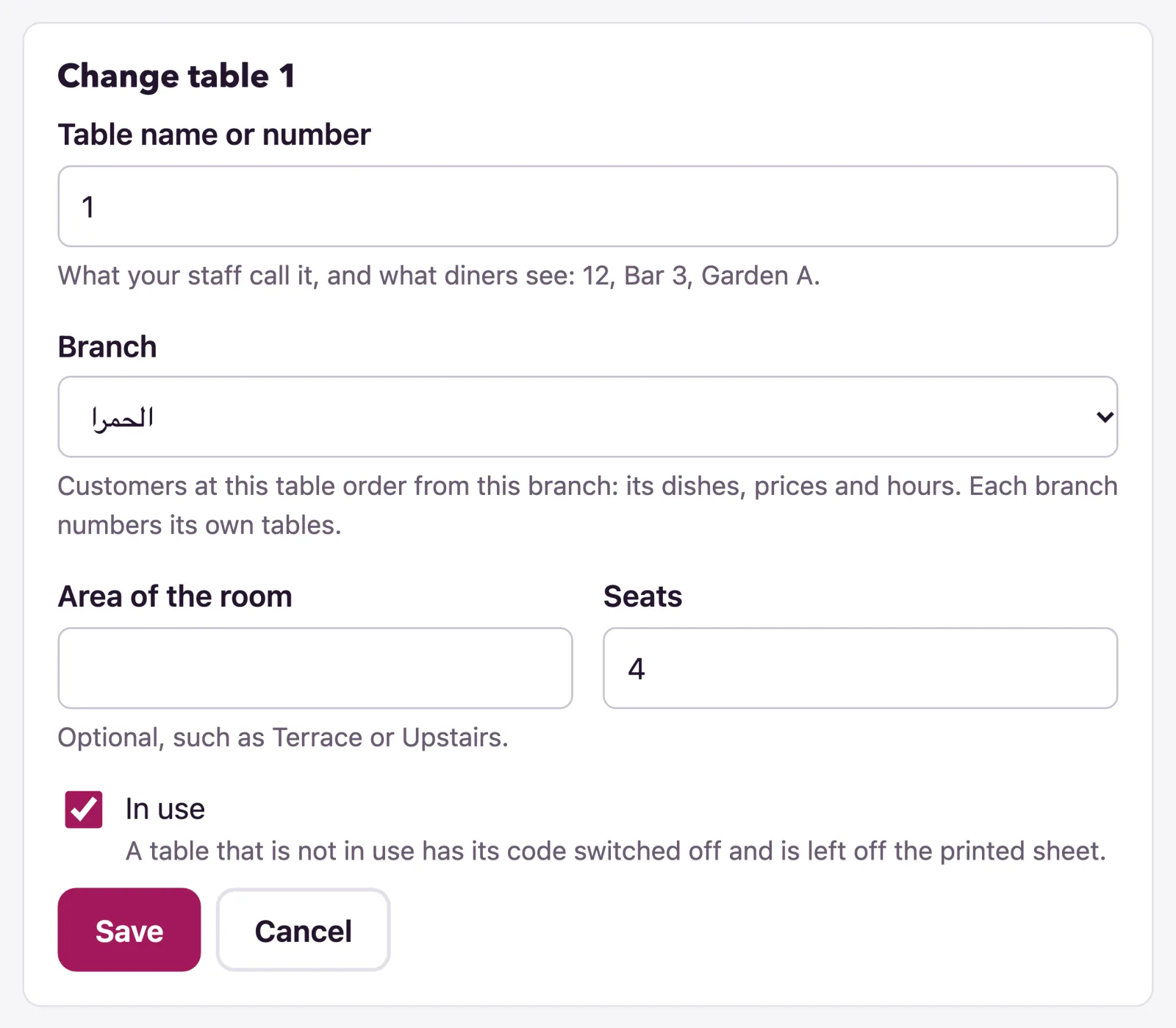
- Edit changes the name, area, seats or branch; the code stays as it was, so what is printed keeps working.
- New code retires the printed code at once and gives the table a fresh one. Print its tent again afterwards.
- Delete removes the table; its printed code stops working.
A table that is not In use keeps its row, but its code is switched off and it is left off the printed sheets. While you are taking orders, the last table in use cannot be switched off or removed if it is the only way left to order - pickup off and no delivery area in use - and the page says what to switch on first.
What the diner does
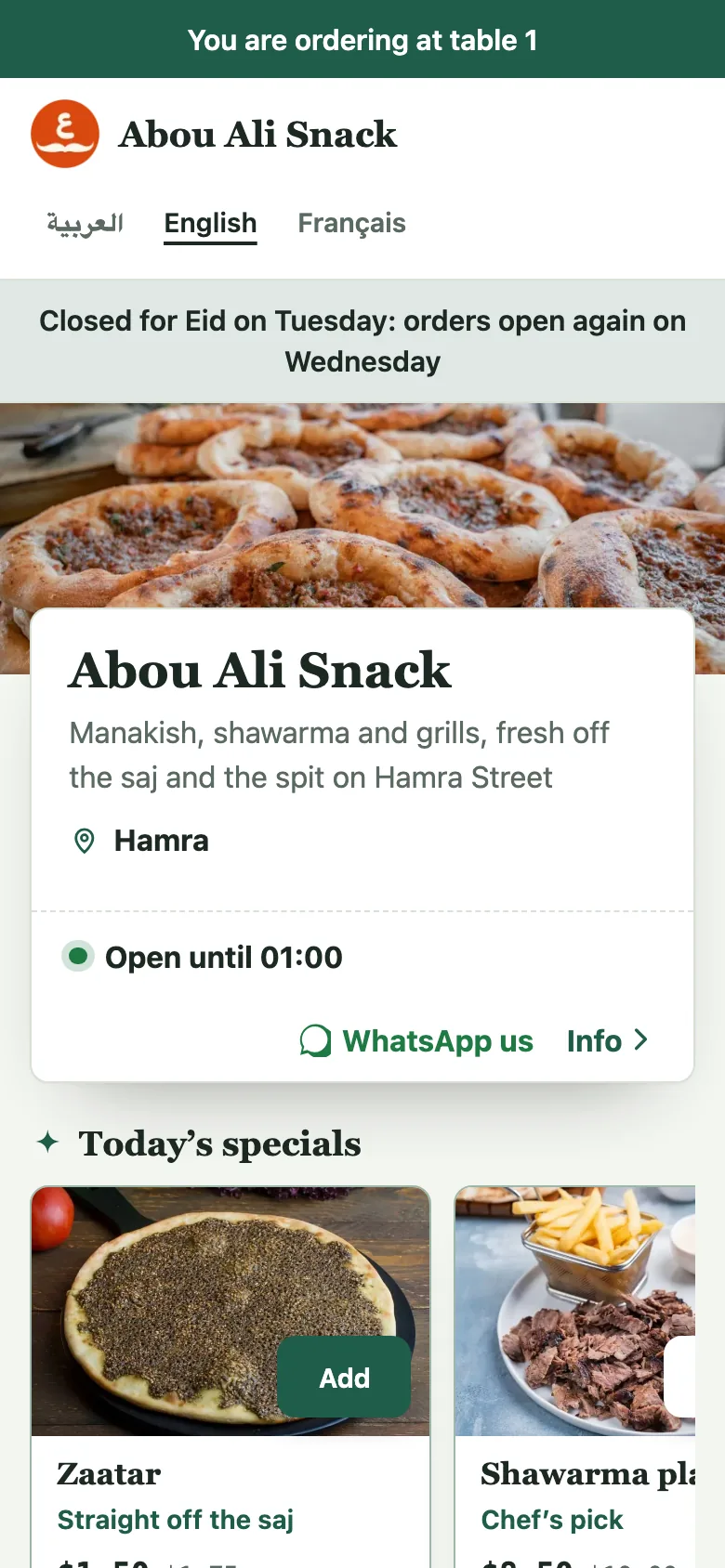
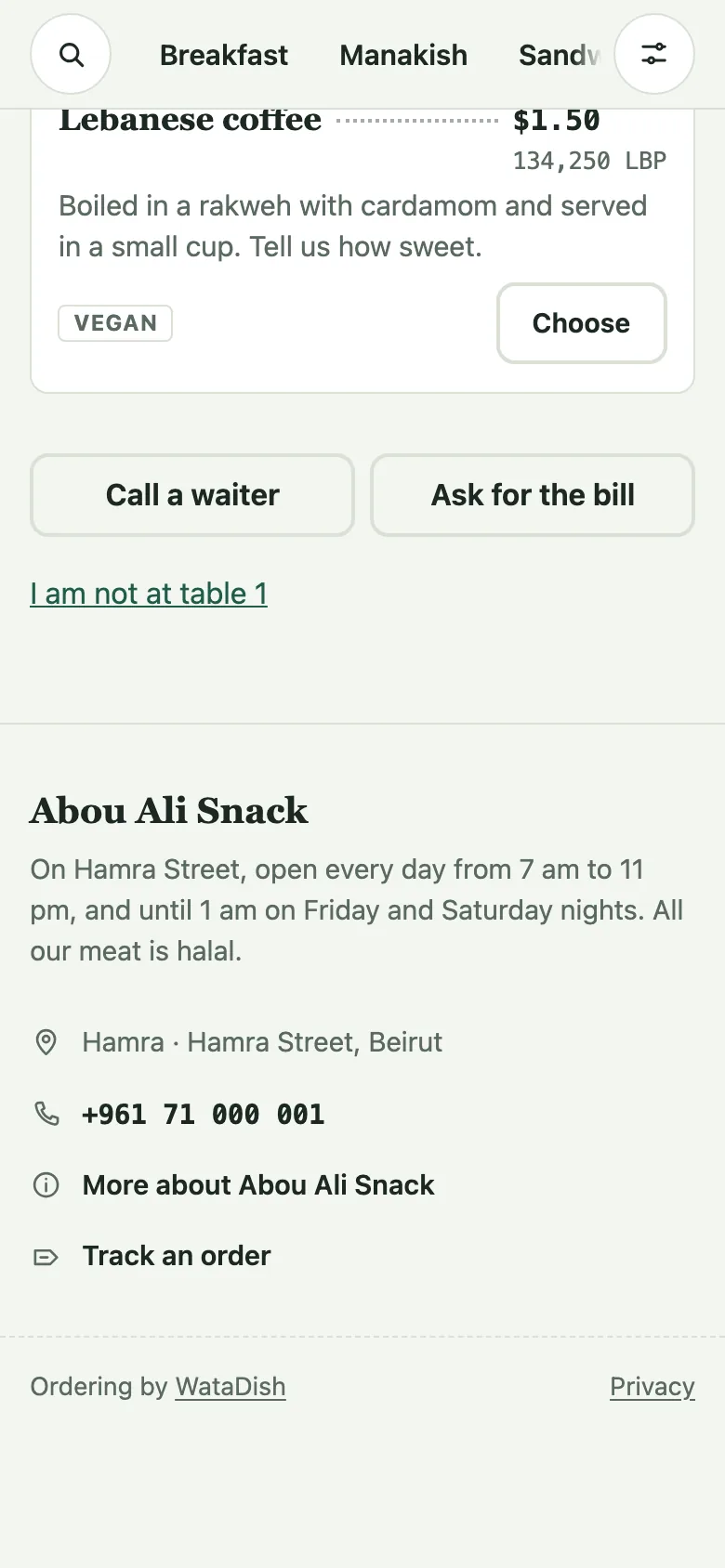
Scanning the code opens your menu with You are ordering at table 4 across the top. The phone remembers the table for four hours, so tomorrow’s pickup from the same phone is not sent to table 4. A diner who has moved taps I am not at table 4 at the foot of the menu.
At the table nobody has to give a name or a number. The checkout says This order will be brought to table 4, with Stay in touch (optional) for a diner who wants their orders kept together, and the ways to pay you take: Cash, paid when they leave; a Whish or OMT transfer; or Card, paid online there and then. The order reaches the order screen as Table 4, like any other.
A table is served now or not at all: outside your opening hours the menu can be read, but nothing can be sent from the table. If ordering at the table is switched off in Settings, or your plan has none, the same code opens the menu to read, headed Table 4 · order from your waiter - so you can print your tents on day one and switch ordering on later without printing again.
Calls from the table
Below the menu, a seated diner has Call a waiter and Ask for the bill. Each shows at once on the Tables page under Tables calling - Table 4 wants a waiter, Table 4 asks for the bill, with the time - and on the order screen. Whoever goes to the table presses Done. The buttons are there during opening hours, on the plans with calls, and not while your orders go to WhatsApp only. Pressed again and again, a button reaches you three times a minute at most.
Tables at a branch
With branches, every table belongs to one, or to The whole restaurant, chosen on its form as Branch. Each branch numbers its own tables, so both can have a table 1, and the tents say whose it is. A diner at a branch’s table orders from that branch, at its prices and in its hours. A branch switched off takes its tables with it: a diner whose table went is told that ordering at it is off and to ask a member of staff.
Not found what you were looking for? Write to us at support@watadish.com or message us on WhatsApp: WhatsApp