Help · Getting started
Team and roles
Invite managers and staff by email, what each role may do, change a role, resend an invitation, remove someone.
Included in: StandardPro
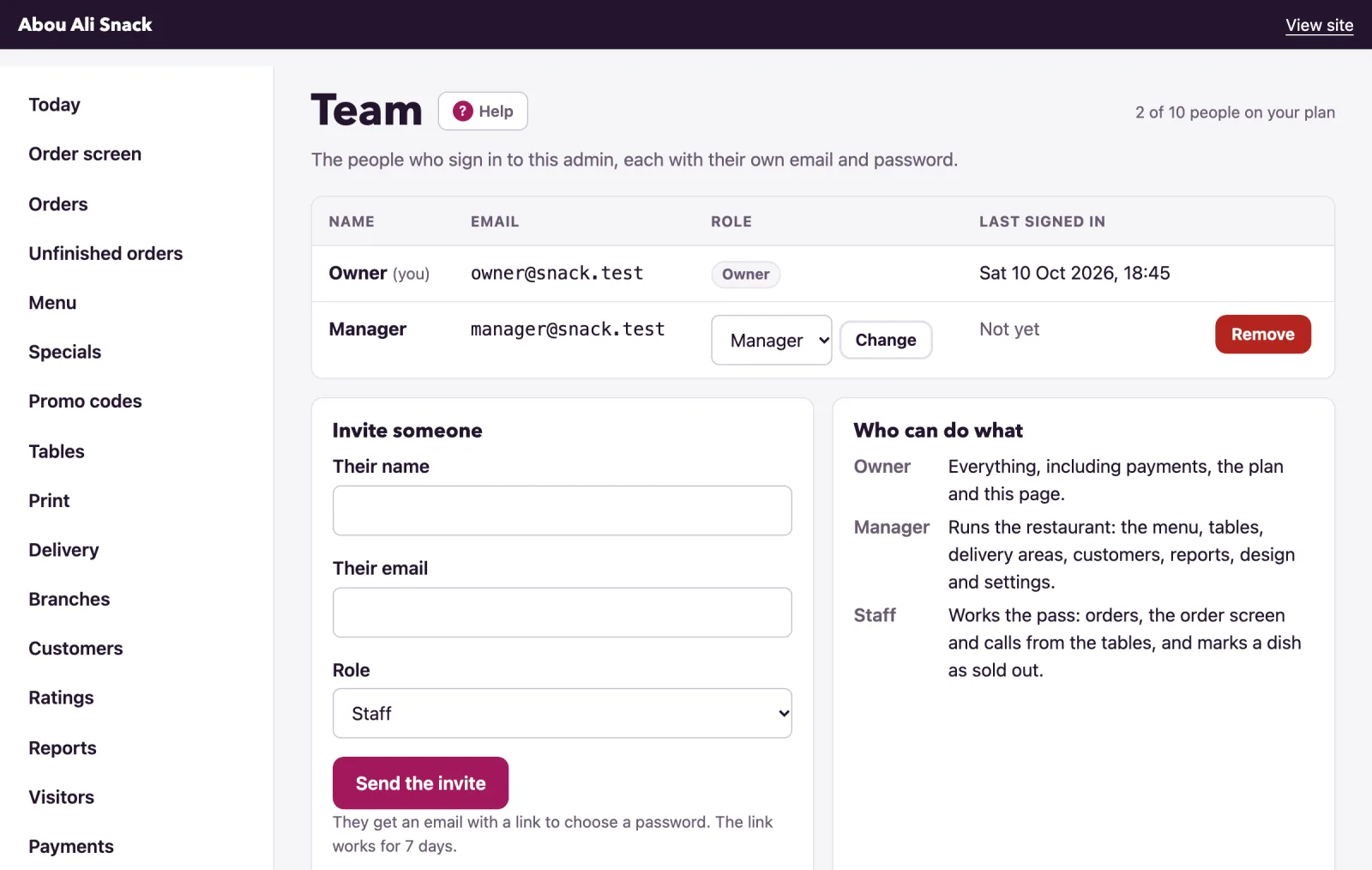
Team lists the people who sign in to your admin, each with their own email and password, and is where the owner invites a manager or a member of staff. Only the owner opens it: a manager or staff member who tries is sent back to the dashboard and told That page is not open to your role. The count at the top says how many of the people your plan allows are on the team - the owner counts too. Inviting comes with the plans the page names.
Invite someone
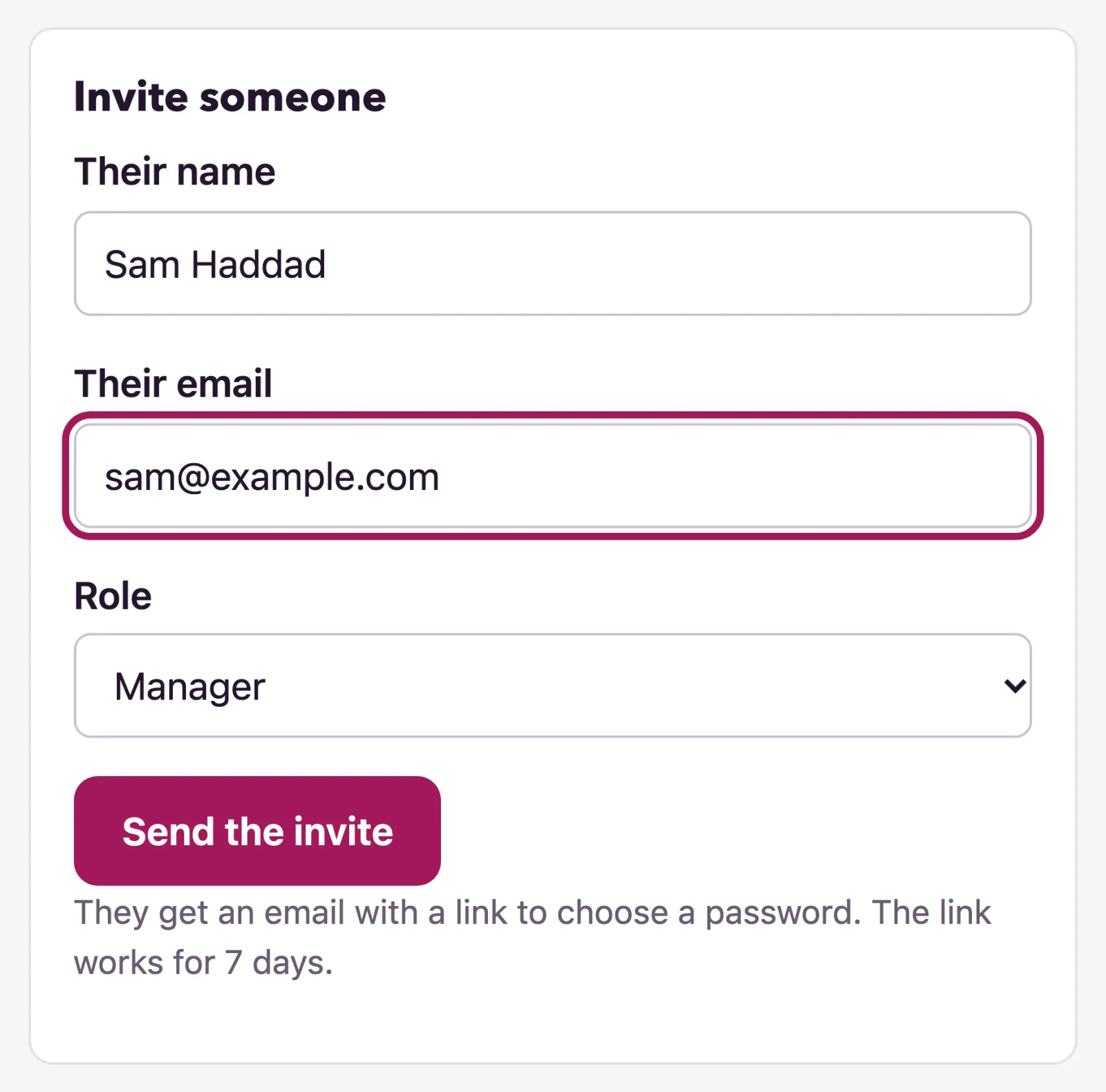
- Under Invite someone, write Their name and Their email, choose a Role - Manager or Staff - and press Send the invite.
- They get an email, You have been added to {restaurant} on WataDish, with a link to choose a password. The link works for seven days.
- Until they have chosen one their row says Invited under Last signed in; afterwards it shows when they last signed in. Once the link has run out the row says Invite ran out: press Send the invite again for a fresh one.
An email already on the team is refused, and nobody is invited as an owner: the owner is the person who signed the restaurant up. At your plan's limit the form gives way to a note and the way to a larger plan; remove someone to make room.
The three roles
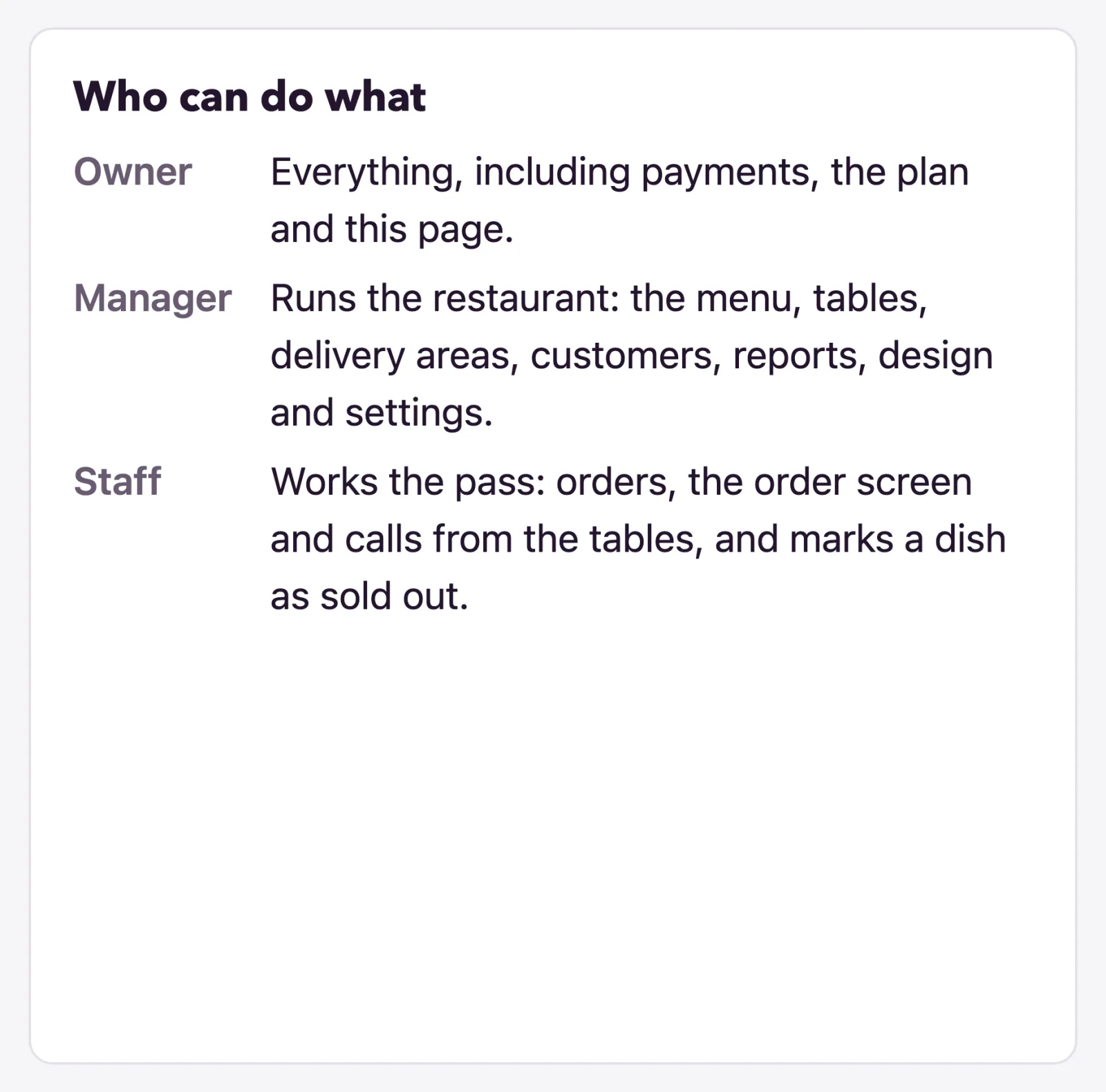
Who can do what on the page sums them up. In full:
Staff work the pass. They open the dashboard, Orders and each order - accepting it, moving it along, marking cash paid, verifying or reporting its customer - the Order screen, calls from the Tables (and the tables page, to look at), Print to reprint a lost table tent, and the Menu list only to press Mark sold out. The Settings page shows them nothing but their own password form. They cannot refund an order or edit the menu, and Customers, Ratings, Reports, Visitors and Design are closed to them.
Manager runs the restaurant: everything staff can, plus the menu and its photos, specials, promo codes, tables, delivery areas, branches, Customers (a copy of their details, offers, verifying and reporting - not erasing), Ratings and hearts, Reports, Visitors, Design, the restaurant's home page, printing, the settings, and refunding an order.
Owner does everything, including the money and the account: Payments and payouts, the supplier details, the Plan and its billing, the site's own Domain, the Integrations page for a POS link, erasing a customer for good, and this page. Nobody is made an owner from here.
Changing a role
Pick the new role in the row's list and press Change. It applies from their next click, and the page confirms it: Sam is now Manager. You cannot change your own place on the team, and the owner's row has no control.
Sending an invitation again
For someone who has not chosen a password yet, Send the invite again emails a fresh link, good for another seven days; the old one stops working. Once they have a password the button is gone: a forgotten password is theirs to reset with Forgot your password? on the sign-in page.
Removing someone
Press Remove on their row and confirm: Sam can no longer sign in. A session of theirs still open ends at their next click. Removing works on every plan, so a restaurant that moved to a smaller plan can get back under its limit. You cannot remove yourself or the owner.
When the plan has no team
On a plan without team roles only the owner can sign in. Managers and staff stay listed, marked Cannot sign in on this plan, and get their access back when the plan has a team again; meanwhile the sign-in page tells them to ask the owner, and a session already open ends at the next click. Invitations cannot be sent or sent again on such a plan.
Your own password
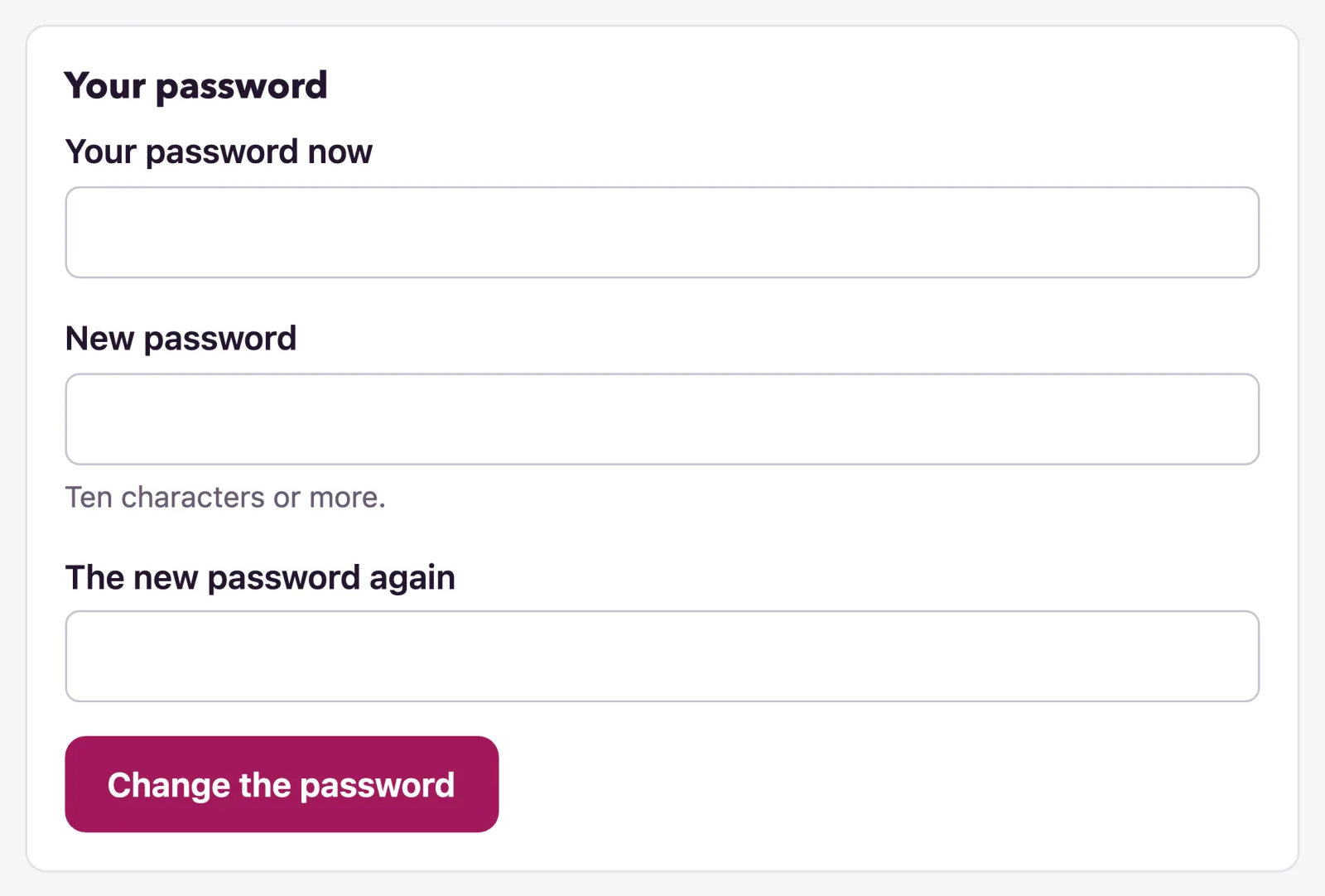
Every member, the owner included, changes their own password under Your password on the Settings page: Your password now, the New password (ten characters or more), The new password again, then Change the password. Changing it signs you out everywhere else. A session ends by itself after twelve hours without a click.
Not found what you were looking for? Write to us at support@watadish.com or message us on WhatsApp: WhatsApp