Help · Customers and figures
Reports
Sales by period and by branch, what each figure counts, and the spreadsheet of every order with its columns.
Included in: StarterStandardPro
Reports says what sold, when and how, over a period counted in your restaurant's own days. A manager or the owner opens it, and the dashboard shows the same takings to whoever may; staff do not see either. On a plan without reports the page says what a larger plan would show.
Periods and branches
Choose the period across the top: Today, Last 7 days, Last 30 days or This month. The line under the tabs says the exact days and your timezone: a day runs from midnight to midnight where you are, so an order placed at one in the morning belongs to that day, not to the evening before.
A restaurant with branches gets a second row: All branches, or one branch's own figures and spreadsheet. An order counts at the branch where it was placed; orders from before you had branches show as Not at a branch.
What the figures mean
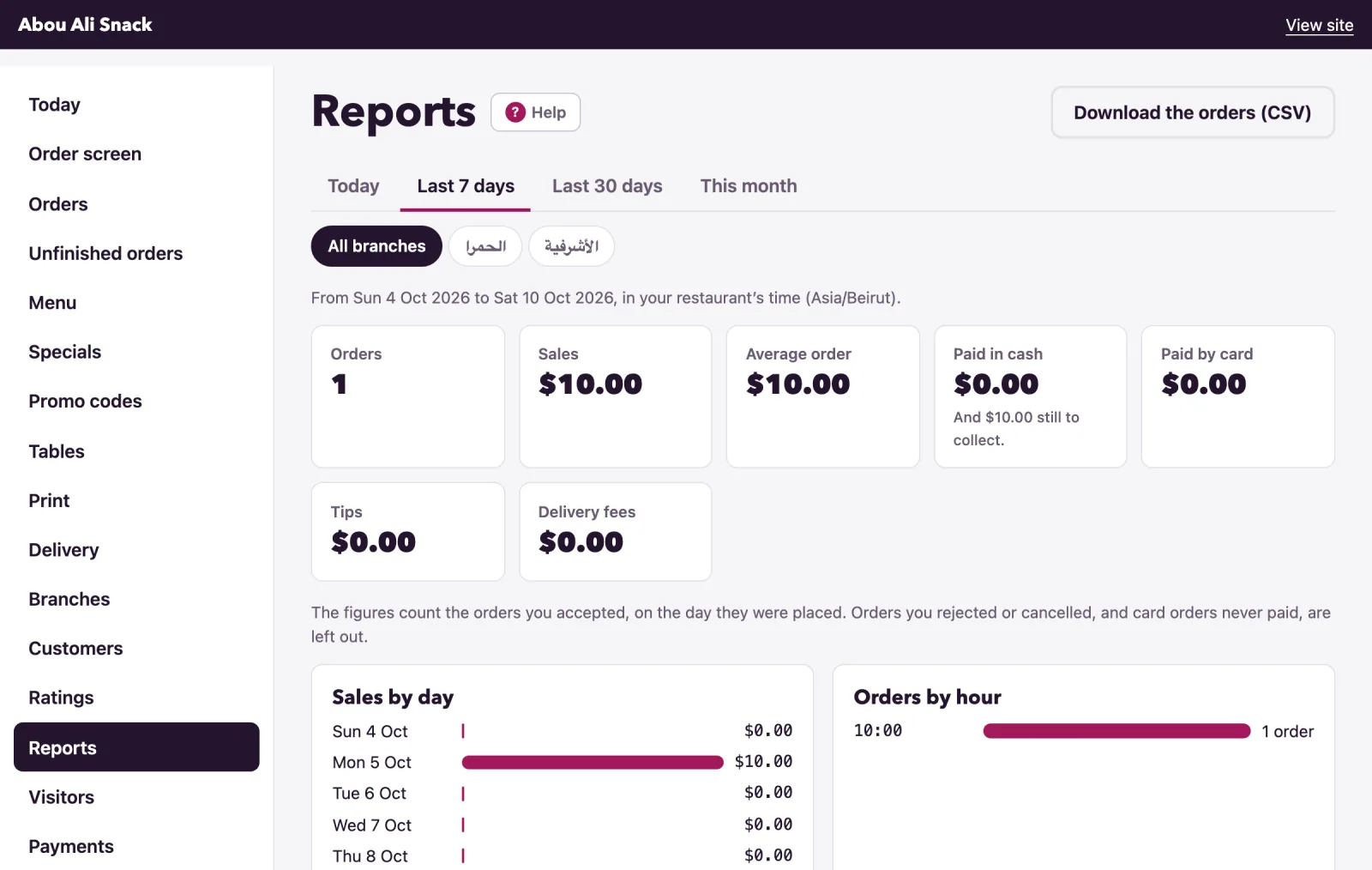
The figures count the orders you accepted - accepted, preparing, ready, out for delivery or completed - on the day they were placed. Orders you rejected or cancelled, orders still new on the screen, and card orders never paid are left out.
- Orders: how many.
- Sales: their totals added up - the dishes less any promo discount, plus delivery fees and tips.
- Average order: sales divided by orders.
- Paid in cash: the cash orders you marked paid. Under it, And $12.00 still to collect. is the cash orders accepted and not marked paid yet.
- Paid by transfer: Whish and OMT transfers you marked received, and what is still to check for. The tile appears once you have taken a transfer.
- Paid by card: orders paid by card through WataDish.
- Tips and Delivery fees: what each added to the totals.
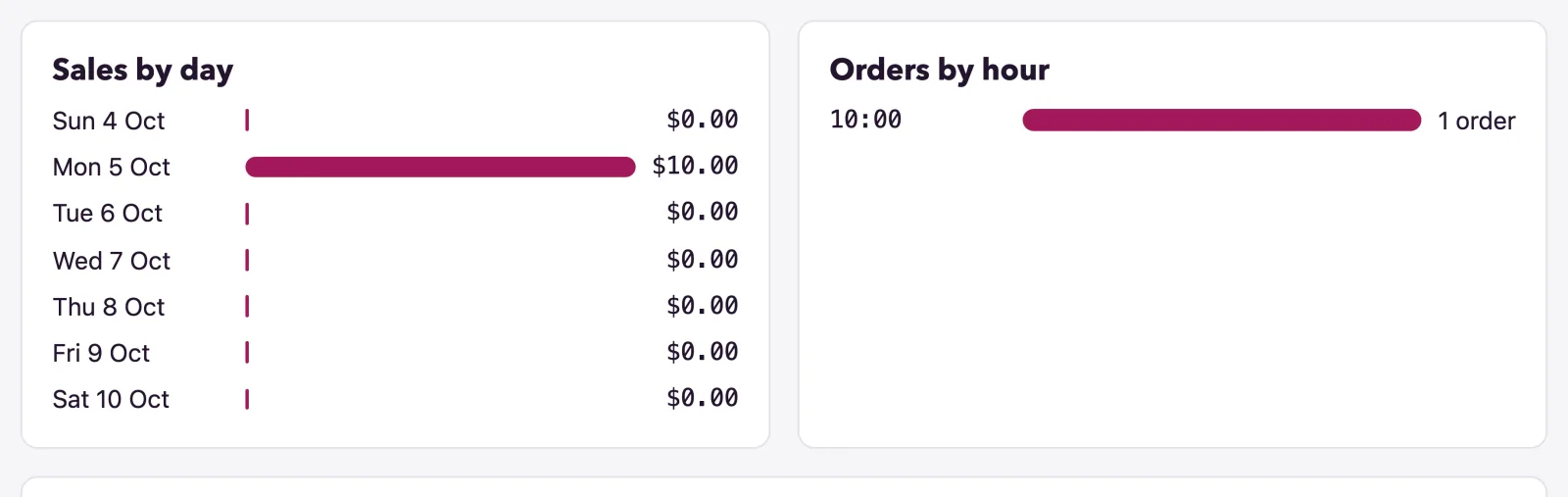
Sales by day draws a bar for each day of the period, quiet days included, so a gap reads as a gap. Orders by hour counts the orders of each hour, from the first order of the day to the last. Sales by branch, shown with branches while all are selected, compares them; each name opens that branch's own figures.

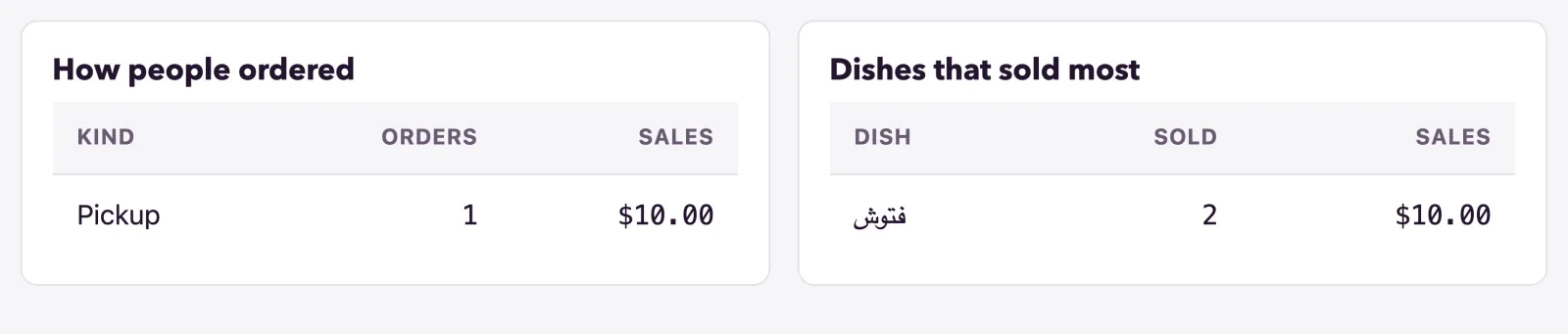
How people ordered splits orders and sales between At the table, Pickup and Delivery. Dishes that sold most lists the ten best sellers of the period, how many were Sold and their Sales.
The spreadsheet
Download the orders (CSV) saves every order of the period - the chosen branch's, when one is selected - as a file for Excel or Google Sheets, oldest first, as a till roll reads. Unlike the figures it lists every order with its status, rejected and cancelled ones too, so the day can be checked against the till. The columns:
- Code and Number: the order's code, which the customer sees, and its running number.
- Placed: date and time, in your restaurant's time.
- Kind: At the table, Pickup or Delivery, in the admin's own words.
- Status: as the Orders page shows it - New, Accepted, Completed, Rejected and so on.
- Customer and Phone: the name given, and the number written as 00961 71 123 456, which no spreadsheet turns into a sum.
- Delivery area: for a delivery, in your menu's first language.
- Dishes, Promo discount, Delivery fee, Tip, Total and Currency: plain decimals that add up. Dishes less the discount, plus the fee and the tip, is the total.
- Paid by: Cash, Transfer or Card.
- Payment: Paid, Not paid yet, Waiting, Partly refunded, Refunded, or Nothing to collect for a cash order rejected or cancelled before anyone paid.
- Branch: which branch took the order, at a restaurant with branches.
The file is named after its days (orders-2026-10-01-to-2026-10-07.csv, with the branch's short name when one is selected). A customer's name that looks like a formula is kept as text, and Arabic names open correctly in Excel.
Tip: The number of Orders placed on the Visitors page counts every order a visitor sent, paid or not; Reports counts the orders you accepted, so the two can differ.
Not found what you were looking for? Write to us at support@watadish.com or message us on WhatsApp: WhatsApp