


Help · Money
Add-ons
Put on what your restaurant uses, by the month or the year, on top of your plan or the free account; take it off whenever you like.
Included in every plan.
An add-on switches one part of WataDish on for your restaurant, on top of what your plan already gives you: online ordering, ordering at the table, card payments, your own domain, a home page, your customers and marketing, automatic WhatsApp updates, reports, menu extras, a daily menu and meal plans, catering, bookings, the POS link and the API, extra branches and extra logins. You pay for each one by the month or by the year, and take it off whenever you like.
The Add-ons page is under Your restaurant in the admin's menu, beside Plan. The owner adds and removes add-ons; a manager can open the page and see what is on (Only the owner can add or remove add-ons.), and staff do not see it. Prices are the add-ons' own and can change: the page always shows today's, so look there rather than here.
The free account and plans
The free account is a menu with its QR codes: your dishes, your table tents and your page on WataDish, with no monthly fee. Everything else is an add-on, so a restaurant that only needs online ordering pays for online ordering and nothing more.
The plans stay on as bundles: each one gives a set of features for one price. An add-on whose every part is already in your plan shows In your plan and has nothing to buy. You can be on a plan and add what it does not give, or stay on the free account and add only what you use. See Your plan for the plans themselves.
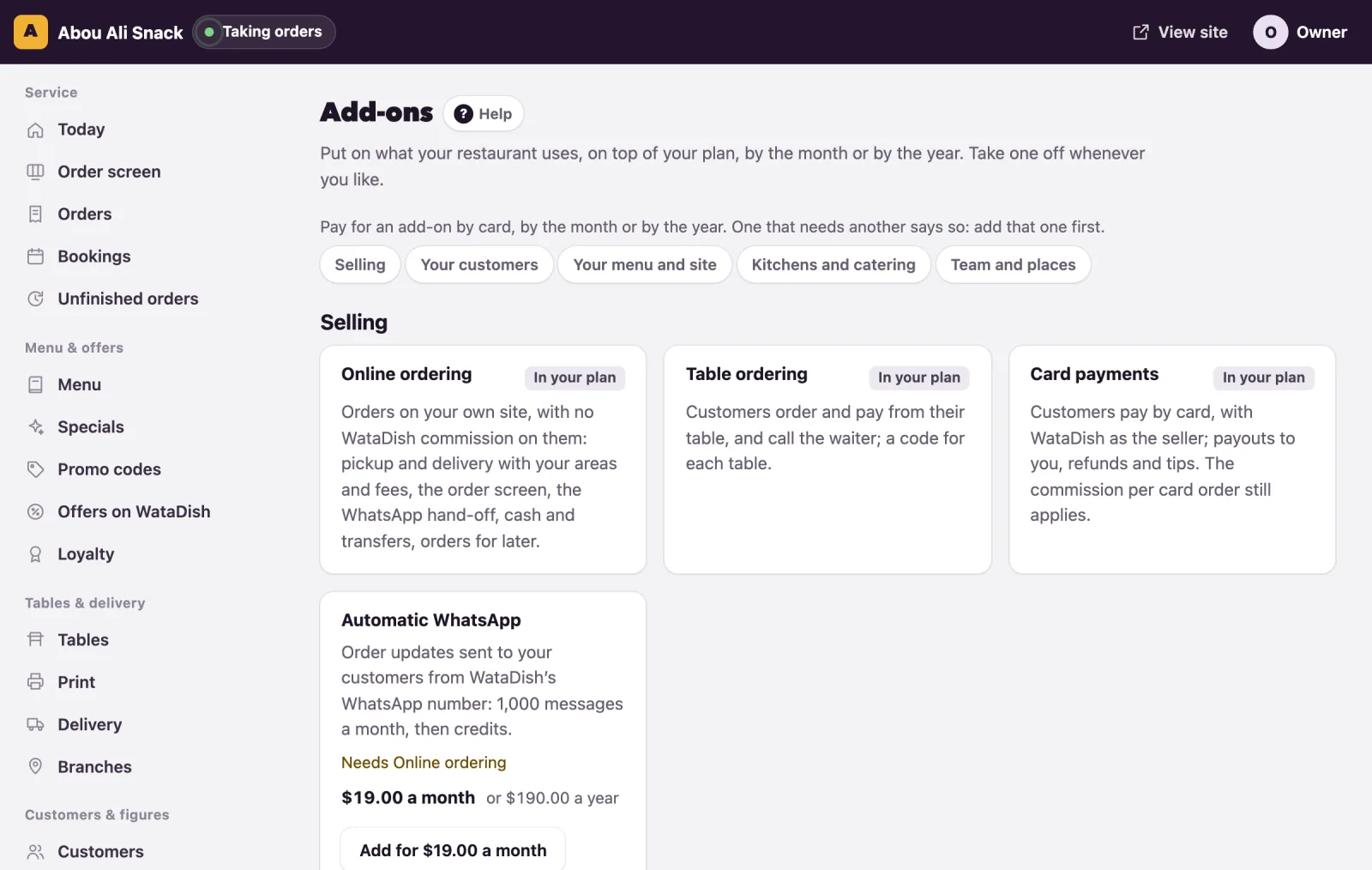
What each card says
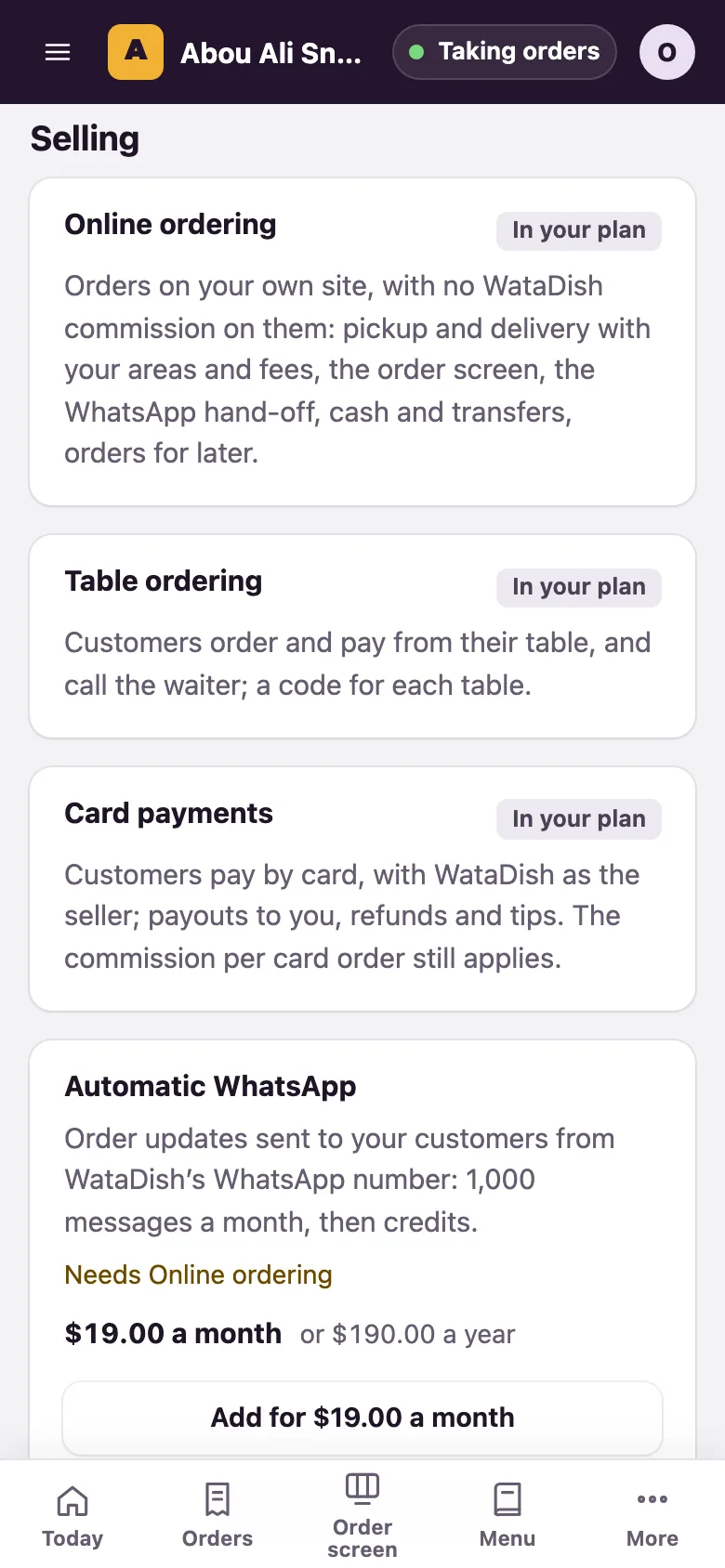
The cards are in groups - Selling, Your customers, Your menu and site, Kitchens and catering and Team and places - and the row of buttons at the top of the page jumps to each group. Every card gives:
- the add-on's name and what it does;
- its price a month, and or … a year beside it (paying by the year costs less);
- what it needs first, if anything: Needs Online ordering. When you have not got it yet the card says Needs Online ordering: add it first., with See it to jump to that card;
- how it stands: In your plan, On, Ending on a date, or the buttons to add it.
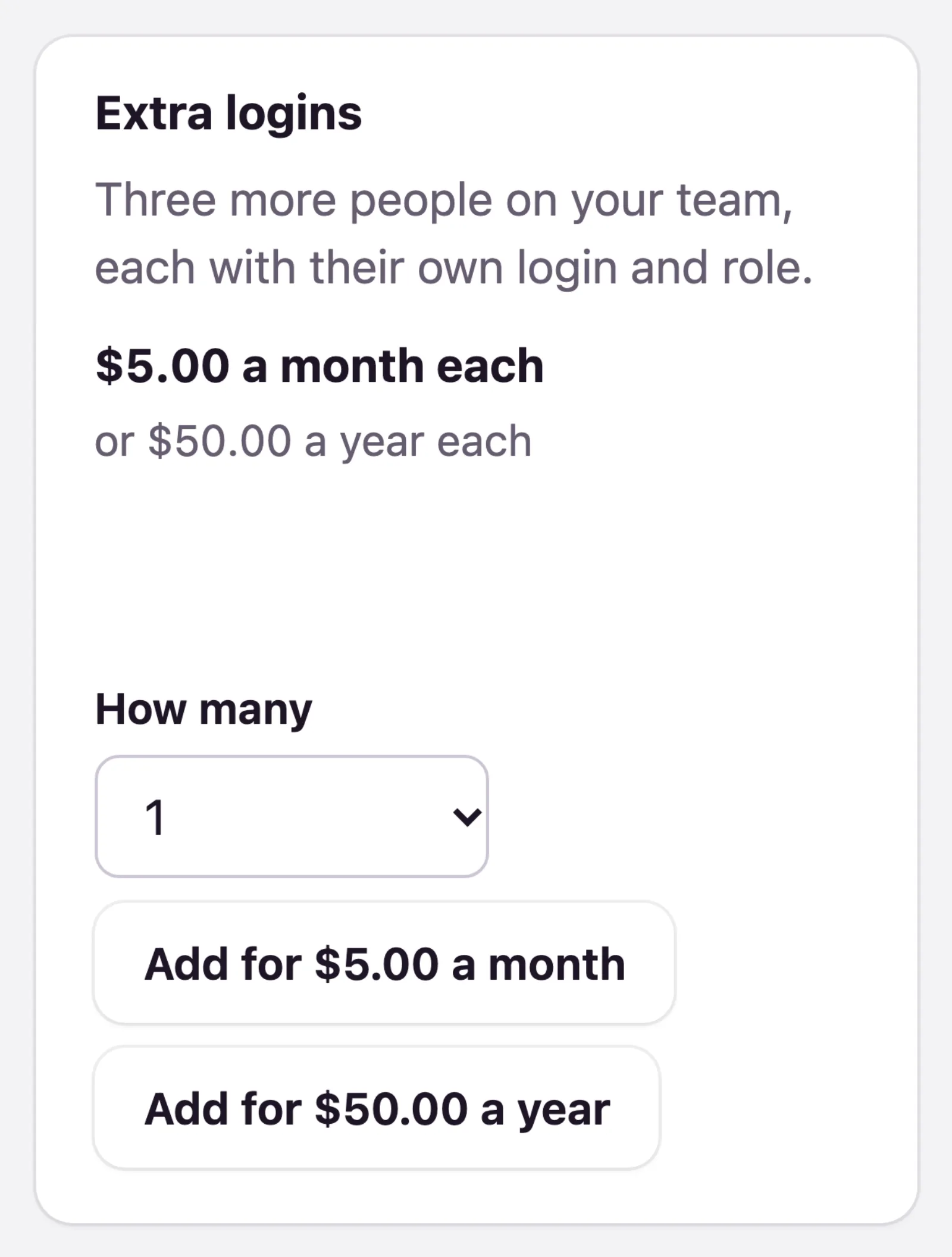
An extra branch and extra logins are sold by the unit (a month each): choose How many before you add them. Each extra login is three more people on your team.
Adding an add-on
- Open Add-ons and find the card.
- For an extra branch or extra logins, choose How many.
- Press Add for … a month or Add for … a year.
What happens next depends on how you pay:
- No card on file yet (the free account, for instance): Stripe's payment page opens. Pay there, and back on the page Thank you: … goes on as soon as the payment is through.
- Your plan is paid by card: the add-on goes on the same bill, at once - … is on now. - and you are charged for what is left of the current period. Your plan sets the interval: when it is paid by the month, add-ons are paid by the month too (the page says Your plan is paid by card by the month, and offers only that button); by the year, the same.
- You pay WataDish's agent in cash, by Whish or by transfer: WataDish was asked for …: we’ll switch it on once it is paid. We get in touch about paying, and switch it on once it is paid.
If something is missing, the page says what to do: Add Online ordering first: Table ordering works with it.
Tip: On a page whose feature you do not have yet - Customers, Reports or Orders on the free account, for example - the page offers the add-on that switches it on, with its price, and leads straight to its card.
Changing how many
An extra branch or extra logins that are on show How many with the number you have. Choose another number and press Change: the bill follows the new number.
Removing an add-on
Press Remove on its card and confirm. When it stops depends on how it is paid:
- By card: it goes off at once, and what is left of the period you paid comes off your next invoice as a credit.
- To WataDish's agent: it stays on until the end of what you paid for, and is not renewed. The card says Ending on that date meanwhile.
- Given by WataDish: it goes off at once.
An add-on that another one needs cannot be removed first: Table ordering needs Online ordering, so remove Table ordering before Online ordering. The card says so: Table ordering needs it: remove that first to take this one off.
What an add-on stored is kept when it goes off - your customers' list, your promo codes, your bookings, your branches - so putting it back on brings it all back.
What it comes to
Once you pay for add-ons, the top of the page adds them up: Your add-ons come to … a month, and what is paid by the year beside it. The Plan page lists each one with your plan, and every payment has its receipt by email.
Not found what you were looking for? Write to us at support@watadish.com or message us on WhatsApp: WhatsApp