Help · Getting started
Settings
Your business's details, how people order and pay, opening hours, the menu's languages, the PIN and password.
Included in every plan.
Settings has five tabs: Your business, Ordering, Opening hours, Languages and PIN and password. Each is a form of its own: change what you need and press Save; the page answers Saved., or marks what needs looking at. The owner and managers open every tab. Two things are the owner's alone - where customers send their orders (the WhatsApp number) and where they send their money (the Whish and OMT numbers and the name on the account): a manager reads them greyed out, with the note Only the owner can change where customers send their money and their orders. Staff see only their own password form.
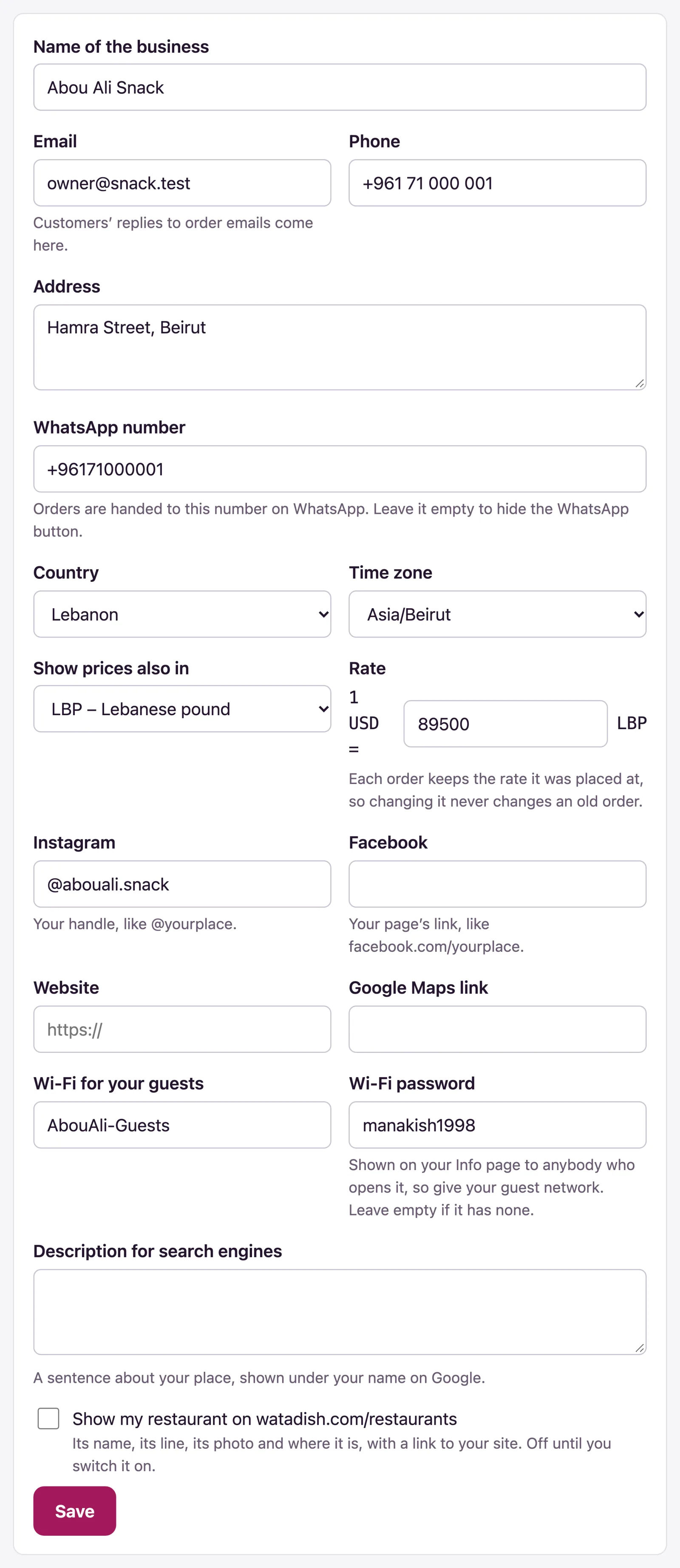
Your business
- Name of the business - on your site, your emails and a card customer's statement. Phone and Address.
- Email - customers' replies to order emails come here.
- WhatsApp number - orders are handed to it on WhatsApp; leave it empty to hide the WhatsApp button. Give it with the country code (see WhatsApp).
- Country and Time zone - your hours and order times are read in them.
- Show prices also in - your menu's currency only, or a second one such as Lebanese pounds, with the Rate (1 USD = …). Each order keeps the rate it was placed at, so changing it never changes an old order.
- Instagram, Facebook, Website and Google Maps link; and, where your plan has an Info page, Wi-Fi for your guests with its Wi-Fi password.
- Description for search engines - a sentence under your name on Google.
- Show my restaurant on watadish.com/restaurants - off until you switch it on.
Your logo, colours and look are on the Design page.
Ordering
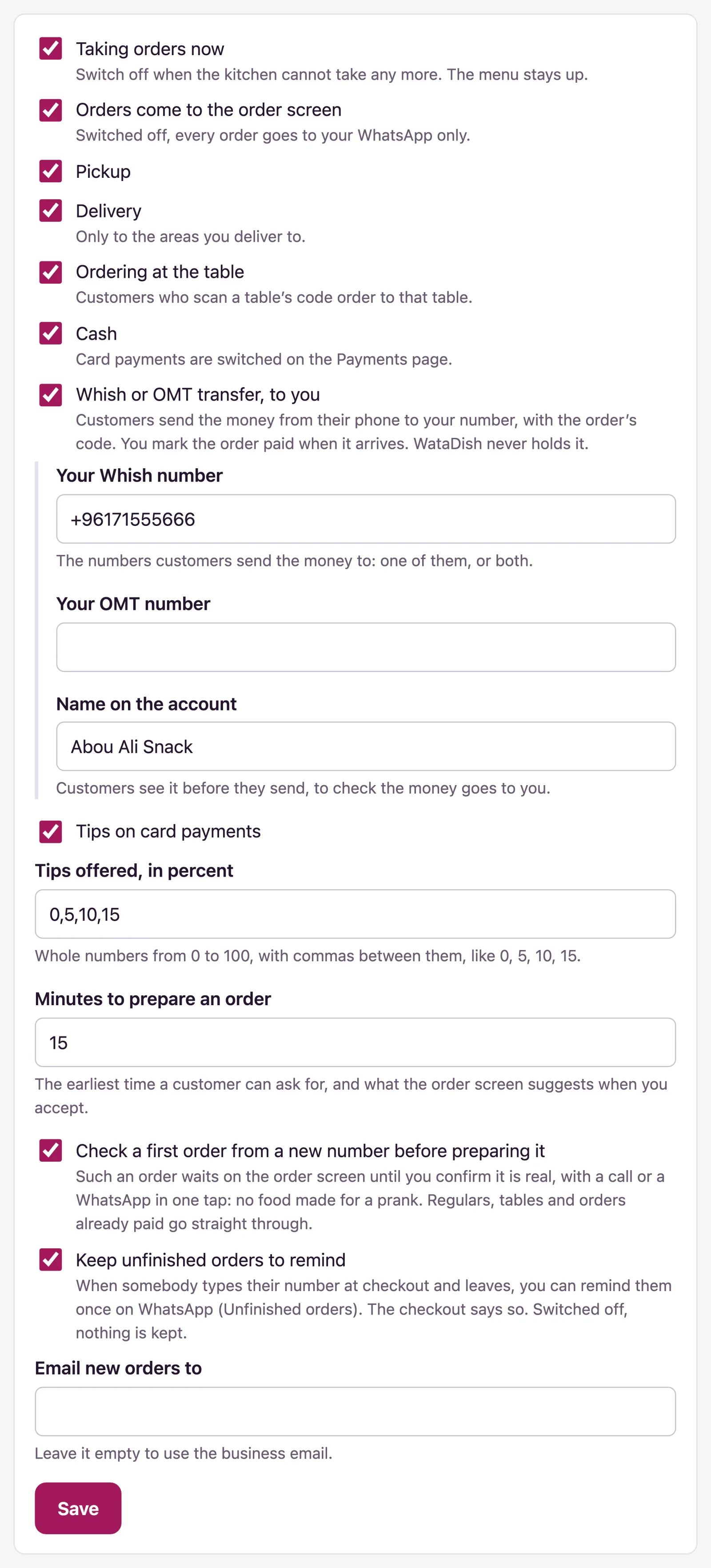
- Taking orders now - switch it off when the kitchen cannot take any more; the menu stays up. While it is on, keep at least one way to order and one way to pay: the tab refuses a save that would leave customers with none.
- Orders come to the order screen - switched off, every order goes to your WhatsApp number only; that needs the number, and a plan with orders sent to WhatsApp.
- Pickup, Delivery (only to the areas you deliver to: add one on the Delivery page first) and Ordering at the table (it needs a table switched on). A way your plan does not include is not on the form.
- Cash, and Whish or OMT transfer, to you with Your Whish number, Your OMT number and the Name on the account customers see before they send. Card payments are switched on the Payments page (see Payments and payouts).
- Tips on card payments, with Tips offered, in percent - whole numbers with commas between them, like 0, 5, 10, 15.
- Minutes to prepare an order - the earliest time a customer can ask for, and what the order screen suggests when you accept. Where your plan takes orders for later, the times offered start after it.
- Check a first order from a new number before preparing it - such an order waits on the order screen until you confirm it is real; regulars, tables and orders already paid go straight through.
- Keep unfinished orders to remind - somebody who typed their number at checkout and left can be reminded once on WhatsApp.
- Email new orders to - leave it empty to use the business email.
Opening hours
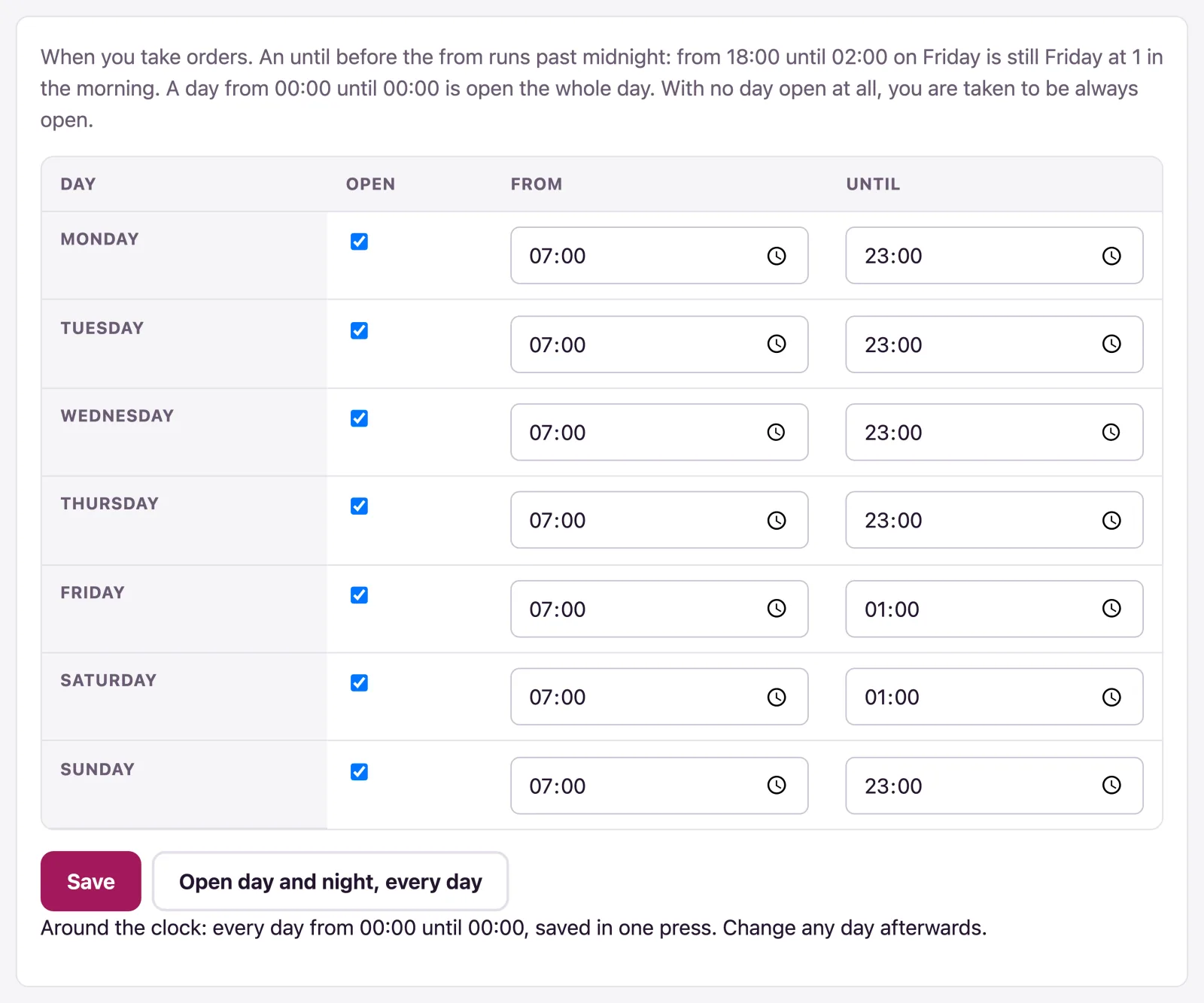
When you take orders, day by day: tick Open for each day and give From and Until.
- An until before the from runs past midnight: from 18:00 until 02:00 on Friday is still Friday at 1 in the morning.
- A day from 00:00 until 00:00 is open the whole day. Open day and night, every day sets all seven in one press; change any day afterwards.
- A day left unticked is closed. With no day open at all, you are taken to be always open.
- An open day needs both times, or the save is refused.
A branch with hours of its own keeps them on the Branches page.
Languages
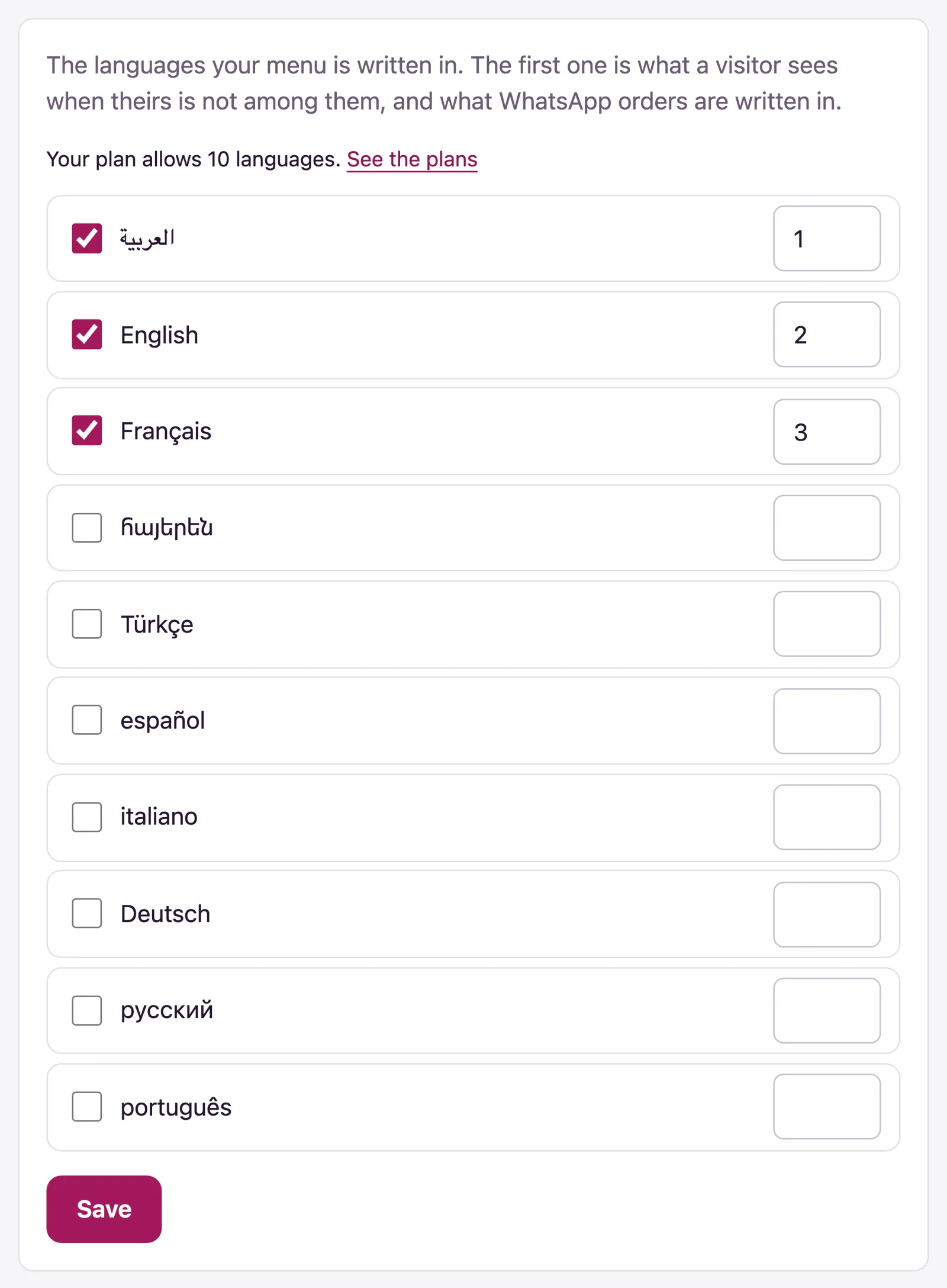
Tick the languages your menu is written in and number them in order. The first one is what a visitor sees when theirs is not among them, and what WhatsApp orders are written in. Keep at least one; your plan says how many you may use.
PIN and password
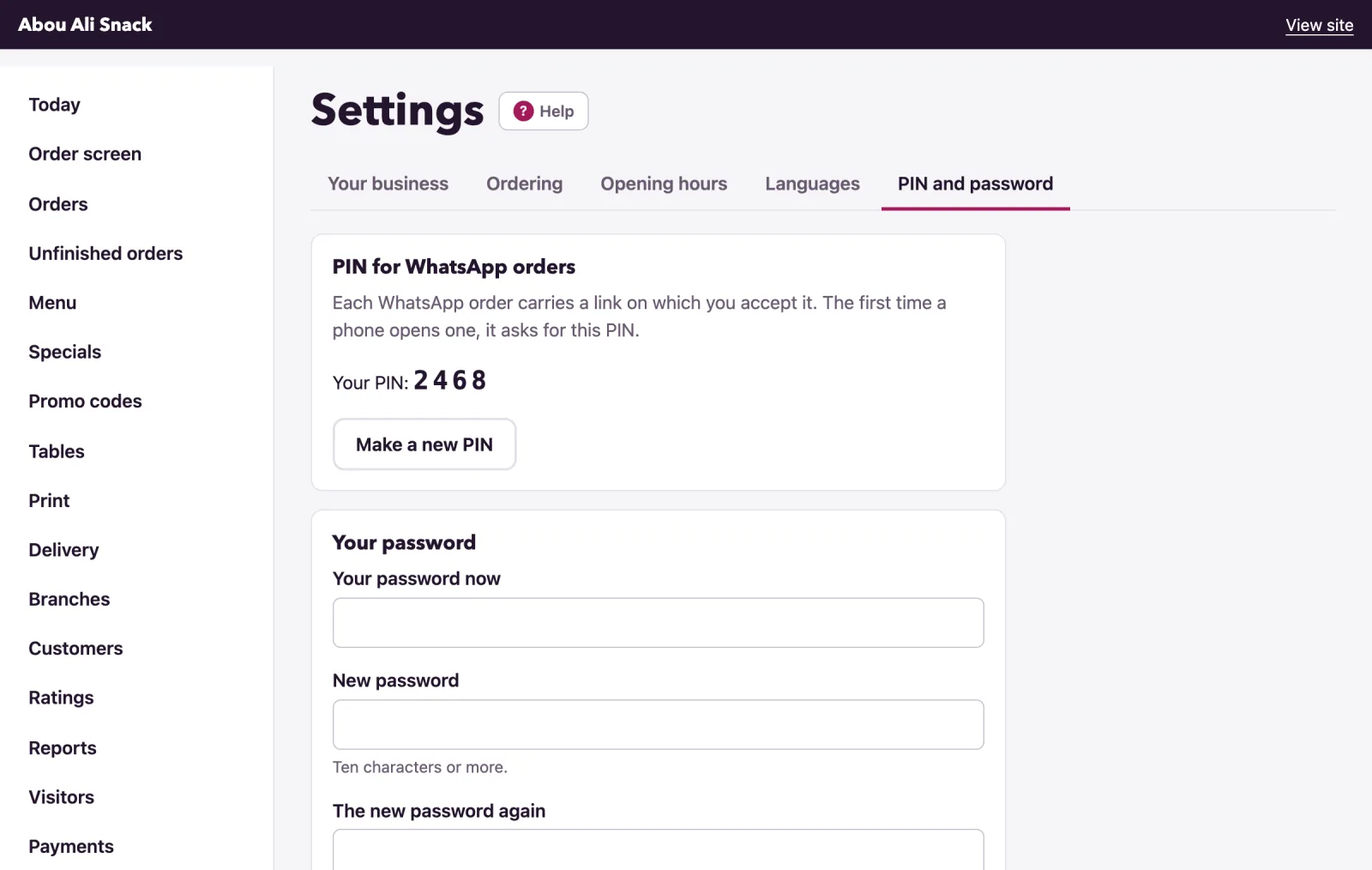
PIN for WhatsApp orders - each WhatsApp order carries a link on which you accept it, and the first time a phone opens one it asks for this PIN. Your PIN is shown here. Make a new PIN makes another, and every phone that saved the old one is asked for the new one. The owner and managers can do this.
Your password - type Your password now, then the New password and The new password again, and press Change the password. Every other device signed in as you is signed out. Six wrong tries at the current password lock the change for a quarter of an hour. Everybody, staff included, changes their own password here.
Not found what you were looking for? Write to us at support@watadish.com or message us on WhatsApp: WhatsApp