Help · Your menu
Import a menu
Paste your menu as text, see how it reads, and add its sections and dishes to your menu in one go.
Included in every plan.
Open Menu, then Paste your menu. Paste your menu as you already have it, from a PDF, a WhatsApp message or a price list, see it read into sections and dishes, and add them all at once: one paste instead of a form for every dish. It is how a menu goes in on the day you start. The other languages, photos and choices are added afterwards, dish by dish. The owner and managers can do it; the page comes with the plans that include it, and says "This comes with a larger plan" on the others.
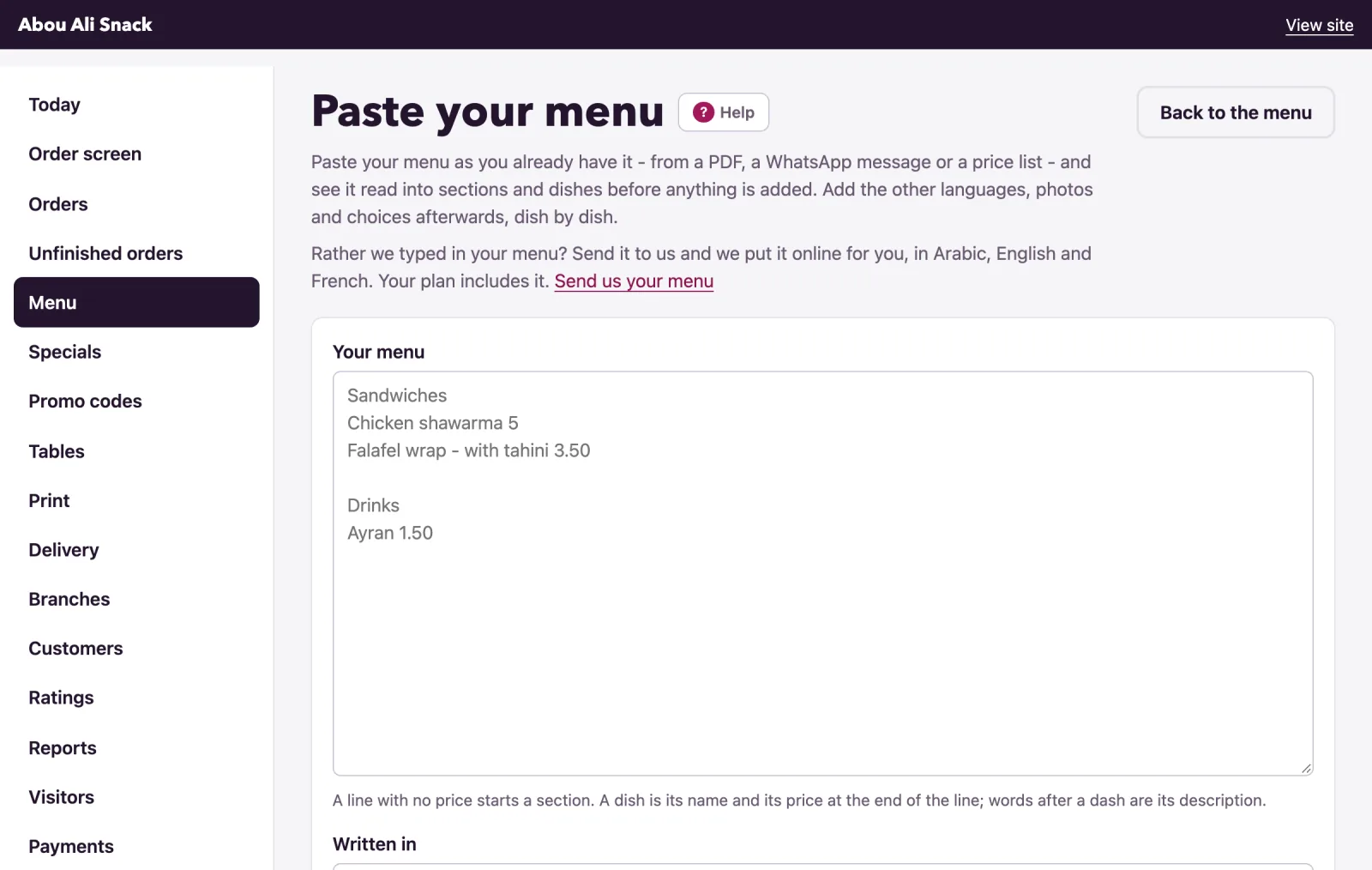
How the text is read
The reader follows the way people already write menus. Each line is read on its own:
- A line with no price starts a section. A
#in front of a line, or a:after it, makes it a section too. - A dish is its name and then its price, last on the line: "Chicken shawarma 5". The currency's sign or code may sit on either side of the price, and a comma works as the decimal point ("3,50"), or as a thousands mark in a price with no decimals ("1,250").
- What follows a dash with spaces around it, or a colon, is the dish's description: "Falafel wrap - with tahini 3.50".
- Arabic digits and the Arabic decimal point are read as numbers, and stay as they are in a dish's name.
- A line that gives the price in both currencies ("Pepsi $1 | 90,000") takes the one in your menu's currency.
- Empty lines, and lines of dashes or dots, are skipped. A dish with no section above it goes into one called "Menu".
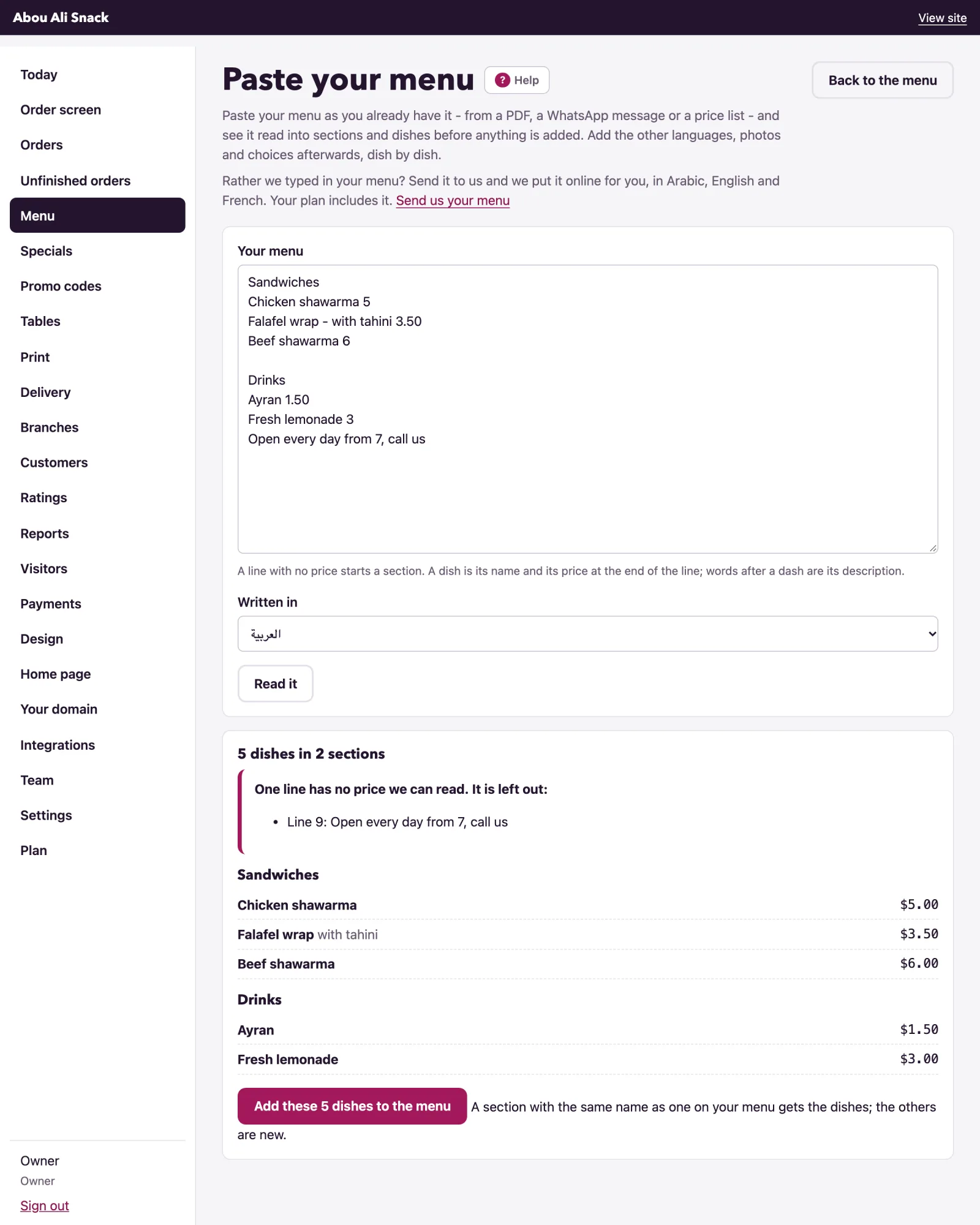
- A line with a number but no price that can be read for sure is left out and listed by its line number, rather than guessed at: "Open daily 12", a name that ends in a figure, a price of nothing.
- A paste holds up to 600 lines. A section with nothing under it is left out.
Paste, read, add
- Paste the text into Your menu. The box shows an example of the shape.
- Where your menu has more than one language, choose Written in: the language the text is in. Every name and description goes in as that language.
- Press Read it. The page shows what it made of the text, "14 dishes in 3 sections", each section with its dishes, their descriptions and their prices, and any lines it left out: "2 lines have no price we can read. They are left out:". Nothing is added yet. If the reading is wrong, fix the text and read it again.
- Press Add these 14 dishes to the menu. The page says "14 dishes added. Check them on the menu." and opens the Menu page.
What is added
- A new category for each section, named as in the text, in that language only.
- A dish for each line, with its name, its description and its price, sold by each, shown on the menu, with no photo, labels, allergens, details or choices.
- A section with the same name as a category already on your menu, in that language, gets its dishes at the end of that category; the other sections are new. Dishes are never matched: pasting the same text twice adds every dish twice. Nothing on your menu is changed or deleted.
What to check afterwards
- On the Menu page, read through the prices and the order of the categories; move what the arrows should move.
- Open each dish with Edit to add its name in the other languages, its labels and allergens, its sold-by unit, and the groups it offers under Sizes and extras.
- Open Dish photos and give the dishes their pictures (see Dish photos).
- Switch off, with Show this dish on the menu, anything that was on the paper but is not on sale.
What stops an import
- Where your plan caps the number of dishes, a paste with more than the room left is read but not added: "This is 40 dishes, and your plan has room for 12 more (it allows 50)." Take some out of the text, or move to a larger plan.
- While your menu is kept in Amberlock POS the page is closed: "Your menu is kept in Amberlock POS. Paste it in there, under Products, and it reaches WataDish at once." See the POS link.
- On a closed account the page can be looked at, but nothing is added.
Tip: Where your plan includes your menu put online by WataDish, the page also offers Send us your menu: we type it in and put it online for you, in Arabic, English and French.
Not found what you were looking for? Write to us at support@watadish.com or message us on WhatsApp: WhatsApp