


Help · Kitchens and catering
Catering
Packages per guest built from your menu, event requests with an estimate, quotes, deposits and the event sheet.
Included in: StandardProBusiness
Catering takes requests for events from your site, from a condolence coffee to a wedding. Customers choose a package priced per guest, see an estimate and send a request; you answer with a quote they accept online, take the deposit, and the kitchen cooks from the event sheet. Nothing is paid on your site: the price is your quote's. A manager or the owner opens these pages. The page says whether your plan includes catering.
Switching catering on
- Open Settings, tab Your business, and find What you run.
- Choose Caterer, or keep your type and tick Catering under Also offer.
- Press Save. Catering joins your admin menu; once you have a package, your site links to its catering page.
Only the owner changes this. Switched off, your packages and events are kept.
Packages
In Catering, tab Packages, press Add a package. Give it a Name, a Price per guest, a Least number of guests, how far to Book ahead by (hours or days), the Occasions it suits, and tick On your catering page to offer it.
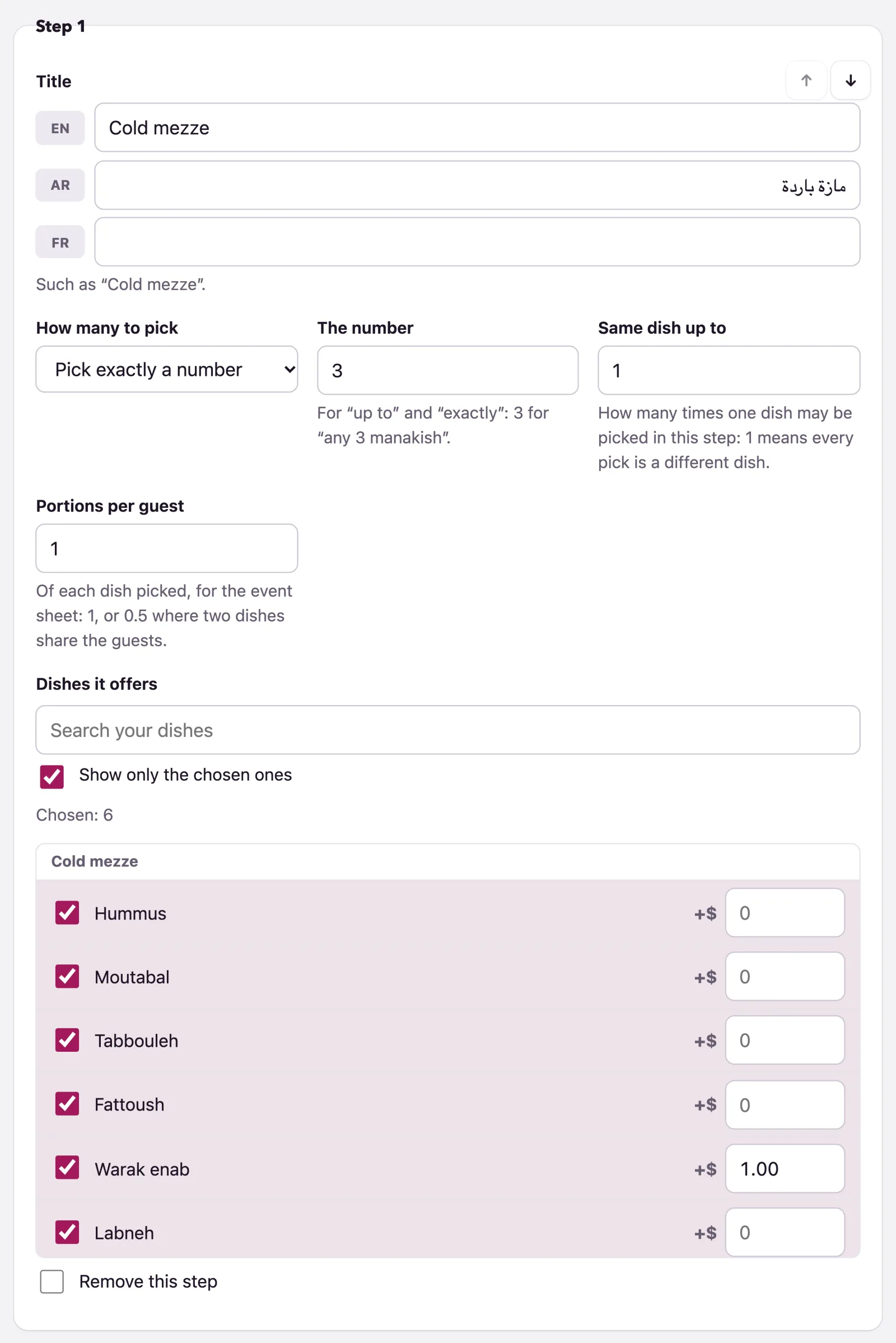
Then the Steps the customer fills in order, such as "Choose 3 cold mezze", then "Choose 1 main". Each has a Title, How many to pick and The number, then the Dishes it offers, ticked from your menu. A dish can cost more per guest: type it beside the dish. Portions per guest is for the kitchen: 1, or 0.5 where two dishes share the guests. Add another step, then Save.
Extras and rules
Tab Extras holds what an event may add: waiters, chafing dishes, plates, delivery to the venue. Each is priced Per event, Per guest, Per hour or Per unit; tick This is staff for people, listed as staff on the event sheet.
Tab Rules sets where every quote starts: Deposit (%) (30), Guest count final (days before) (3), A quote stands for (days) (5), Events asked for up to (days ahead) (60), Your terms, which customers accept with the quote (empty, the default terms apply), and How to pay the deposit (optional), such as your bank account. Your Whish and OMT numbers from Settings › Ordering are shown too.
A request comes in
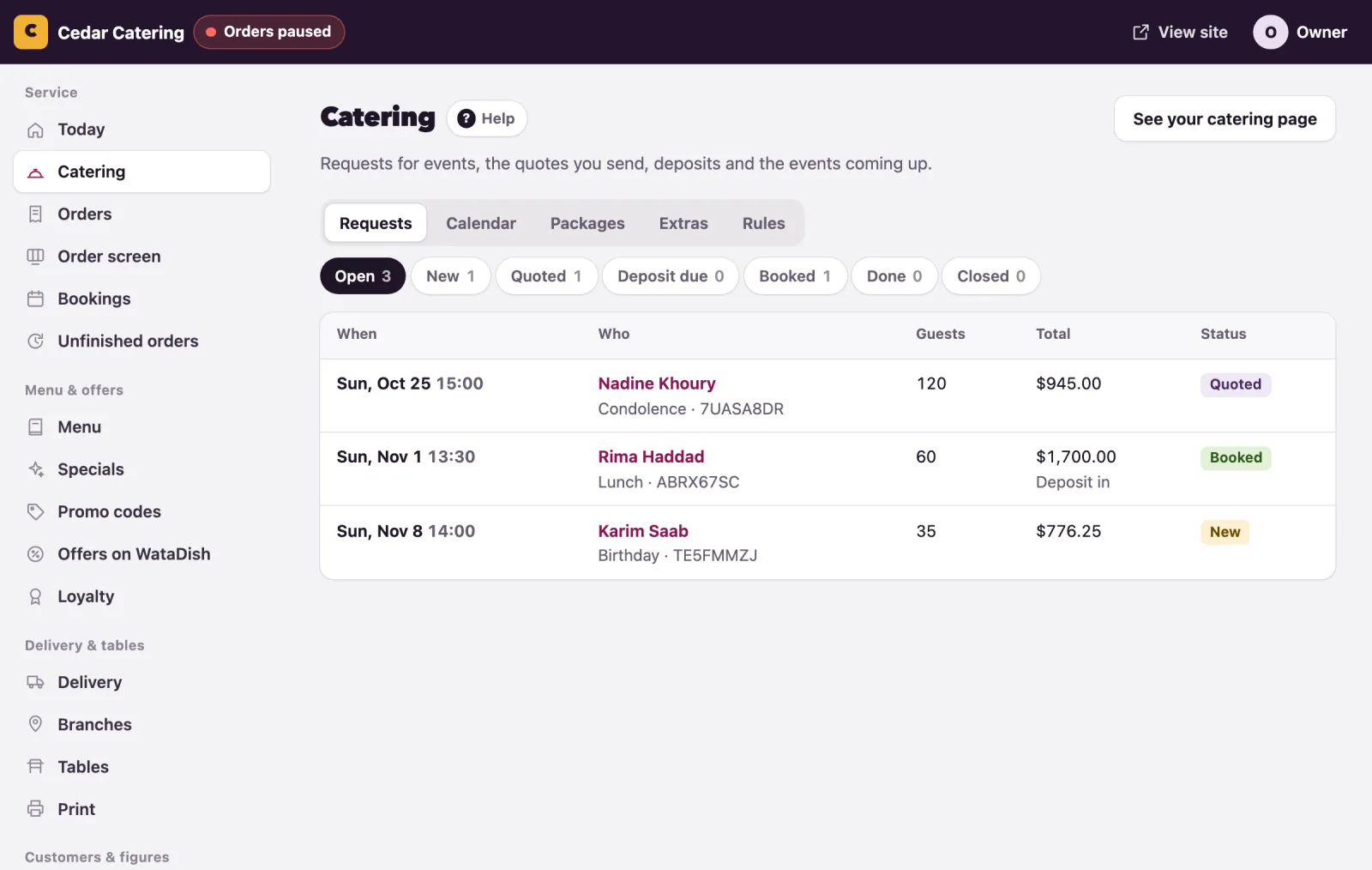
On your catering page, customers pick a package and its dishes, the guests, the day and time, delivered, served at the venue or collected, the venue with a pin on a map, any extras, and their name and phone. An estimate follows every choice. You are emailed, and the request is under Requests: New, then Quoted, Deposit due, Booked, Done, or Closed. Calendar shows the month.
The quote
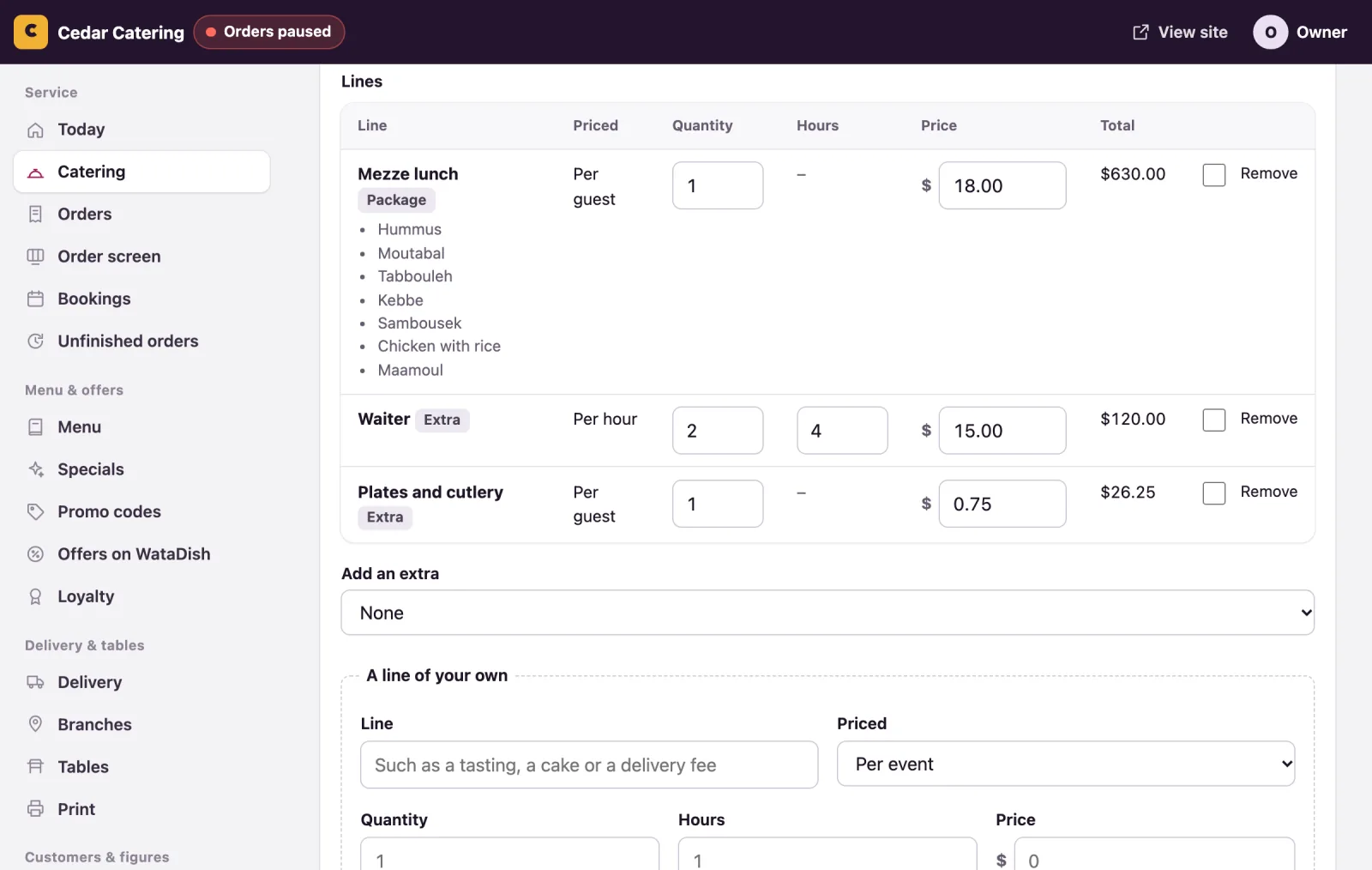
Open a request: who asked, their estimate, the day, the venue, and the Lines, the package with its dishes and each extra. Change a quantity, hours or price, Remove a line, Add an extra, or write A line of your own. Below, an Adjustment (below zero for a discount), the Deposit (%), the dates, and Notes for the kitchen and the team, which the customer never sees.
Save and send the quote emails it; the customer accepts it with your terms on the event's own page. No email? Send the page with the WhatsApp link. A change after sending is a new version to accept (Save and send it again). Decline a request, or Cancel the event, with a reason they are told. Until it is booked, the customer can cancel from their page.
Deposits and payments
An accepted quote shows Deposit due, and the customer's page says how to pay you. Under Payments, record each sum: For (Deposit, Balance or Money given back), Paid by (Cash, Bank transfer or Whish), the Amount and day, then Record the payment. The customer gets a receipt by email. With the deposit in, the event is Booked by itself; with no deposit, on acceptance. Paid some other way: Mark as booked.
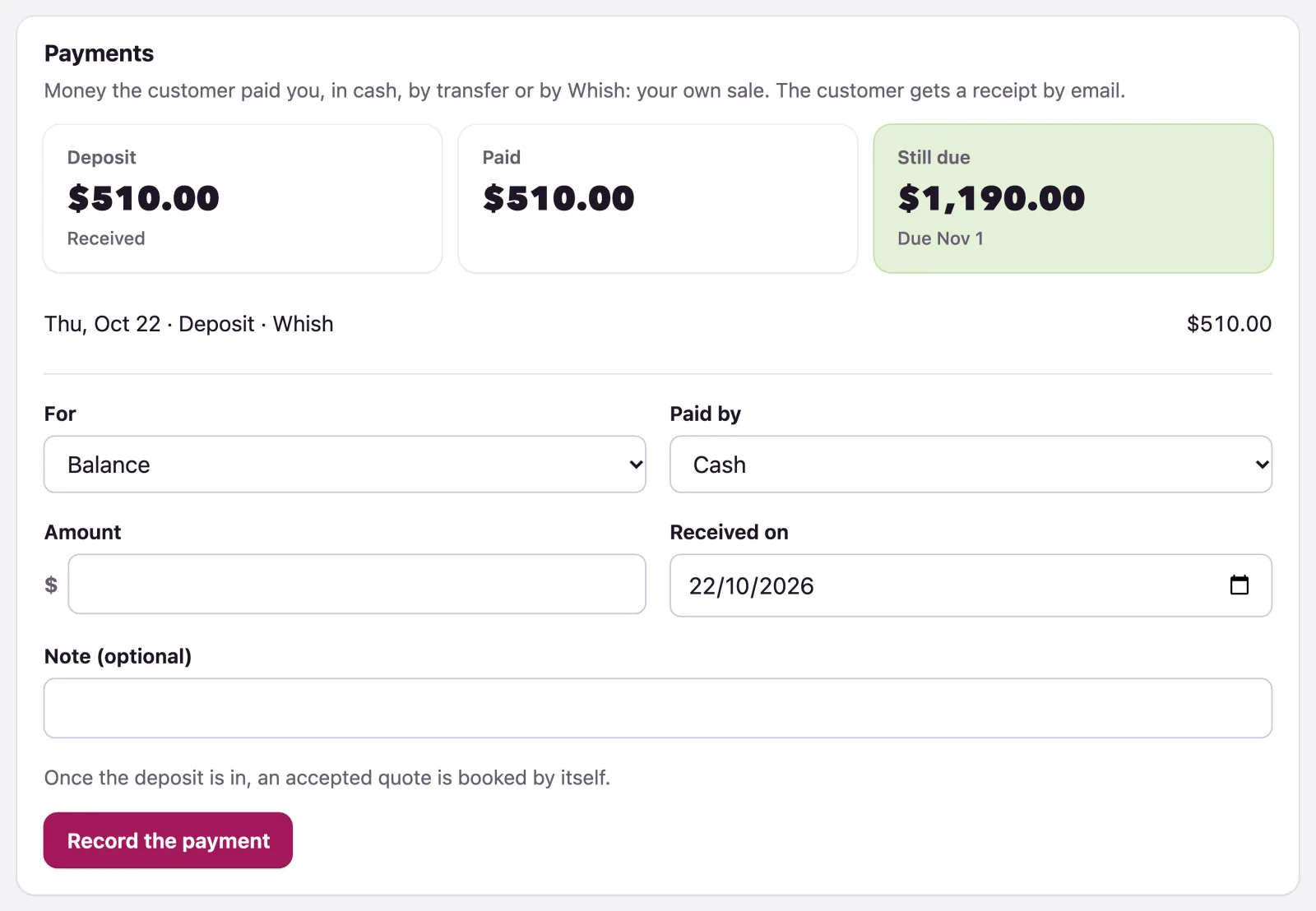
This is your own sale, paid to you directly: no card is taken, and WataDish takes no commission on it.
The guest count
Until the count is final, the customer can change the guests on their page; the price follows, and you are told. On that day it locks by itself (Final count), or press Lock the guest count now. Afterwards, Mark as done with the guests on the day: the event is billed on the final count, or on the day's if higher.
The event sheet and the production list
Event sheet prints one page for the kitchen and the team, without prices: the timeline, the venue, the guests, each dish's portions, the staff and their hours, the equipment, and the notes.
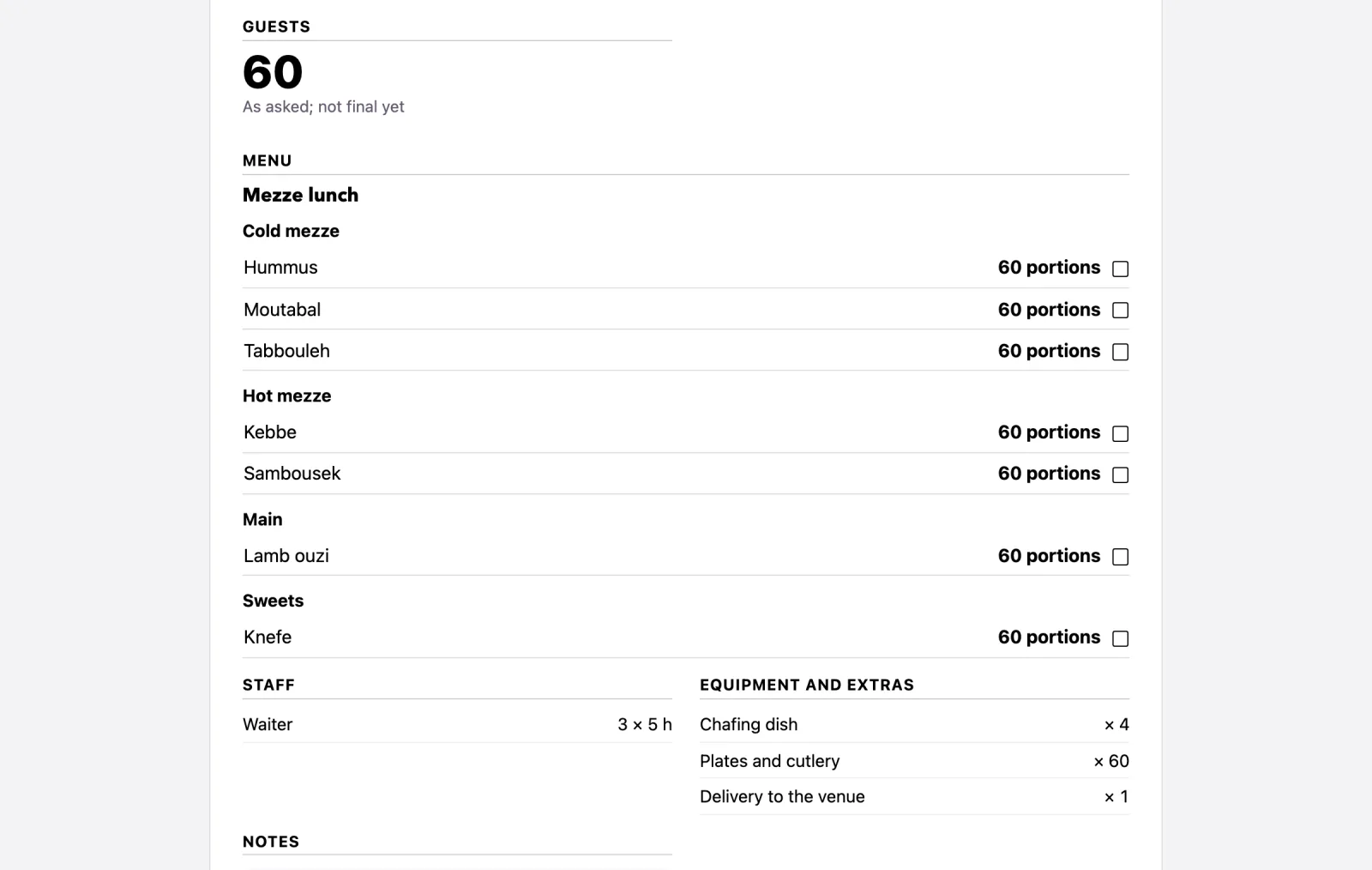
If you run a daily menu too, its Today's production list shows a booked event's dishes under For catering events, beside the day's orders.
Not found what you were looking for? Write to us at support@watadish.com or message us on WhatsApp: WhatsApp