Help · Getting started
Your dashboard
The first page of your admin: today’s numbers, the set-up list, the notice on your site, and the Help button on every page.
Included in every plan.
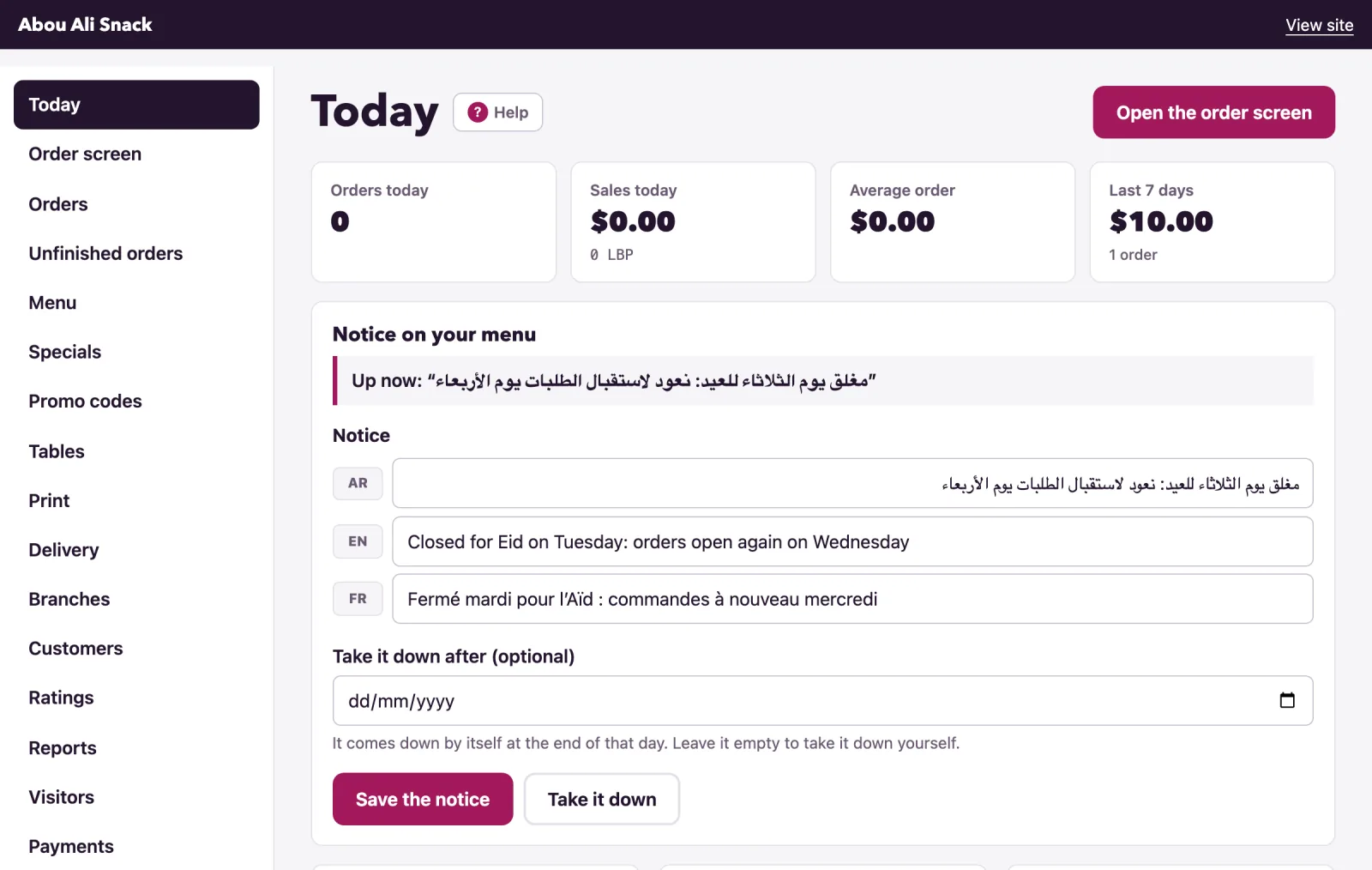
The dashboard is the first page after you sign in, and Today in the menu: how the day is going, what is still to be set up, the notice at the top of your site, and the orders waiting for you.
Today’s numbers
Orders today counts the orders placed since midnight in your restaurant’s time zone, leaving out those rejected or cancelled. A manager or the owner also sees Sales today, the Average order and the Last 7 days; staff see the count alone, not the money.
Waiting for you lists every order still open, with its status and where it goes; one wanted for later says so, as For Mon 20:30. Latest orders lists the last eight, and All orders leads to the whole list. Open the order screen leads to the screen by the pass: see the order screen.
The set-up list
Until everything is in place, the dashboard shows Before your first order - Finish setting up once an order has come in - with how far you are, as 7 of 9 done. Each step is a link to the page that does it:
- Put at least 5 dishes on your menu: the Menu page. Only dishes that are switched on count.
- Give at least half your dishes a photo: the dish photos page.
- Set your opening hours: the Opening hours tab of Settings.
- Give your WhatsApp number: Settings, Your business.
- Choose how customers pay: cash, card or both: Settings, Ordering. Done once you have saved a choice.
- Name the areas you deliver to: the Delivery page, unless delivery is switched off.
- Print your QR codes: tents for your tables, or a poster for your counter: the Print page. Done the first time you open the tents or the poster.
- Fill in your Info page: your address and a few words about you: the Address in Settings, then About on the Design page.
- Set the rate for prices in Lebanese pounds: Settings, Your business. Only in Lebanon, or for prices shown in pounds.
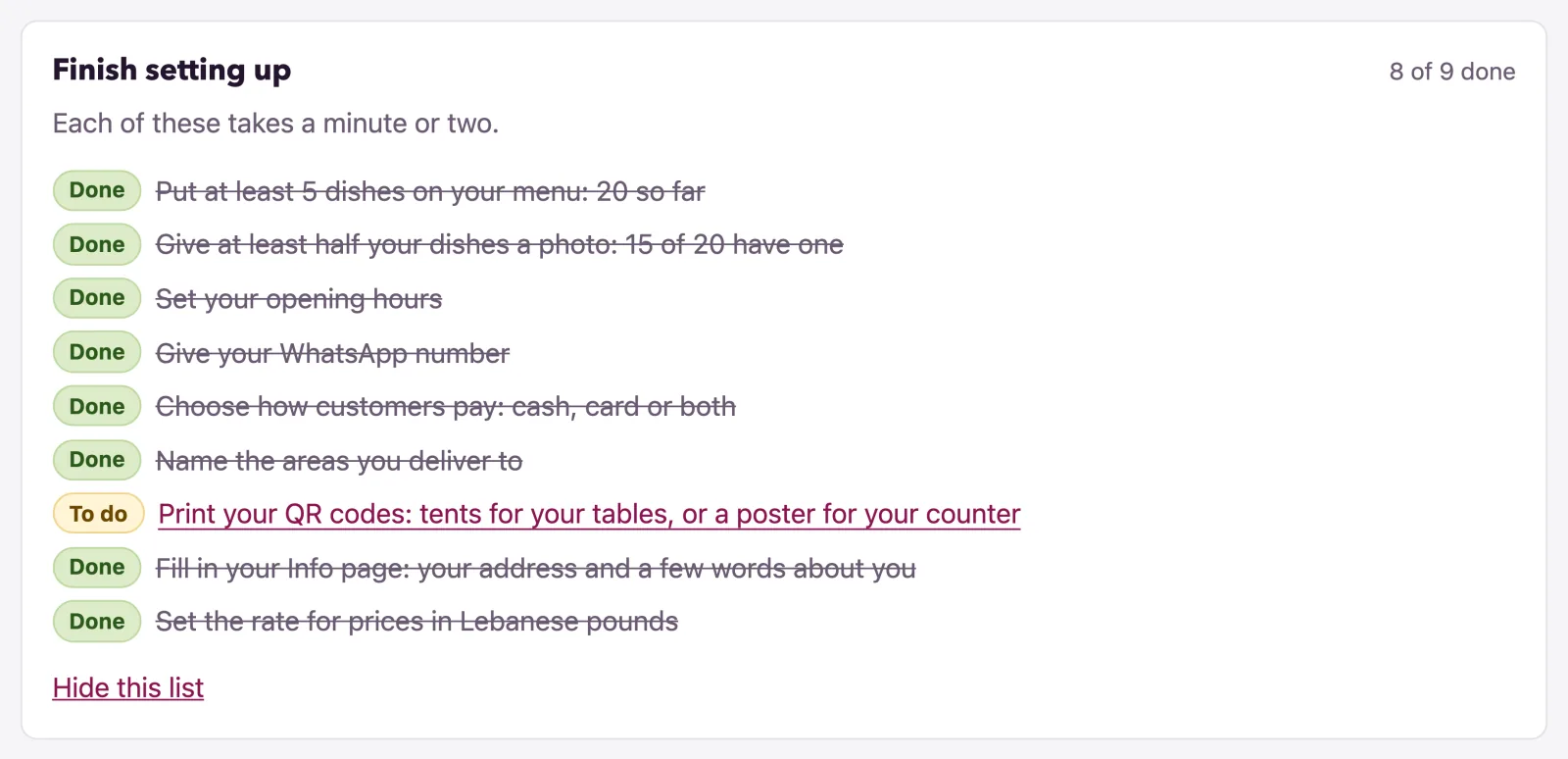
Only a step you may do is a link: staff see what is left, no more. A manager or the owner can Hide this list for the whole restaurant; it waits at the foot of the dashboard with Show it again, and goes by itself once every step is done. While the menu is not in yet, the list also offers Send us your menu: on the plans that include it, we type it in and put it online in Arabic, English and French.
A notice on your site
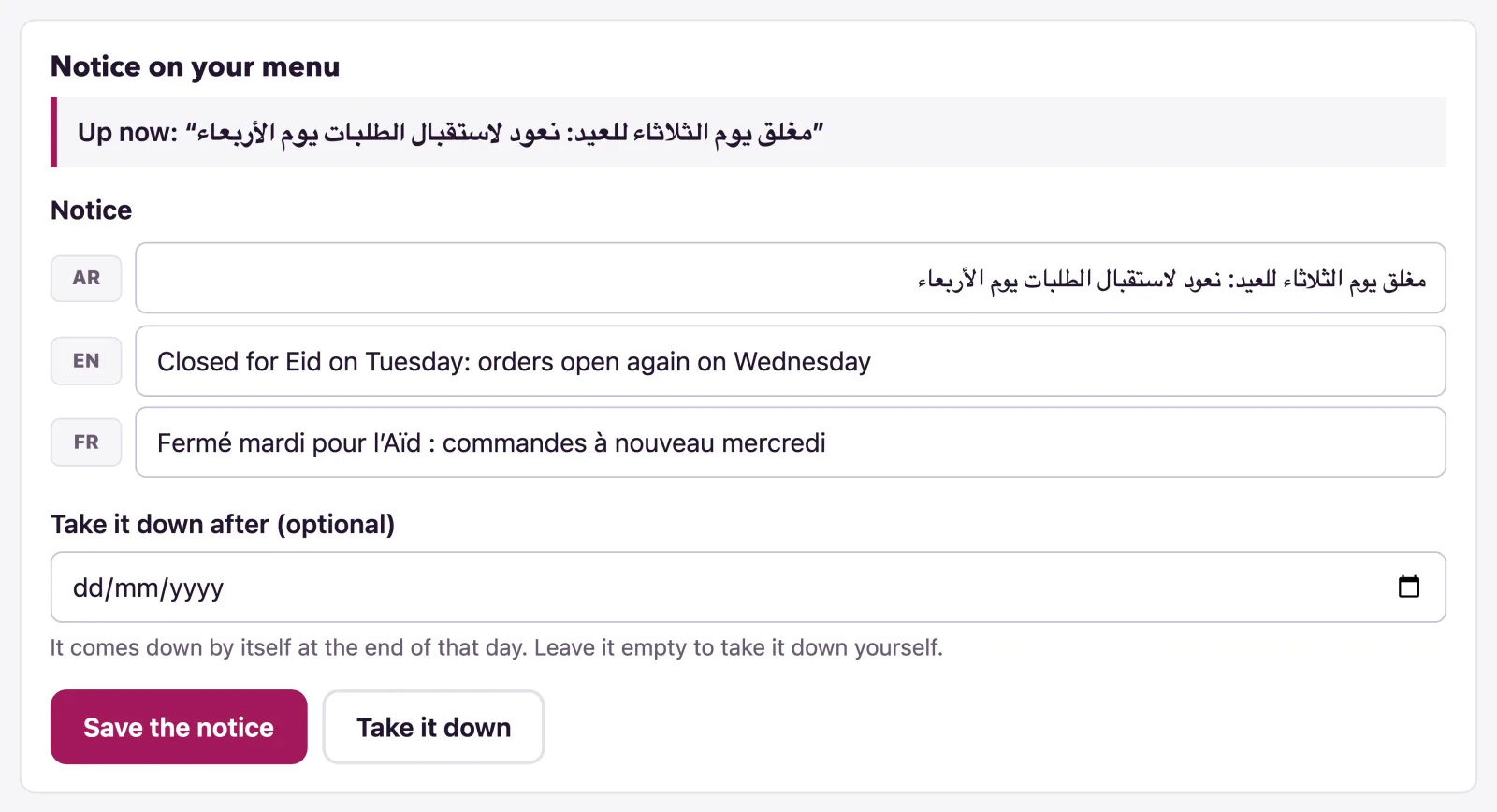
Notice on your menu puts one line at the top of every page of your site: “Closed for Eid until Tuesday”, “Free delivery today”. Write the Notice in each language of your menu - one is enough - and, if you like, the day to Take it down after: it comes down by itself at the end of that day. Put up the notice shows it at once; the card then says Up now, and offers Save the notice and Take it down. For a manager or the owner, on the plans that include a notice.
Your site, and Help on every page
Your site shows your address with Copy beside it: share it on Instagram and WhatsApp. View site, at the top of every admin page, opens your site in a new tab. Help, beside the title of every admin page, opens the help article for that page at watadish.com/help; a page without one of its own opens the list of all of them.
Signing in and out
You sign in at your site’s address followed by /admin, with your Email and Password; what you see inside depends on your role, see Team and roles.
- Forgot your password? asks for the email you sign in with and sends a link, good for an hour: choose a New password of ten characters or more, type The same password again, and Save password. An invited colleague who never chose a password uses their invite link instead.
- Six wrong passwords in a row lock that account for a quarter of an hour.
- Sign out is at the foot of the menu, under your name and role. An admin left untouched for twelve hours is signed out by itself.
- On a plan without a team, only the owner can sign in; anyone else is told so, and whom to ask.
The order screen as an app
On the plans that include it, the order screen can be installed on the tablet at your pass as an app of its own, full screen from its own icon. The order screen says how - In the browser’s menu, choose Install app or Add to Home Screen - and shows Install the order screen where the browser offers it. The rest of the admin stays in the browser.

Not found what you were looking for? Write to us at support@watadish.com or message us on WhatsApp: WhatsApp