Help · Orders
The order screen
A tablet or a phone by the pass that rings for every new order and moves each one on with a press.
Included in: StarterStandardPro
The order screen is the admin's page for the kitchen. By the pass, it shows every order that still needs something done in the three columns a kitchen thinks in, New, In the kitchen and Ready, each with a count, refreshing itself every few seconds. Find it under Order screen; staff, managers and the owner can all open it, and the page says which plans include it.
Starting the screen
- Press Start the screen. A browser only lets a page make a sound after a tap, so this one press switches on the sound, fills the screen and keeps the tablet awake.
- The board alone fills the screen: the admin's menu and bar go, leaving a thin row with the connection, Sound on and Leave full screen. Press Full screen to come back to it, or Escape to leave it.
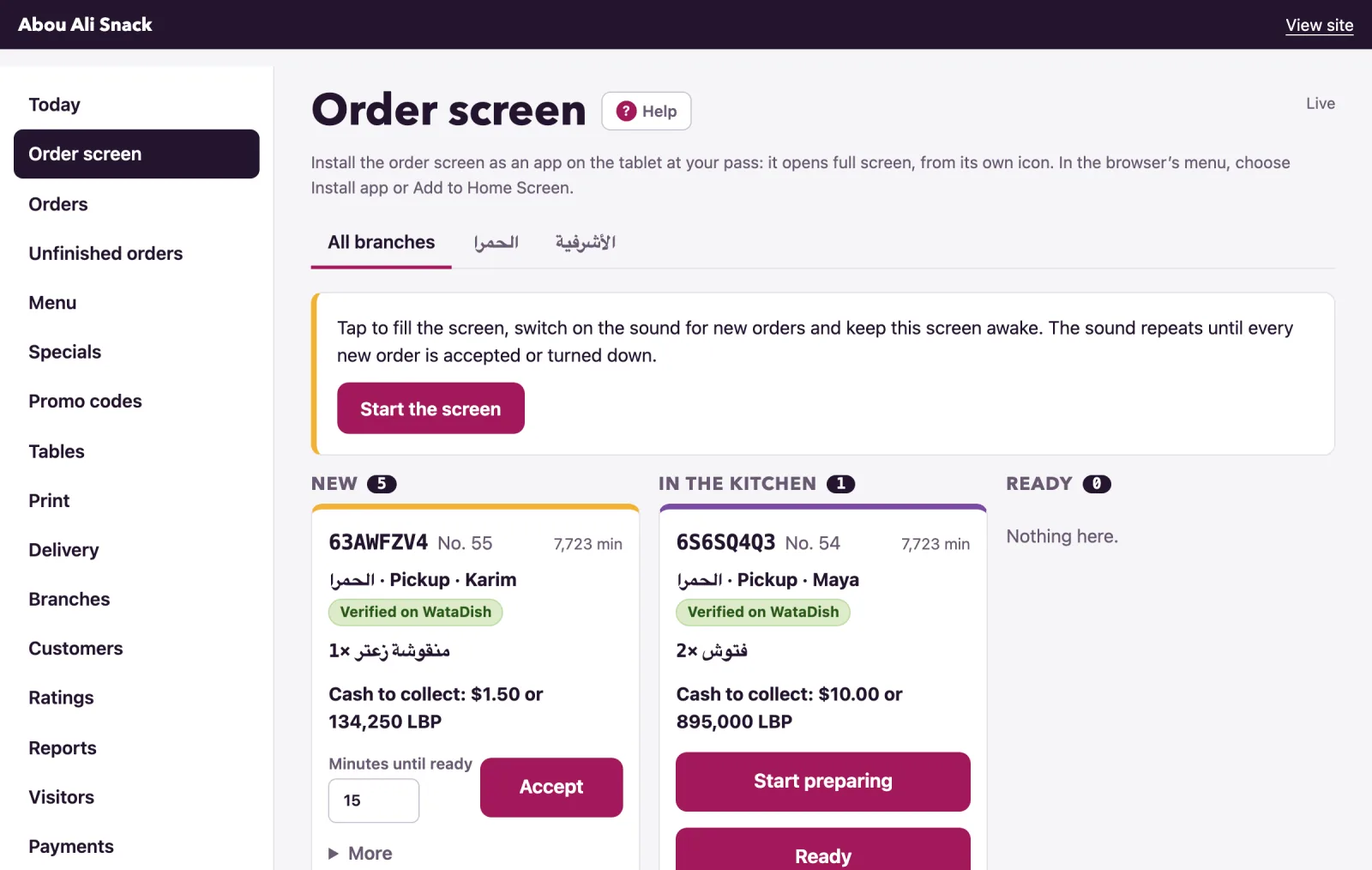
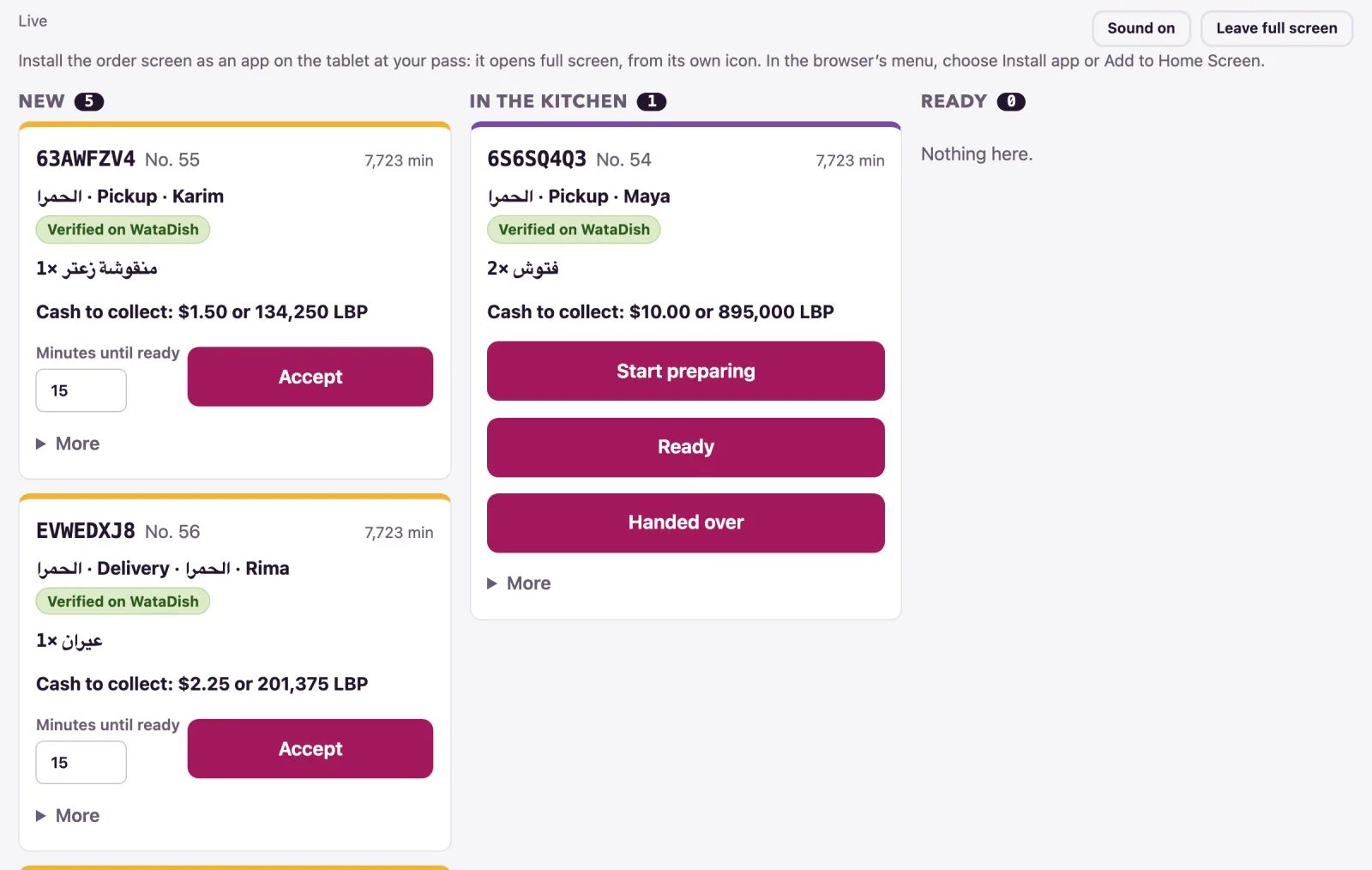
Two short beeps sound when a new order or a table call arrives, and they come back every few seconds while anything in New waits for a person. The ring stops once every new order is accepted or turned down; Sound off silences it on that device.
The top row says Live while the screen hears from the server, No connection. Trying again… on a line that drops, and after a minute No connection since 21:40: new orders cannot reach this screen. Check the internet; the screen keeps trying., with a lower tone every five minutes. Customers can still order meanwhile: check the router.
What a docket shows
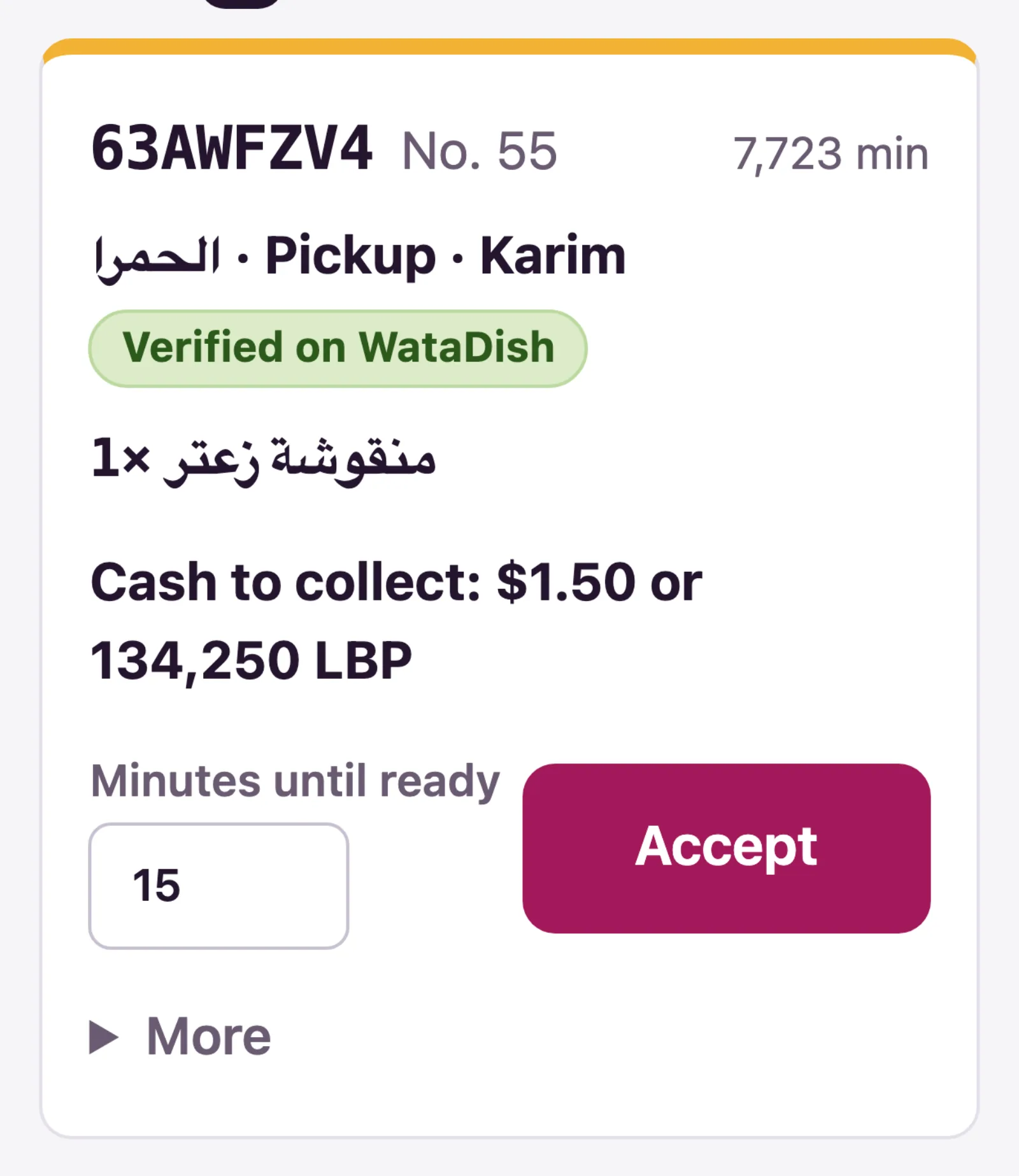
Each order is a docket: its code and number, how long it has waited (just now, 12 min; a card order counts from its payment), where it goes (Table 4, Pickup, Delivery · Hamra, with the branch first), the customer's name, and For Mon 19:00 on an order wanted later. Then the dishes with their choices and notes, Note: for the order's note, and the money: Paid by card, Paid in cash, Paid by transfer, Cash to collect: $16.00 (in pounds too) or Transfer to check for: $16.00.
Moving an order on
- Accept takes the order into In the kitchen. Minutes until ready beside it is filled in from Minutes to prepare an order in Settings; change it for this order.
- Start preparing and Ready move it along; Out for delivery appears on deliveries only; Handed over takes it off the board, and marks a cash order paid.
- More opens Reject (for a new order) and Cancel order, each with Reason (the customer sees this) and a question first. Turning away an order paid by card refunds the card, so on such an order only a manager or the owner is offered those two.
The board redraws after every press. Order accepted. goes by itself; anything to act on, such as It was paid in cash: hand $16.00 back to the customer., stays until you press Got it. If a colleague moved the order on a moment before, the board says That cannot be done with this order any more. Somebody may have moved it on already. and shows theirs. The customer's page changes with each step; Orders shows what they see.
Two more things can wait on a docket. A first order from a number you have never served is held in an amber box, First order from this number., with Call 71 222 333, Ask on WhatsApp and It is real: confirm; until it is confirmed only Reject is offered. A Whish or OMT transfer not seen yet has Transfer received, which asks Has $16.00 arrived in your Whish or OMT account? first. Both are explained in Orders.
Tables calling
A table that asked for a waiter or the bill shows above the columns, Table 7: waiter or Table 7: bill, and rings like a new order. Done clears it.
A branch's own screen
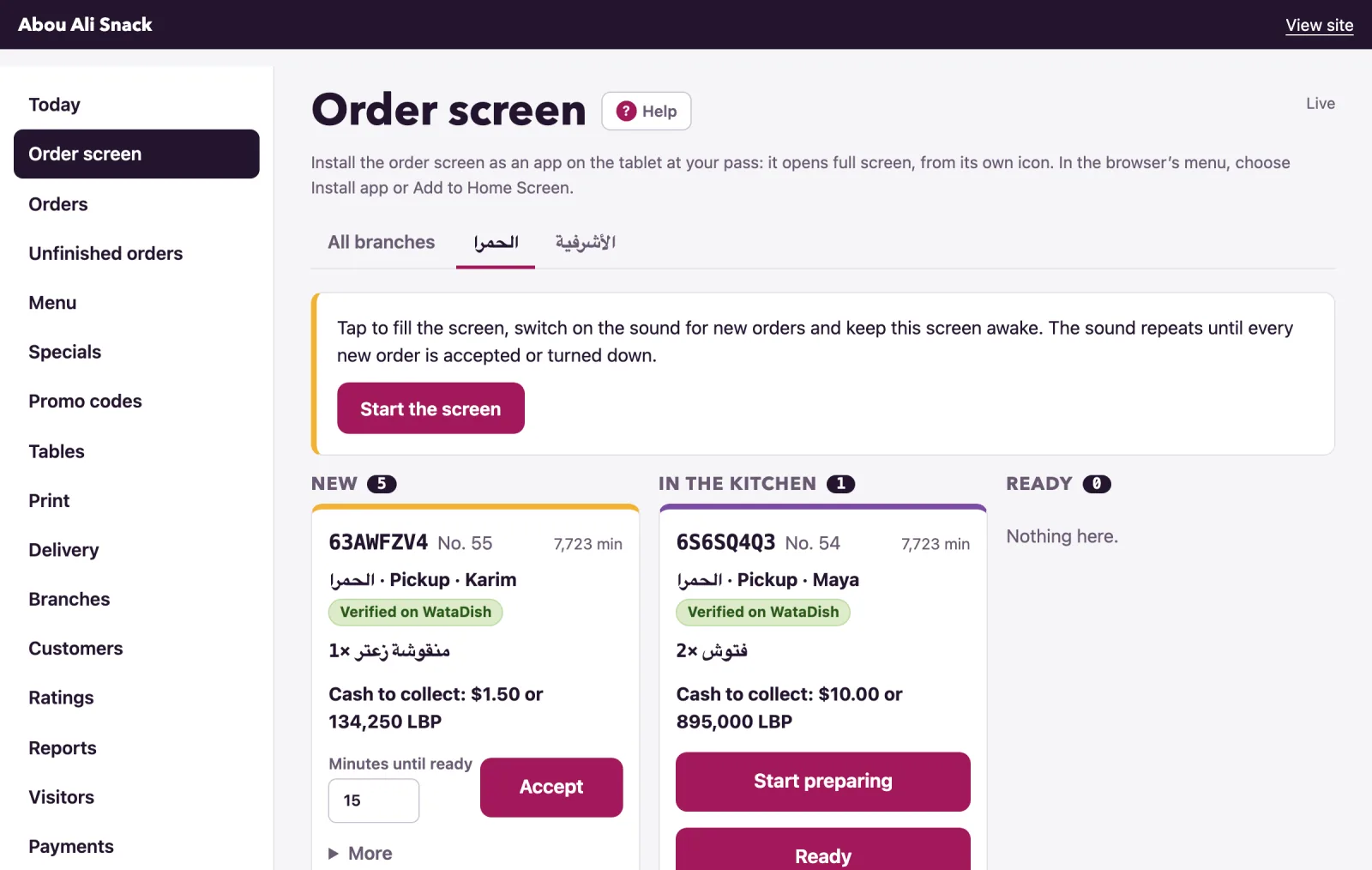
With branches, tabs over the board read All branches and then each branch by name. Open a branch's tab on its own tablet and leave it there: that screen shows only that branch's orders and the calls from its tables.
Paused orders and other notices
Pausing is done in Settings, under Ordering, with Taking orders now. While it is off the board says Orders are paused. Customers can read the menu but cannot order until you take orders again., with Take orders again for a manager or the owner; staff are told A manager or the owner can switch them back on in Settings. The board also says when orders go to your WhatsApp only (see WhatsApp), and when customers have no way to order or to pay.
The screen as an app
On plans with the restaurant's own app, the screen says Install the order screen as an app on the tablet at your pass: it opens full screen, from its own icon. Where the browser offers it, press Install the order screen; elsewhere, In the browser’s menu, choose Install app or Add to Home Screen. On an iPad or an iPhone that is Share, then Add to Home Screen.
Not found what you were looking for? Write to us at support@watadish.com or message us on WhatsApp: WhatsApp