


Help · Kitchens and catering
Daily menu
Put your dishes on days, with how many you make and the time to order by, and print what to cook each day.
Included in: StarterStandardProBusiness
The Daily menu is for a kitchen that cooks different dishes on different days and takes orders ahead. You put dishes from your menu on days, with how many portions you make. Customers order a day before its order-by time, and can fill several days at once: each day comes to you as its own order. A manager or the owner plans the days; anyone on your team can open and print a day's production list. The page says whether your plan includes it.
Switching it on
- Open Settings, the Your business tab, and find What you run.
- Under Also offer, tick Daily menu and press Save. Only the owner can change this.
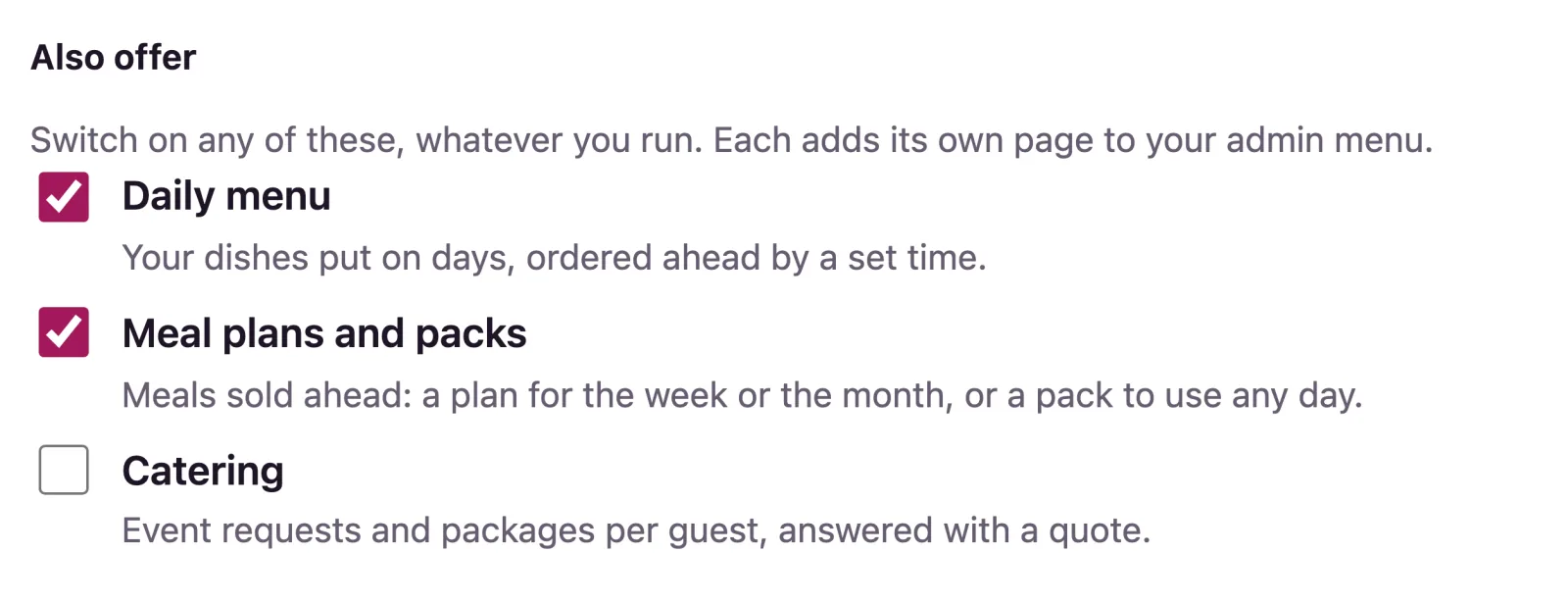
You can plan while it is off, but customers see nothing until it is on; the page then shows a Switch it on link.
Planning the week
Daily menu shows a week, Monday to Sunday; Previous week, This week and Next week move between weeks. At the top, a strip of the week's seven days says how many dishes each has and how many portions are ordered, with today marked: tap a day to go to it. Below, each day is a row, its name and order-by time beside its dishes (above them on a phone). Days that have passed show Gone by, and one with nothing on it is a single line.
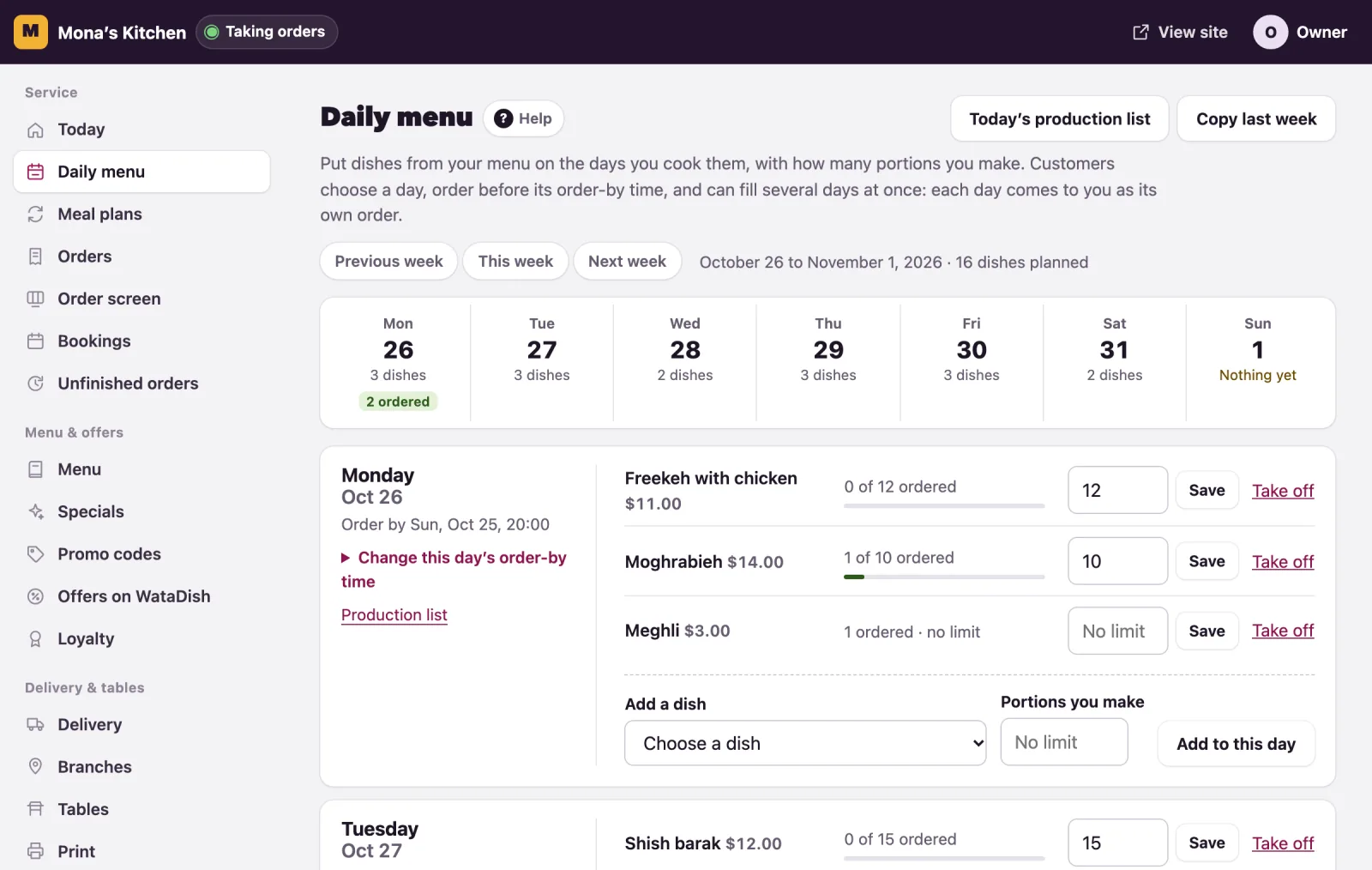
To put a dish on a day:
- On that day's row, choose it under Add a dish. The list is your menu, so add the dish there first.
- Give Portions you make, or leave it empty for no limit.
- Press Add to this day.
Each dish then shows what is ordered of it, such as 3 of 12 ordered, with a bar that fills as orders come in: amber when nearly all are ordered, red when they all are. Change the number and press Save, or Take off to take the dish off that day: orders already placed stay as they are. Copy last week puts every dish of the week before, with its portions, on the same weekdays of the week shown, leaving dishes already there alone.
Tip: Customers choose a time within your opening hours, every 30 minutes; a day you are closed is marked on its row.
Portions and the order-by time
When a day's portions of a dish are all ordered, customers see it sold out for that day, and when ten or fewer are left, how many. Orders turned down or cancelled give their portions back.
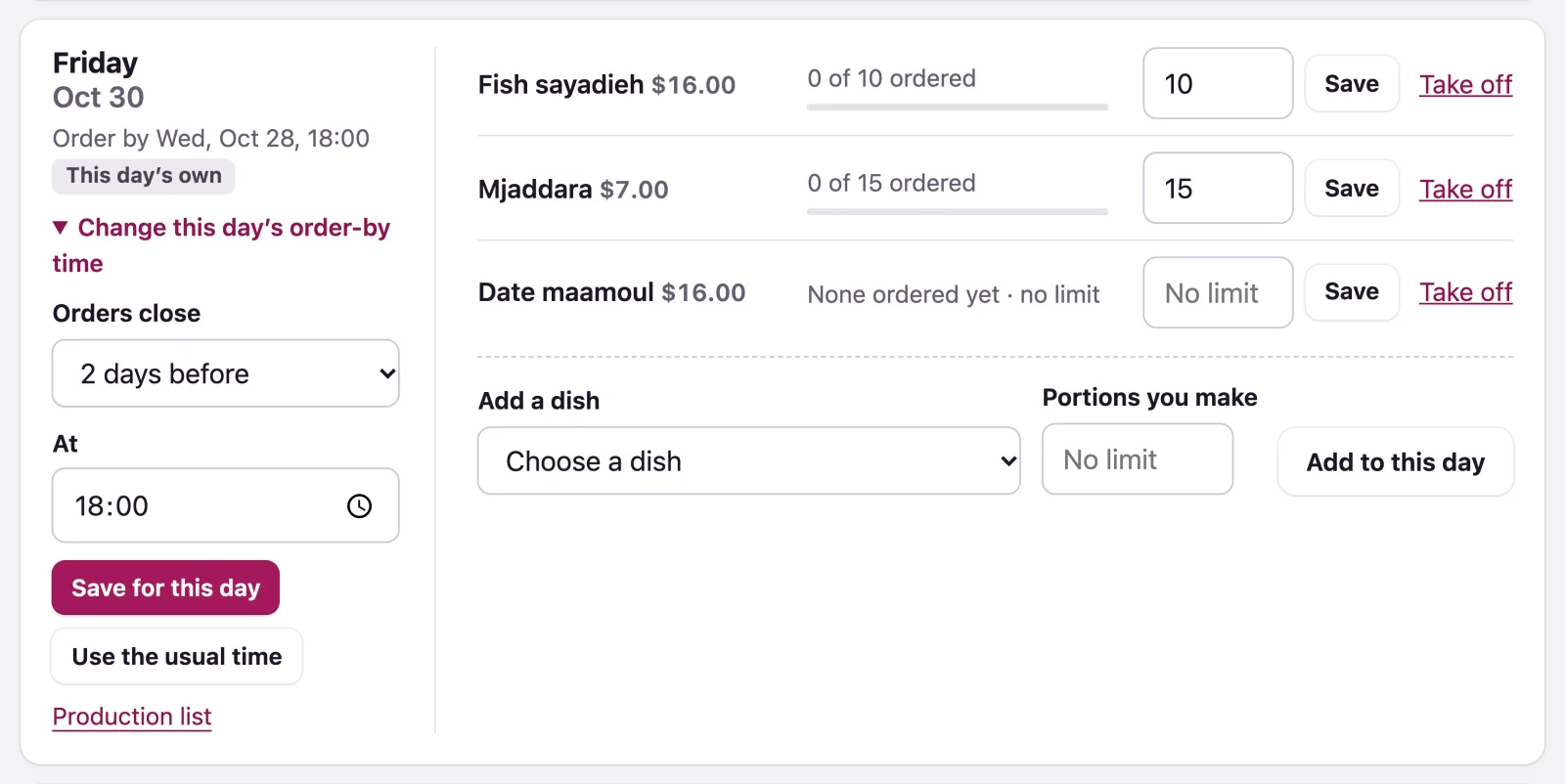
Each day shows Order by and the time the day closes; past it, Orders closed, and customers see the dishes but cannot order them. The usual time is in Order-by time and days shown, at the foot of the page:
- Orders close: On the day, The day before, or up to 7 days before; At: the time. Unless you change them, orders close the day before at 20:00.
- Days shown: how many days ahead customers see, up to 14. Only days with dishes are shown.
Press Save settings; a change counts for orders from now on. For one day only, open Change this day’s order-by time on its row and press Save for this day: the day shows This day’s own, and Use the usual time puts it back.
What customers see
Your menu shows Order by day, a tab for each day: Today, Tomorrow, then the weekday, each with the time it closes, or Closed. The customer adds dishes to one day, then another if they like, and Your days takes them to one checkout for them all.
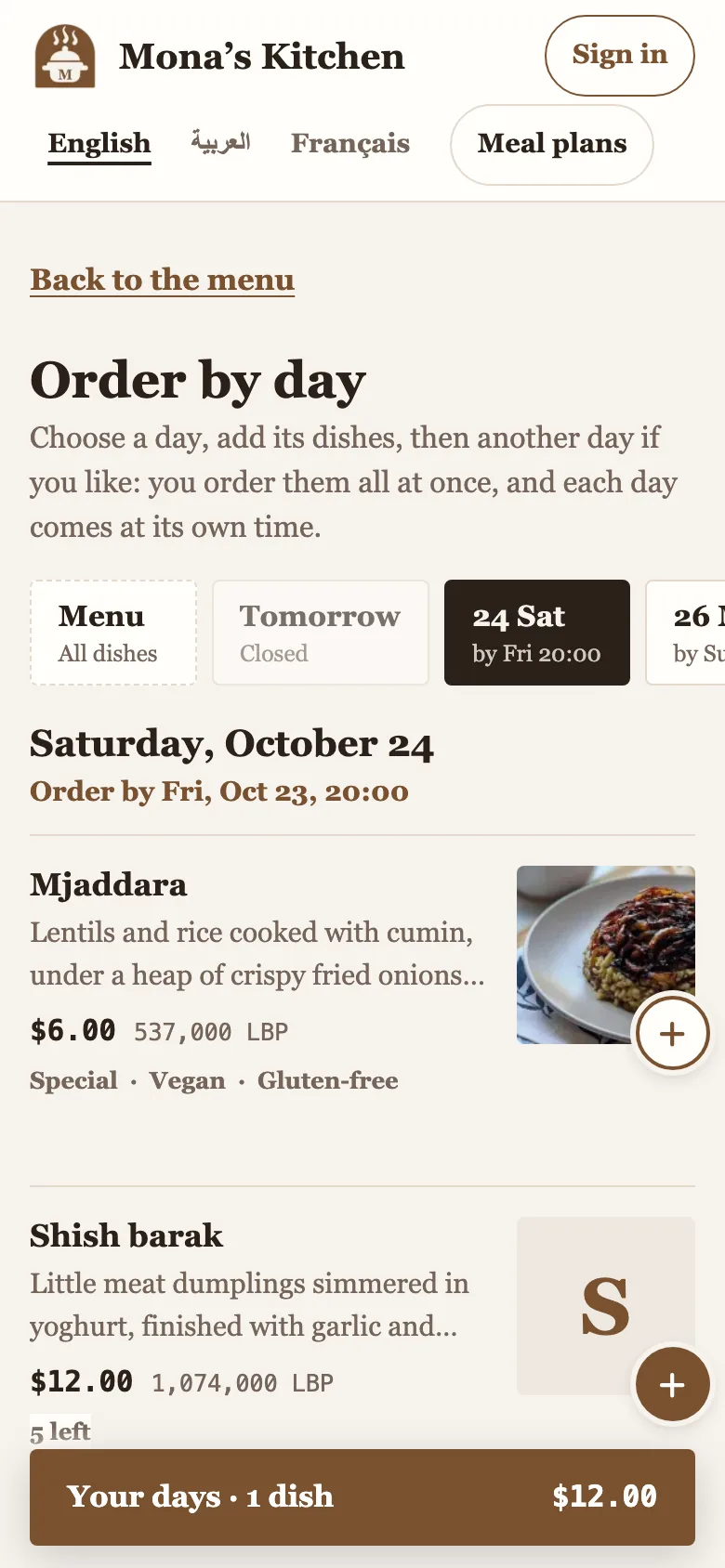
There they give their details once, choose pickup or delivery and how to pay, and pick a time on each day. One press places it all, as one order per day:
- Cash or transfer: each day is paid on its own.
- Card: each day has its own payment page, one after the other; the order page offers Pay for the next day.
- Delivery: each day is delivered with its own delivery fee, and must reach the area's minimum.
Promo codes, loyalty rewards and tips are not taken on daily-menu orders for now.
Where the orders arrive
Each day's order reaches the order screen and Orders as soon as it is placed, marked with the day and time it is for, such as For Sat 12:30. Several days ordered together arrive together, one order per day. Accept each, and move it on on its day as usual.
The production list
Today’s production list at the top of the planner, or Production list on a day's row, shows what to cook. Day before, Today and Day after change the day.
- To cook: each dish with its portions, split by the choices and notes made with it.
- For catering events: if you also do catering, the food of that day's booked events.
- Meal plans: if you sell meal plans, that day's plan meals not yet orders.
- Orders: each order with its time, the customer, the dishes, the payment and its status.
A card order counts once paid; one turned down or cancelled does not.
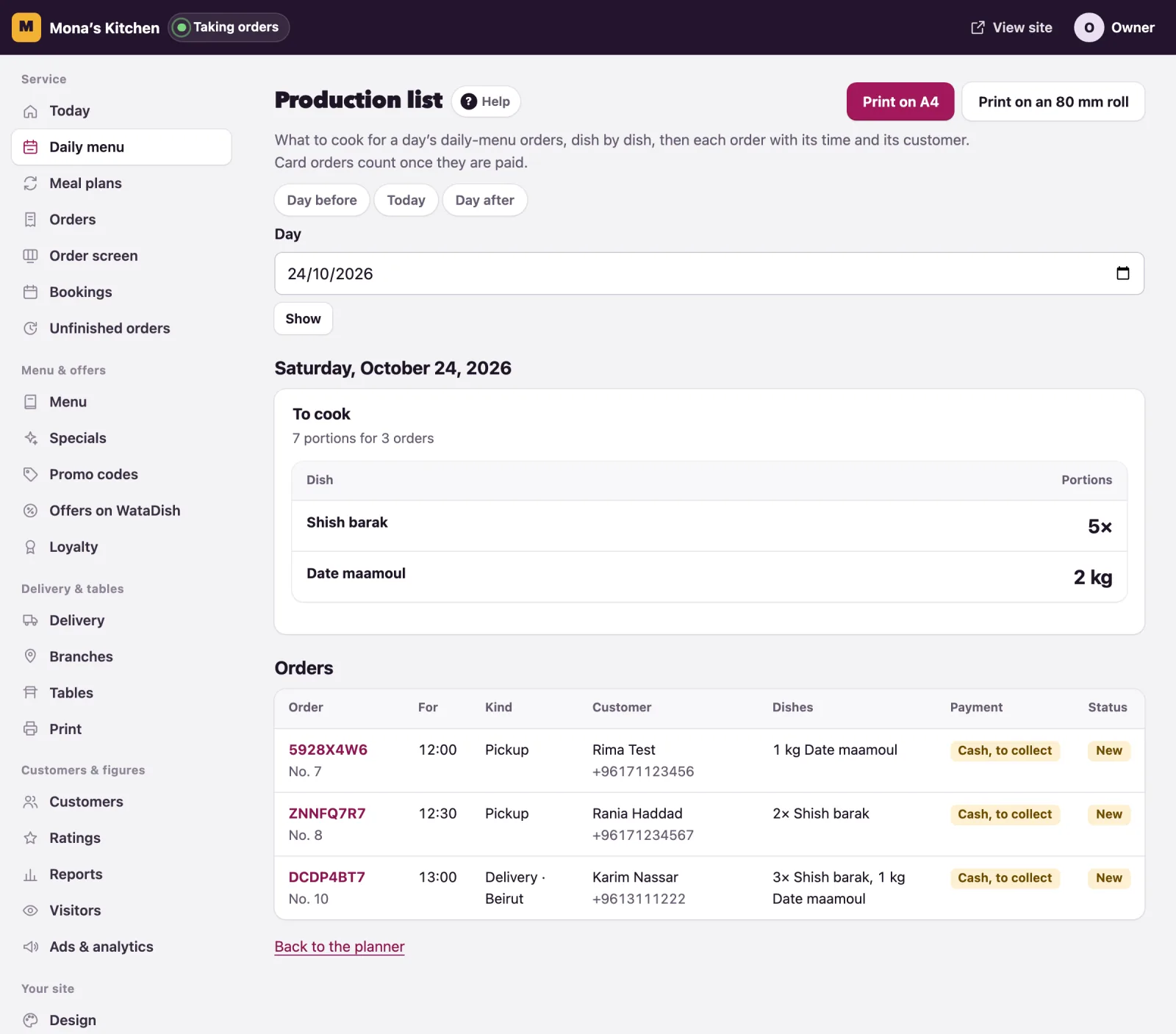
Print on A4 prints the kitchen's sheet, then a slip for each order; Print on an 80 mm roll prints the same on a receipt printer, cut between the slips.
Not found what you were looking for? Write to us at support@watadish.com or message us on WhatsApp: WhatsApp