Help · Your menu
Dish photos
Give every dish a photo in one place, from your phone, and know how photos are sized and shown.
Included in every plan.
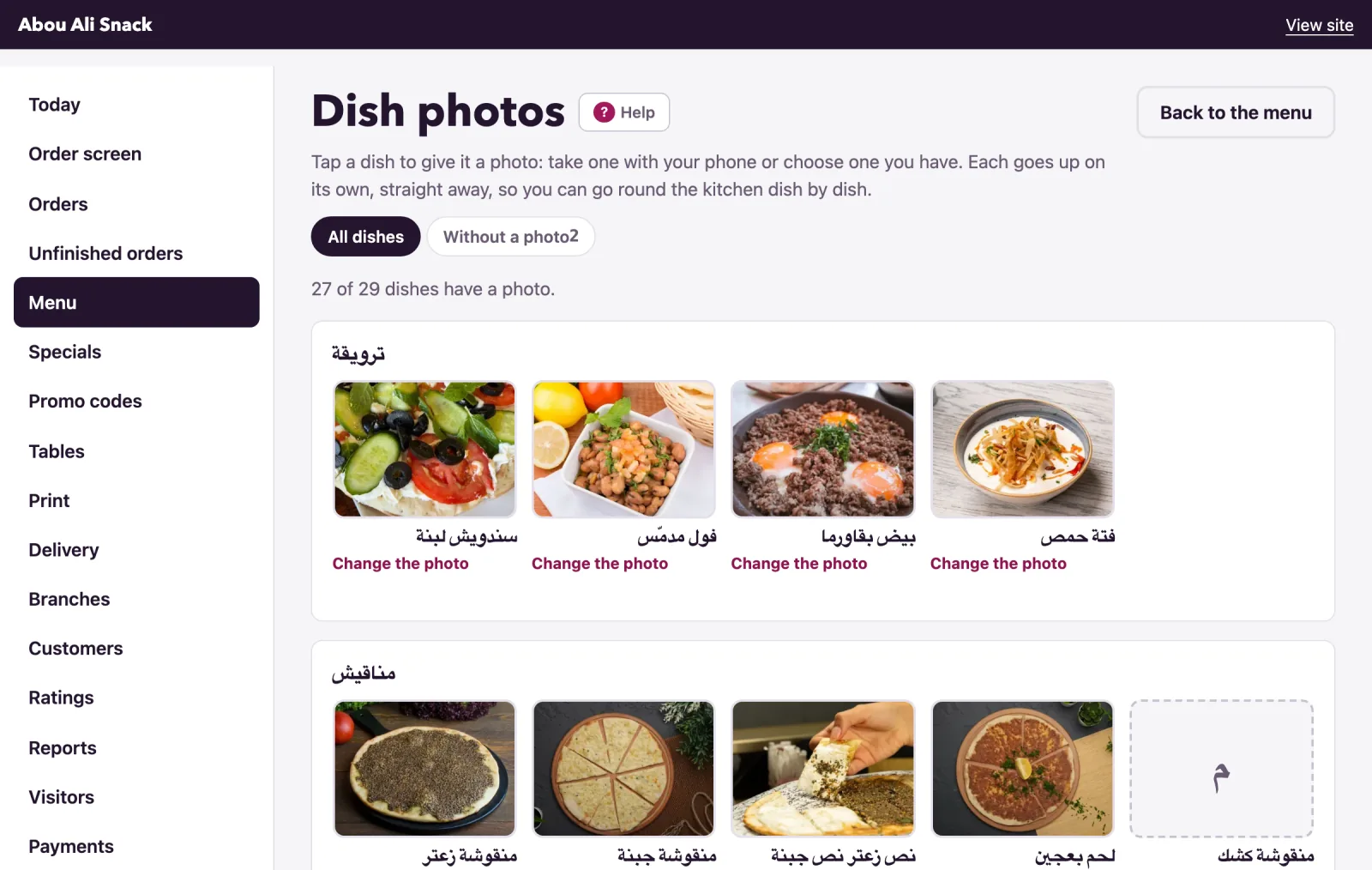
Open Menu, then Dish photos. Every dish of your menu is a tile: tap one to give it a photo, with your phone's camera or a picture you have, and it goes up on its own, straight away. It is the way to give a whole menu its pictures on the day you start, going round the kitchen dish by dish; the setup list on your dashboard sends you here, to the dishes still without one. The owner and managers give photos; staff cannot.
Give a dish a photo
- Open Dish photos. The page says how many dishes have one: "12 of 29 dishes have a photo."
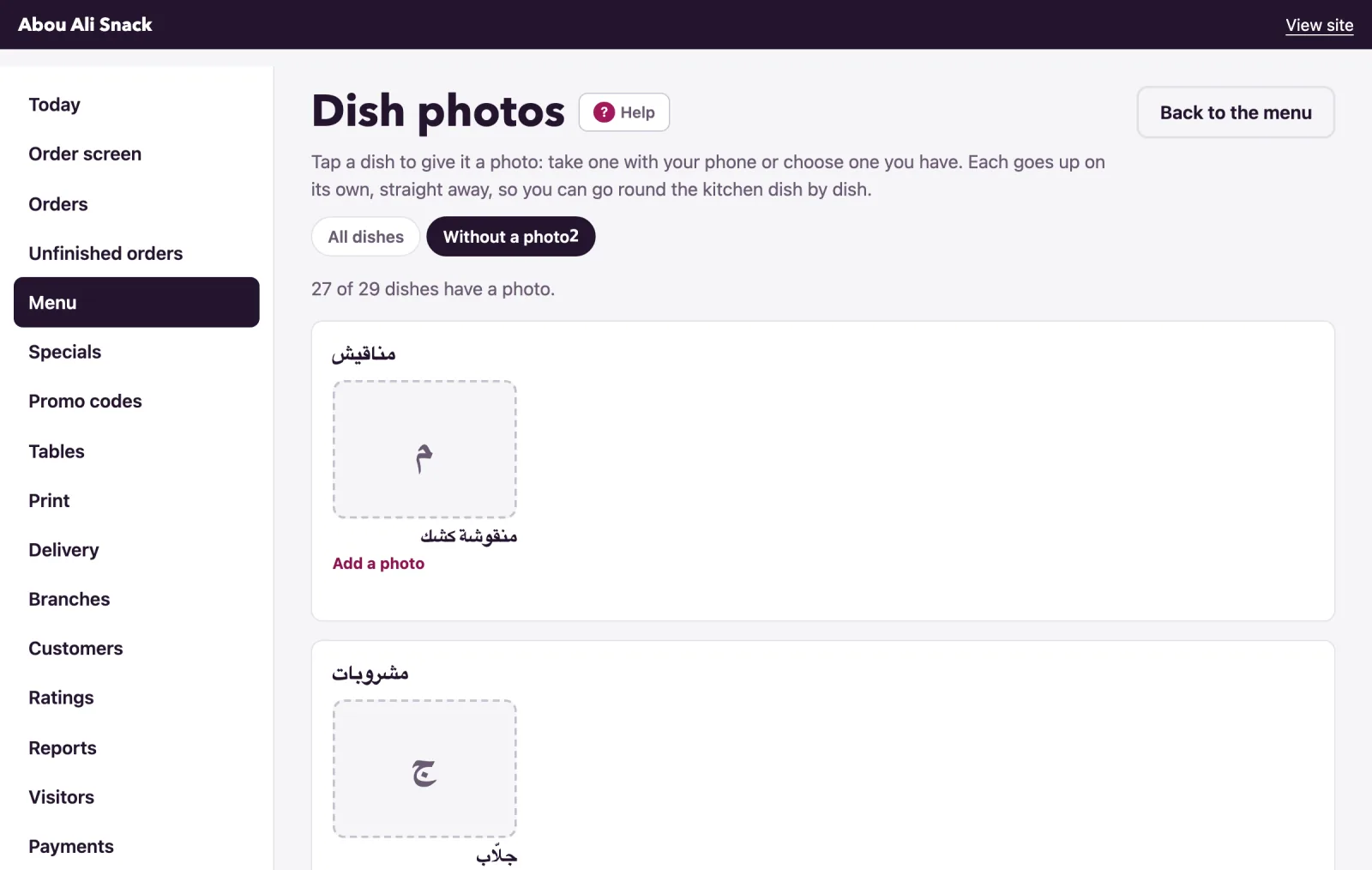
- Choose All dishes, or Without a photo to see only the dishes that still need one. The tab shows how many.
- Tap the dish's tile, marked Add a photo (or Change the photo when it has one). Your phone offers its camera and its pictures; a computer offers its files.
- The photo goes up at once. The tile says "Sending the photo…", then "Photo saved for Zaatar." and shows it. If the connection drops it says "The photo did not go up. Check the connection and try again."
Without JavaScript each tile has a Save the photo button, and the page comes back at the dish. A dish that is switched off is marked "Not on the menu" and can still be given a photo. Once every dish has one, the Without a photo tab says "Every dish has a photo."
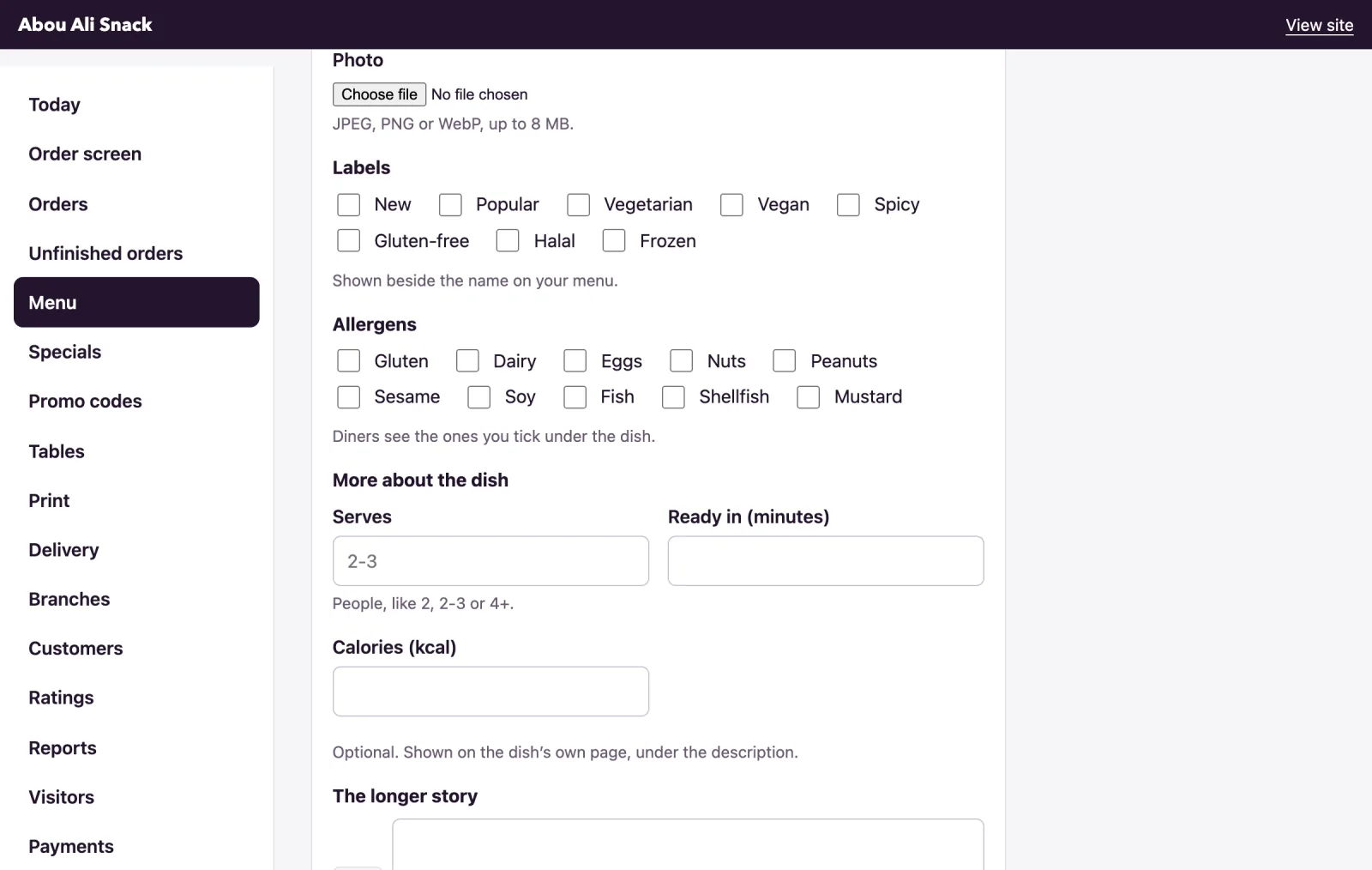
This page gives and replaces photos. To take a photo off a dish, open the dish from the Menu page with Edit and tick Remove the photo. The dish form takes a photo too, under Photo, with the same rules.
Sizes and formats
A photo is a JPEG, PNG or WebP file of up to 8 MB. A picture with more than 40 million pixels is refused with "That photo has too many pixels. Save a smaller copy and try again." A file that is not a picture, whatever its name, is refused with "That file is not a photo we can use. Use a JPEG, PNG or WebP image."
You need not shrink anything yourself. A phone's photo of several megabytes is made smaller in the browser before it is sent: a JPEG or WebP wider or taller than 1,600 pixels, or heavier than about 1.5 MB, is scaled to 1,600 pixels on its longer side, turned the way it was taken and sent as a JPEG, so it goes up in a moment on a slow connection and never meets the 8 MB limit. A PNG is sent as it is, since it may be a logo with a see-through background.
What happens to a photo
Every photo is opened and written out again on the server: what is stored is a plain picture, never the file that was sent, and never the camera's notes (a phone's photo carries where it was taken). It is turned upright, scaled down to 1,200 pixels wide (never up), and kept as a JPEG; a PNG stays a PNG only where it has see-through parts. Smaller copies are then made at 192, 400 and 800 pixels wide, in WebP, so that the menu stays light: the list draws the small copy, a grid tile the middle one, the dish's page and a special's card the large one, and a phone is never sent a bigger picture than it shows. A photo narrower than a copy is shown as it is. When you replace a photo, the old one and its copies are deleted.
How photos are shown
On the menu each dish has a square beside it, cut from the middle of the photo; on the dish's own page the photo is shown wide, four by three, above the name; a special's card shows it wider still. A dish without a photo gets the first letter of its name in a square instead. So frame the dish in the middle, in good light, and leave a little room around it: the edges are what the square cuts away. A shared link to a dish uses its photo for the preview.
Not found what you were looking for? Write to us at support@watadish.com or message us on WhatsApp: WhatsApp