Help · Your site
Your home page
A front page of your own at your address, with the menu at /menu: an add-on you ask for here, then write and preview.
An add-on on any plan, $10.00 a month.
Normally your address opens the menu itself. With a home page, it opens a page about you first: your words around a photo, what makes you, a few dishes, your story, your hours. The menu moves to /menu. Your QR codes land on the menu as before, links to your address that you sent earlier open the home page, and its button leads on to the menu. You build it under Home page in the admin; a manager or the owner can, staff cannot.
An add-on you ask for
The home page is an add-on on any plan, with a monthly price the page shows. Until it is switched on, Home page offers one button, Ask for the home page. Press it and we are told; the page answers Thank you. We will be in touch to switch your home page on. We switch it on once it is paid, and the editor appears here. A restaurant can ask a few times a day at most; after that the page says You have asked already today: we will be in touch.
Switch it on
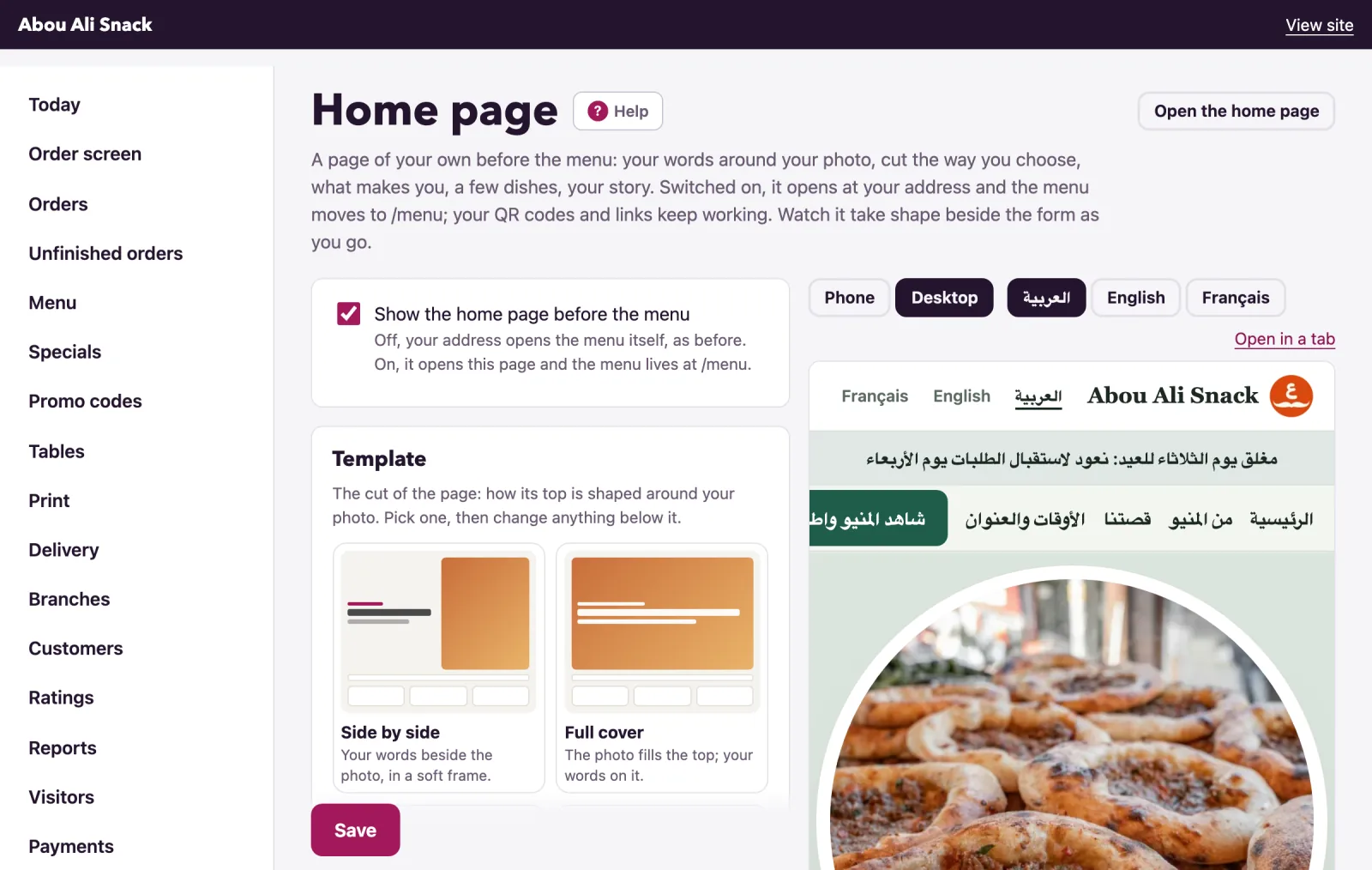
- Tick the first box, Show the home page before the menu. Off, your address opens the menu as before; on, it opens the page and the menu lives at
/menu. - Press Save: the switch is saved with the rest of the form, and the page says Saved. Your address now opens the home page; the menu is at /menu. or Saved. Your address opens the menu.
Everything you wrote stays saved while it is off. Once it is on, Open the home page at the top opens it in a new tab.
Templates
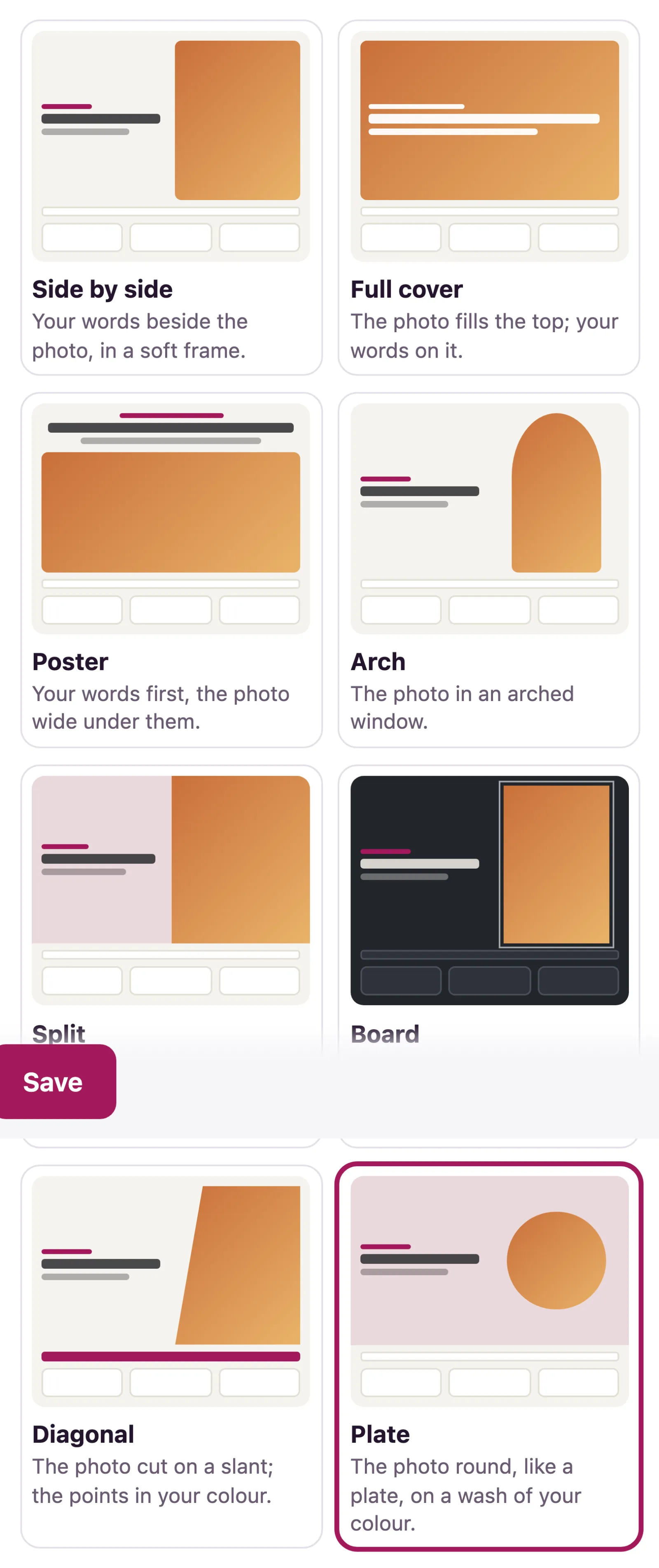
A Template is the cut of the page: how its top is shaped around your photo. Pick one, then change anything below it.
- Side by side: your words beside the photo, in a soft frame.
- Full cover: the photo fills the top; your words on it.
- Poster: your words first, the photo wide under them.
- Arch: the photo in an arched window.
- Split: half photo, edge to edge; half words on a wash of your colour.
- Board: the page dark, the photo framed, the dishes as a priced list.
- Diagonal: the photo cut on a slant; the points in your colour.
- Plate: the photo round, like a plate, on a wash of your colour.
Choosing a template also sets the alignment and dish style that suit it, unless you chose them by hand. Where your plan includes the looks, Colours and fonts lists them as colour chips: a look dresses the home page and the menu alike, and the Design page has the rest, your own colour, fonts, logo and cover.
Layout
- The photo at the top: a JPEG, PNG or WebP up to 8 MB. Left empty, the page uses your cover photo from the Design page. A dish from above, or the room, works best. Remove the photo takes it off.
- Your words: To one side or In the middle.
- Show a few dishes from the menu, drawn as Cards, Tiles or A list, and How many dishes (3, 6, 9 or 12). The page takes the first dishes that have a photo and a price, in the menu's own order, leaving out hidden categories and anything sold out; each leads to its page.
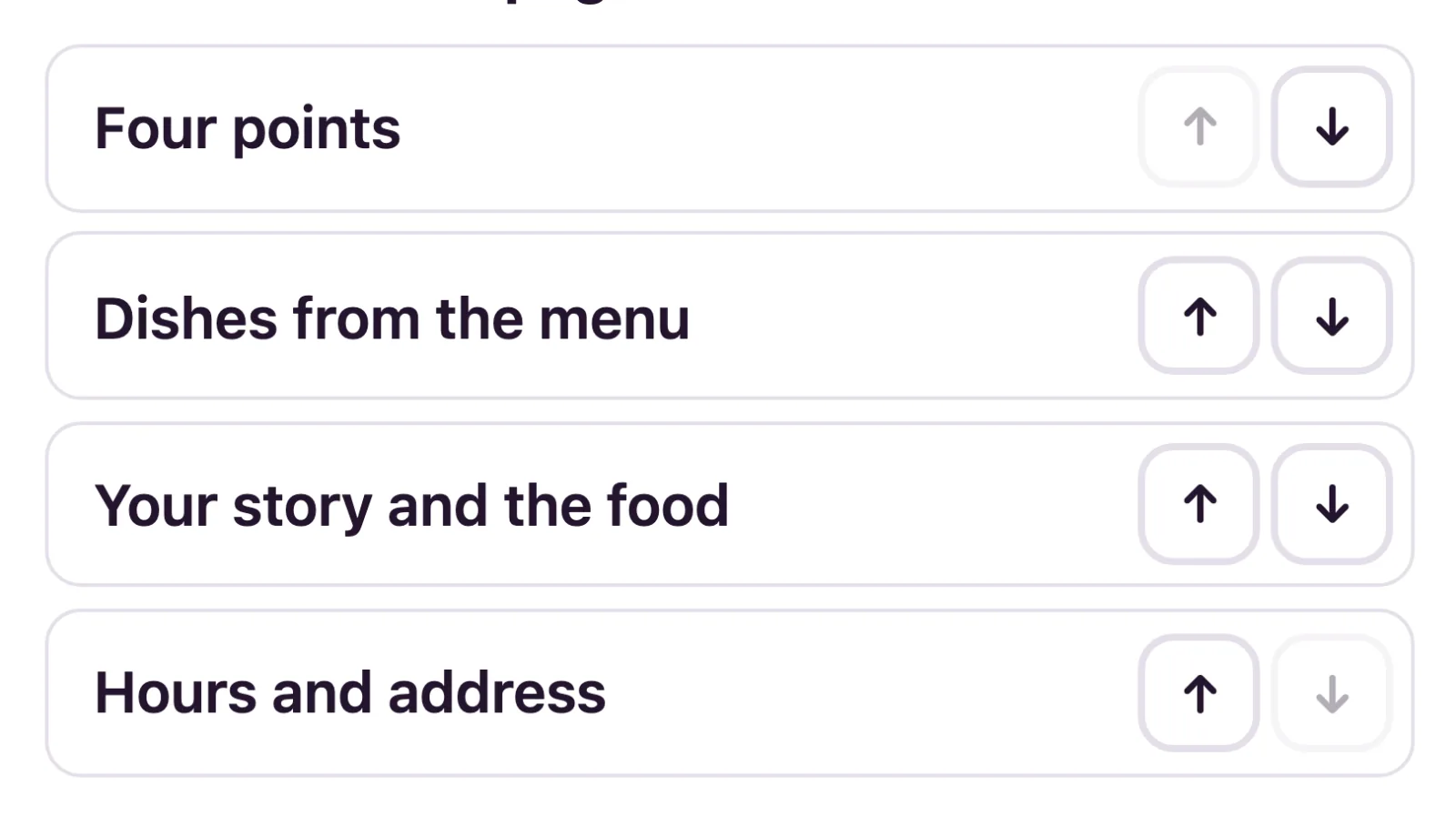
- The order of the page: the blocks under the top, Four points, Dishes from the menu, Your story and the food and Hours and address, moved with their arrows. A block with nothing written in it is not drawn.
- A bar of links under your name and A closing band with the button at the foot can each be switched off.
The words
Every text is written once per menu language. A line left empty in one language is shown in your first language instead; a line empty in every language is not shown.
- The first thing they read: a Small line above the headline, the Headline (empty, it is your restaurant's name), One sentence under it, A few more lines, The button's words (empty, "See the menu and order"; it always leads to the menu) and A note under the button, such as where you deliver.
- Four points: a title and a line each, in a strip under the top. Fill as many as you like.
- Your story, and What makes the food good: a title and the text each. A blank line starts a new paragraph.
The hours and address block comes from your settings.
The preview
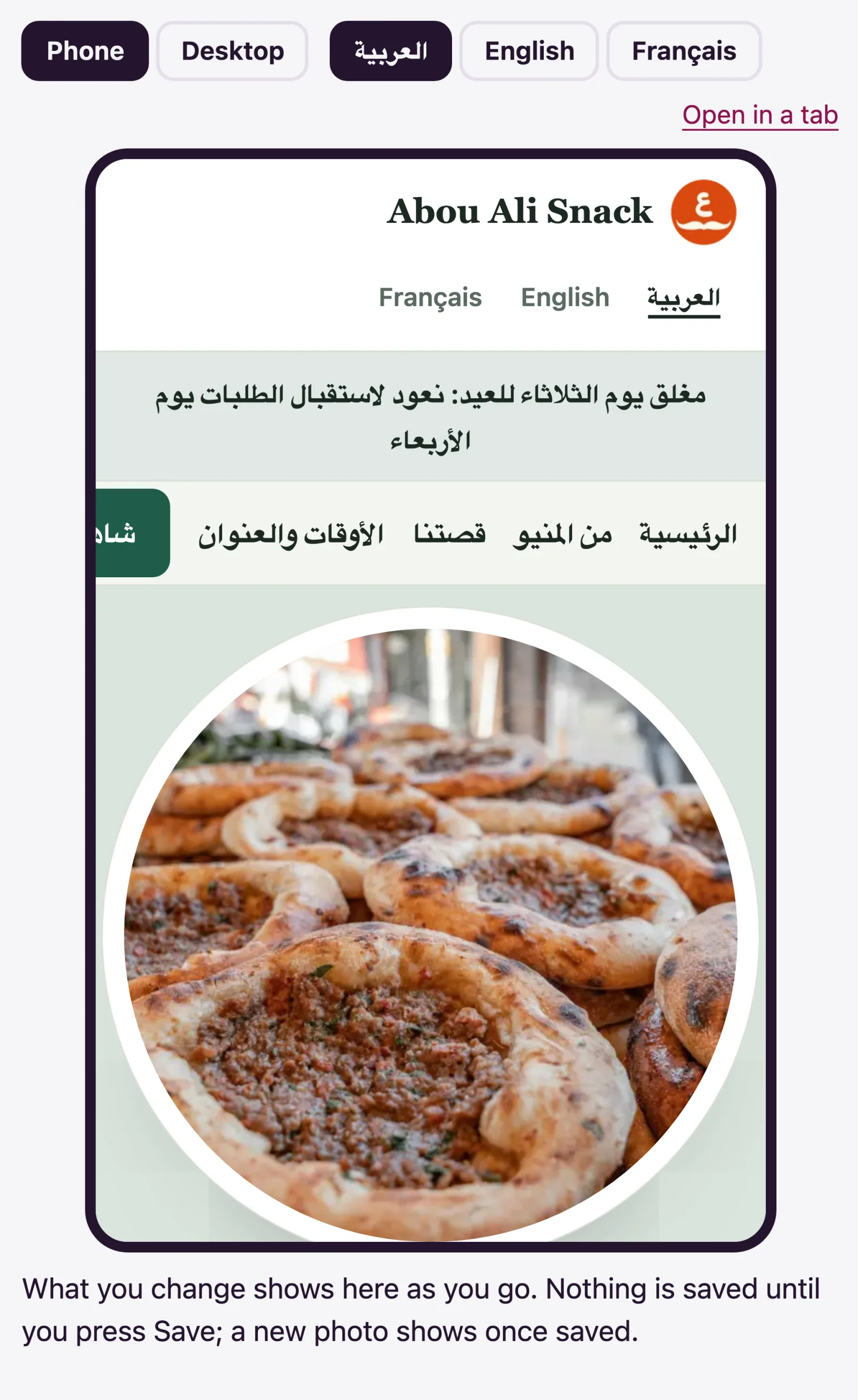
The frame beside the form is the page as it would be, redrawn as you type and choose. Phone and Desktop change its width, one button per menu language shows it in that language, and Open in a tab opens it full size. Nothing is saved until you press Save; a new photo shows once saved.
Note: A photo that will not open is reported under its field while the rest of the form is saved: The rest was saved, but the photo was not. See the note below.
Not found what you were looking for? Write to us at support@watadish.com or message us on WhatsApp: WhatsApp