Help · Your site
Amberlock POS link
Link your site to Amberlock POS: orders reach the register, the POS keeps the menu, and sold out is shared both ways.
Switched on for your restaurant by WataDish: write to us and we set it up.
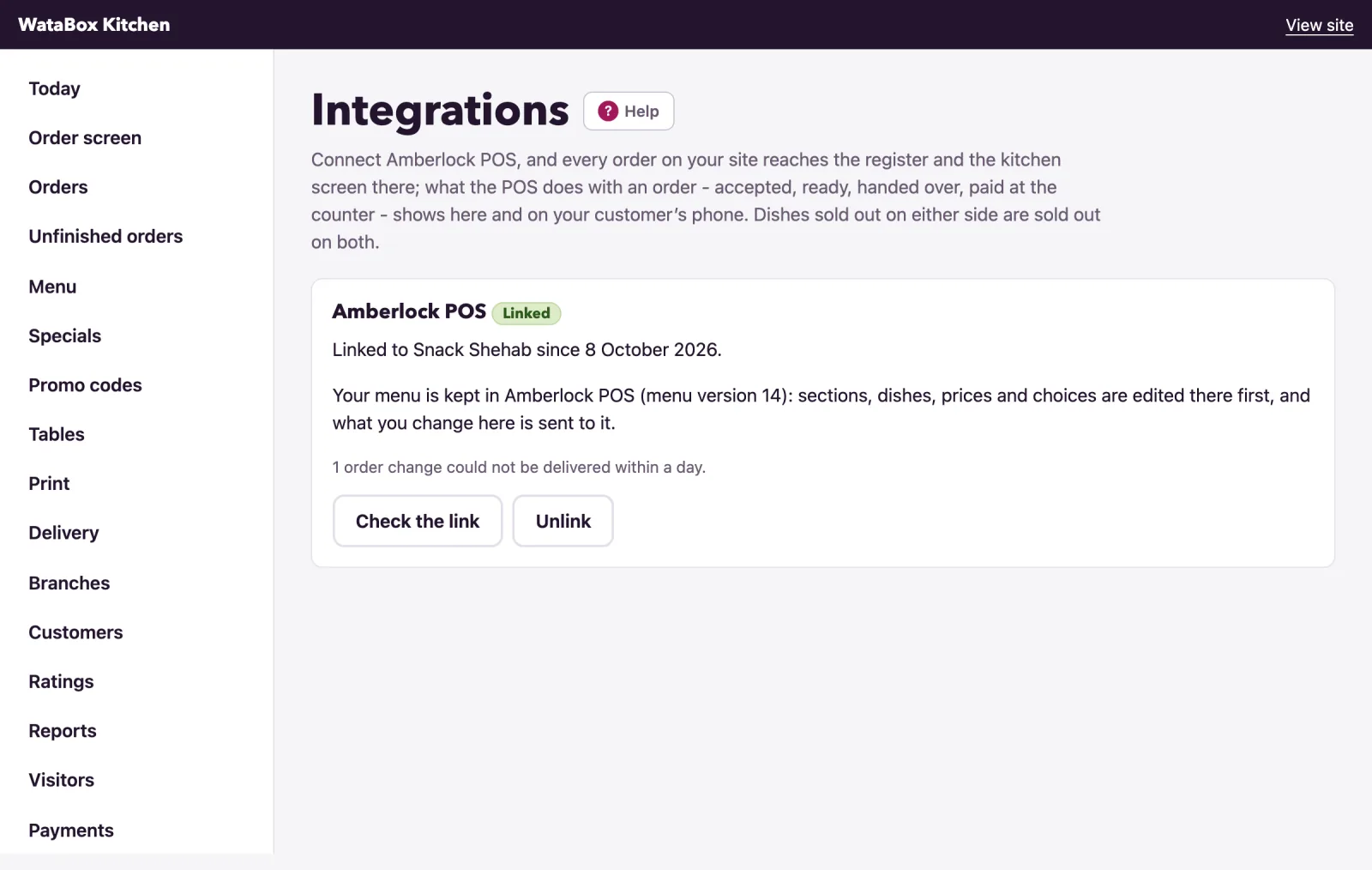
Linked to Amberlock POS, every order placed on your site reaches the register and the kitchen screen there, and what the POS does with it, accepted, ready, handed over, paid at the counter, shows on your order screen and on your customer's phone. Once the POS has sent its menu, the menu is kept there: categories, dishes, prices and choices are edited in the POS first, and what you change on WataDish is sent to it. A dish sold out on either side is sold out on both. The link lives under Integrations in the admin; only the owner can open it.
The page says whether your plan includes the link; where no plan on offer does, WataDish switches it on for your restaurant, so write to us. Until then the page says that connecting a POS is not in your plan.
Link by code
Either side can start. On WataDish:
- Under Your link code, press Make a code. A code like
ABCD-2345appears; it works once, for 15 minutes, and Make a new code replaces it. - In the POS, under Integrations, Connect WataDish, type the code.
Or start on the POS, which shows a code of its own under Integrations, Connect WataDish. Under Type the code from the POS, enter it in Code from the POS and press Connect Amberlock POS. The page confirms the link, naming your POS: Orders now reach the POS. A code mistyped says A code looks like ABCD-2345.; one the POS will not take, or a POS that does not answer, is reported as it said. Your site and the POS must trade in the same currency. A restaurant that is linked already cannot link again: unlink first.
Check the link
Linked, the page shows Amberlock POS with the badge Linked, since when, and, once the POS has sent its menu, the menu version it holds. Press Check the link to make sure the POS answers: The POS answered, with its name, or what went wrong. The card also says when the last push to the POS failed (it is tried again for a day), and how many order changes are waiting or could not be delivered.
What changes while the menu is the POS's
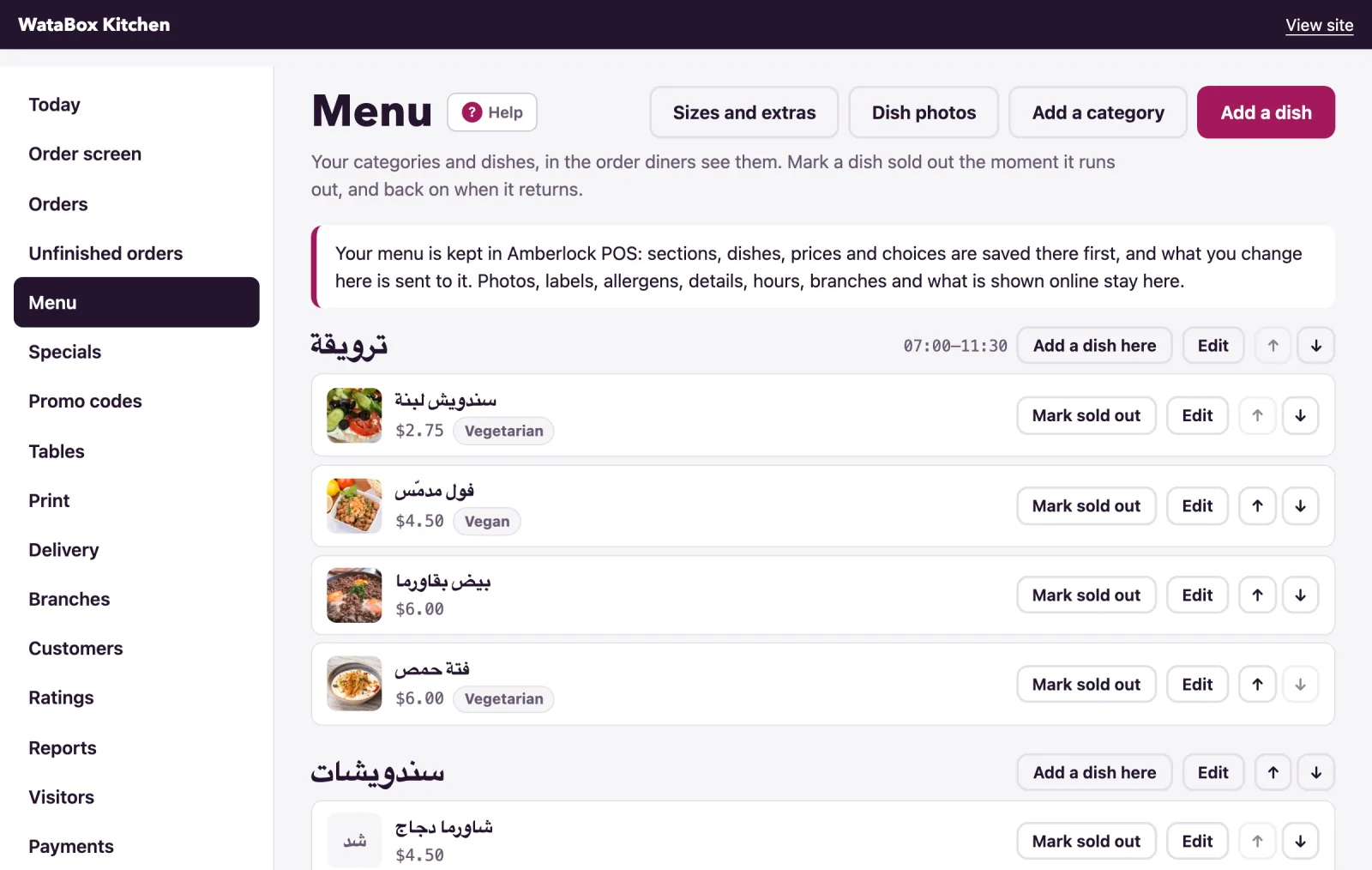
Once the POS has sent its menu, the Menu page carries a note: the menu is kept in Amberlock POS, and what the POS owns is saved there first.
- A change to a category, a dish, its price, how it is sold (Each, The pack, The kilo) or its sizes and extras goes to the POS and is saved here as the POS answered. The POS decides by role who may change the menu: if it does not let yours, the page says Amberlock POS does not let a manager change the menu. and nothing is saved; ask the owner to allow it under WataDish in the POS, or make the change there. If the menu changed in the POS since you opened the form, or the POS cannot be reached, nothing is saved and the page says so.
- Photos, labels, allergens, a dish's details and story, a category's hours, branch prices and what is shown online stay on WataDish and are saved here directly.
- Delete this category and Delete this dish become Hide this category and Hide this dish: the POS takes it off the menu, nothing is deleted here, and a dish that comes back from the POS is shown again. A new dish can only go in a category the POS has.
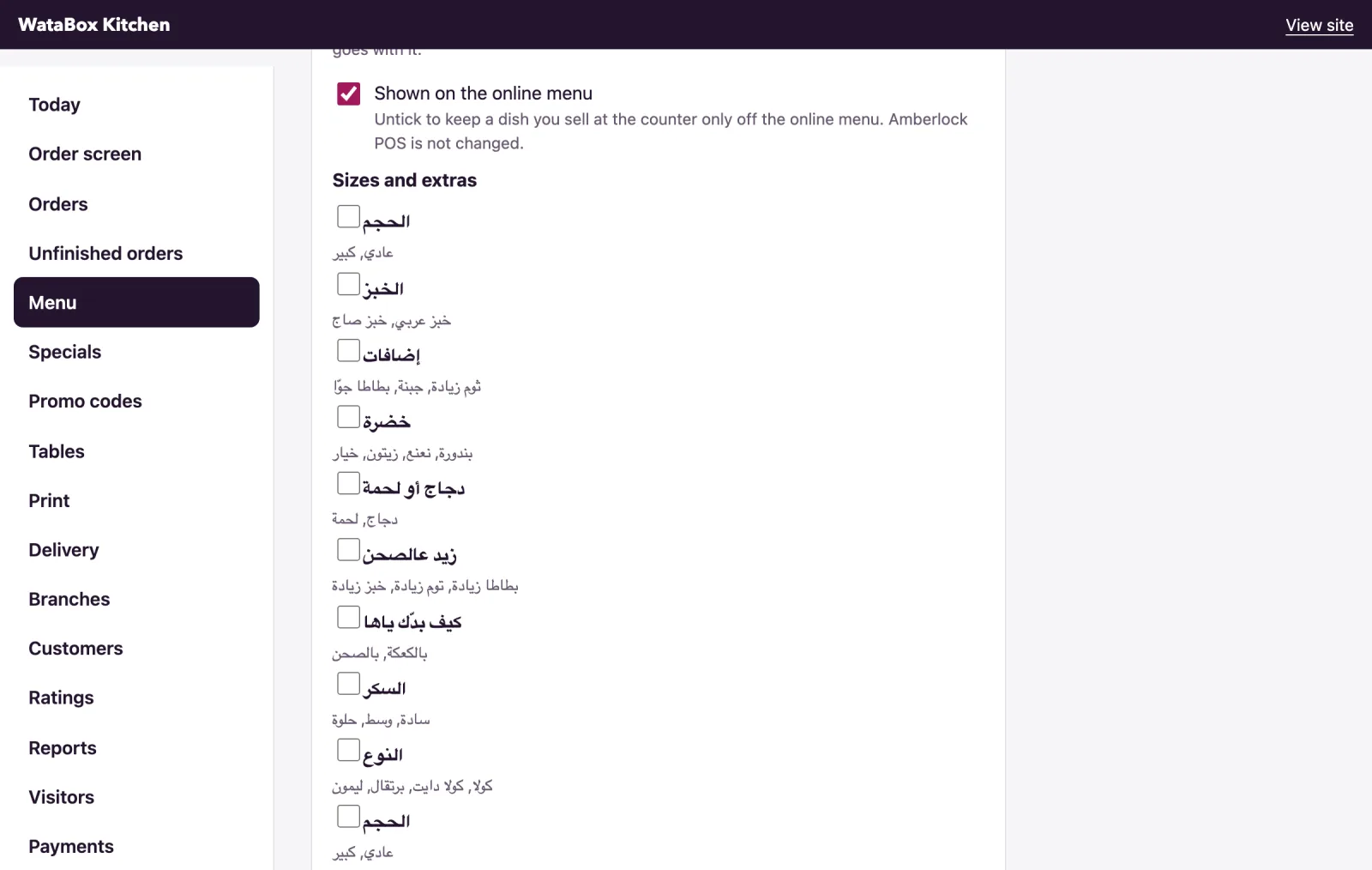
- How many are left is gone from the dish form: the POS's stock decides when a dish is sold out. In its place, Shown on the online menu: untick it to keep a dish you sell at the counter only off the online menu, without changing the POS.
- Mark sold out on the menu list still works for everyone, staff included: the dish is sold out here at once and the POS is told. If the POS does not let that role, it puts the dish back, and the dish shows Set back by Amberlock POS on the menu list.
- The paste-in of a whole menu is closed: paste it into the POS, under Products, and it reaches WataDish at once.
- A name sent by the POS replaces only the languages it sends; your other translations stay.
Linked but before the POS has sent its menu, the editor works as it always did; orders flow to the POS regardless.
Note: The POS's price is the price online, apart from branch prices, which stay yours.
Unlink
Unlink ends the link after you confirm: Unlink this POS? Orders stop reaching it until you link again. The page then says Unlinked. Orders no longer reach the POS. The menu stays as it is and is edited here again: delete returns, and stock counting resumes from the counts stored before. To link again, make or type a new code. If your plan stops including the link, its card stays, saying that nothing moves on it now: unlink it, or ask us.
Not found what you were looking for? Write to us at support@watadish.com or message us on WhatsApp: WhatsApp