


Aide · Votre menu
Options et suppléments des plats
Tailles, suppléments et ingrédients à retirer : des groupes de choix parmi lesquels le client choisit, créés une fois et ajoutés à n’importe quel plat.
Inclus dans toutes les formules.
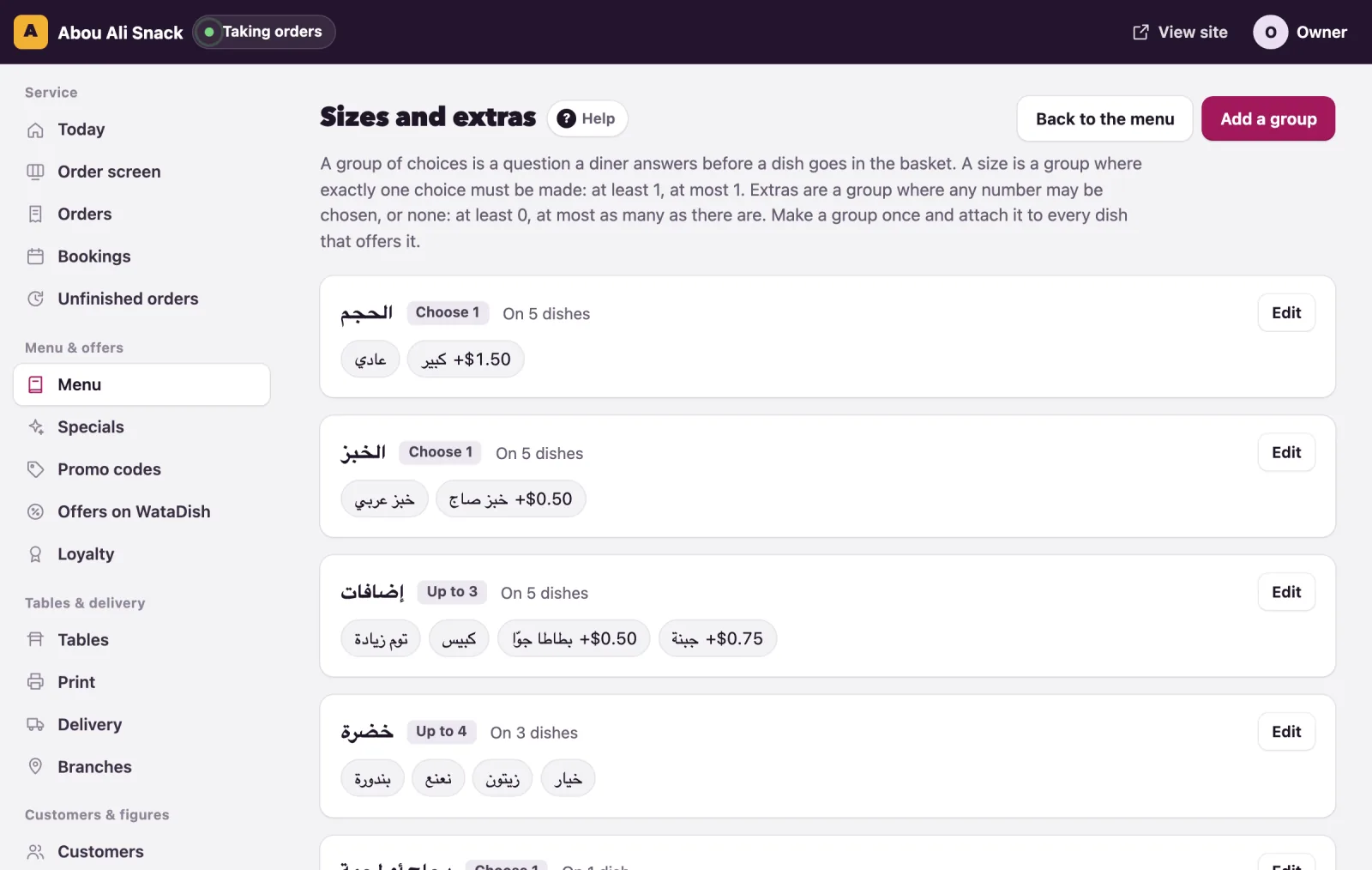
Open Menu, then Sizes and extras. A group of choices is a question a diner answers before a dish goes in the basket: which size, which bread, what to add. You make a group once and attach it to every dish that offers it, so a new extra reaches all your sandwiches in one edit. The owner and managers make and change groups; staff cannot open the page.
How a group works
A group has a name, which is the question the diner sees, and two numbers: At least and At most. They cover every kind of choice with one rule:
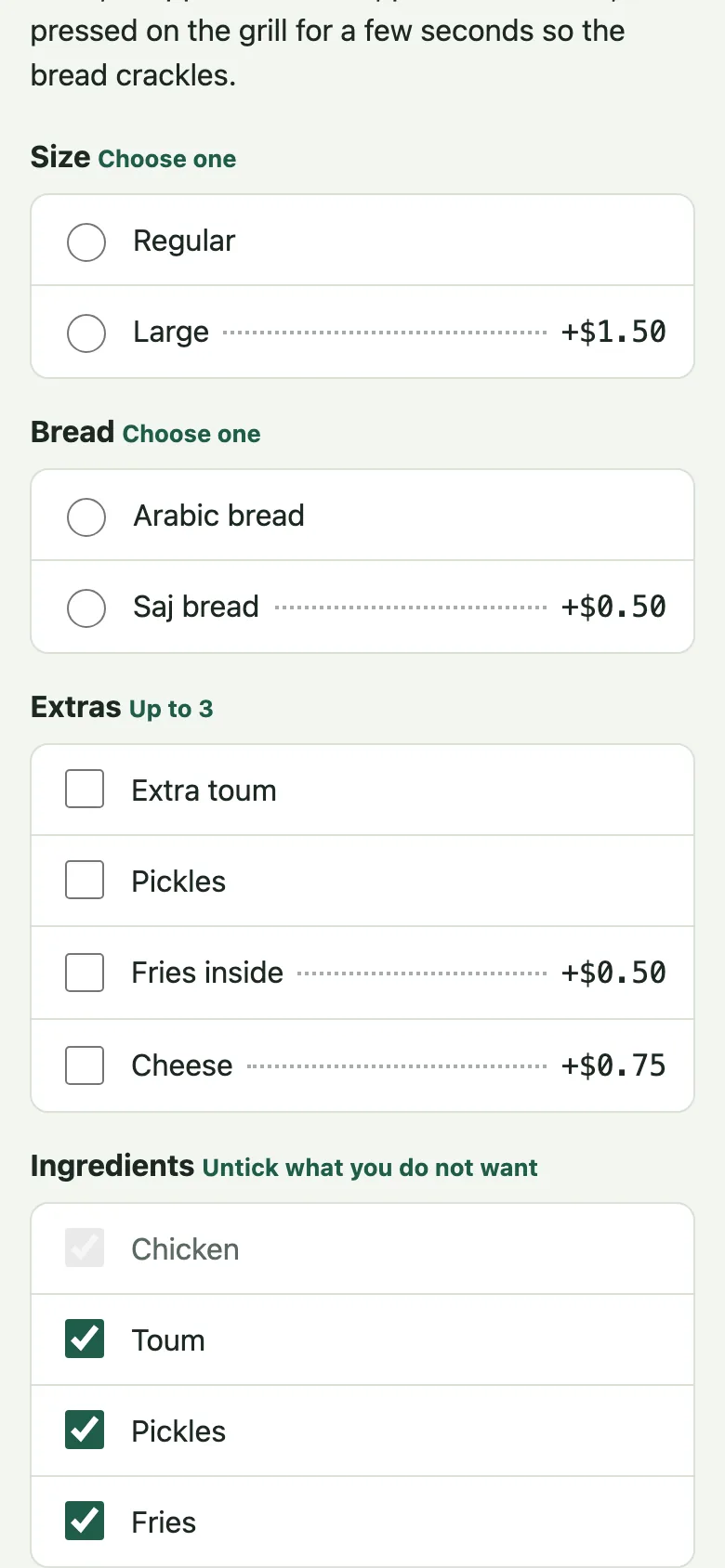
- A size is At least 1 and At most 1: the diner must pick exactly one. Diners see "Choose one".
- Extras are At least 0 and At most 3: any number up to three, or none. Diners see "Up to 3".
- "Pick two sauces" is At least 2 and At most 2: "Choose 2". At least 1 and At most 3 is "Choose 1 to 3".
- At least 0 and At most 1 is "Optional".
Each choice has a Price change: left empty, the choice costs nothing more; 1.50 adds a dollar fifty to the dish's price; a minus (-0.50) takes money off. The list shows every group's rule as a badge ("Choose 1", "Choose at least 2, up to 3", "Up to 3", "Optional"), its choices with their price changes (+$1.50, -$0.50), "Not available" on a choice that is switched off, and how many dishes offer it ("On 4 dishes", "Not on any dish yet").
Where your plan has dish details, each choice also has Nutrition it adds, folded under its row: the calories, protein, carbs and fat it adds to a dish (a large size: 180 kcal), or takes off with a minus (no bun: -150). On the dish's page the figures change as the diner picks, marked "Including your choices."
Make a group
- Press Add a group.
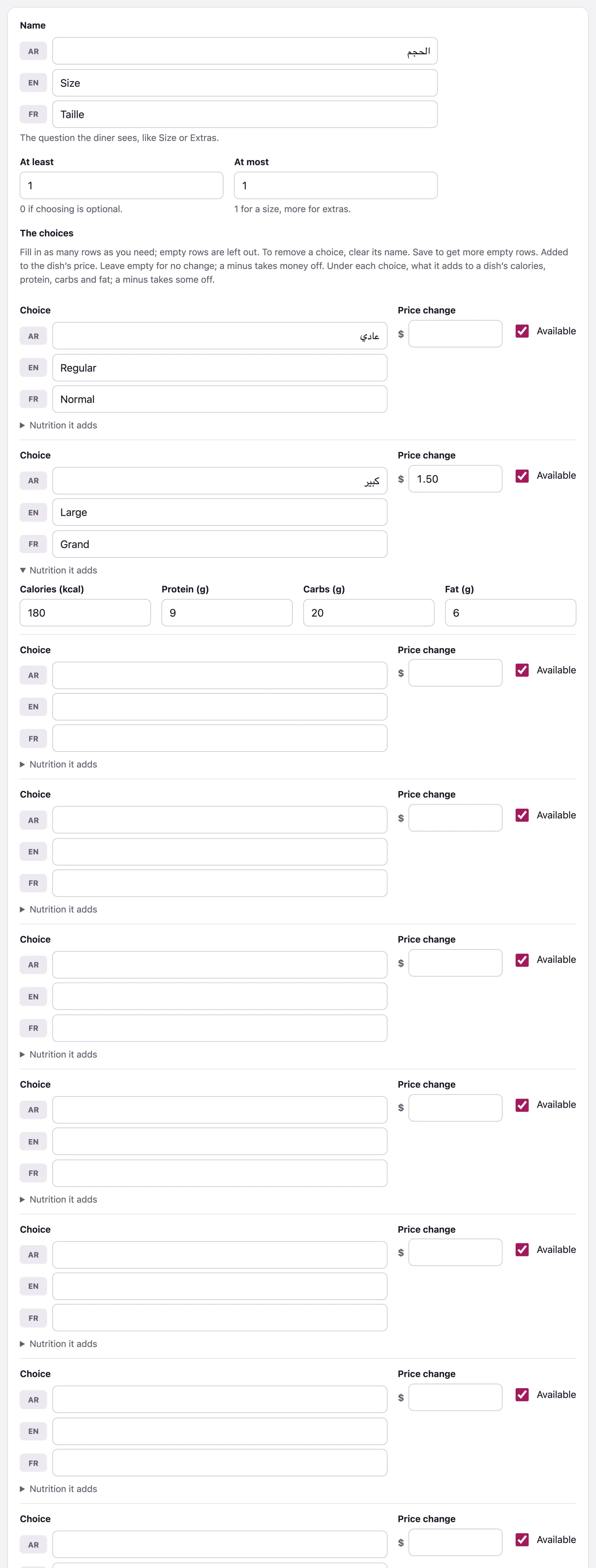
- Give its Name in each language of your menu: the question the diner sees, like Size or Extras. One language is enough to start.
- Set At least (0 if choosing is optional) and At most (1 for a size, more for extras).
- Under The choices, fill in a row for each choice: its name in each language under Choice, its Price change if any, and Available (ticked). The form gives you eight empty rows; empty rows are left out, and saving gives you more.
- Save. The page says "Choices saved."
The form refuses what could not work, and says so under the field: a group needs a name and at least one choice, At most must be 1 or more, At least cannot be more than At most, and it cannot ask for more choices than there are ("There are only 2 choices to pick from."). A price change must be a number, like 1.50 or -0.50.
Put a group on a dish
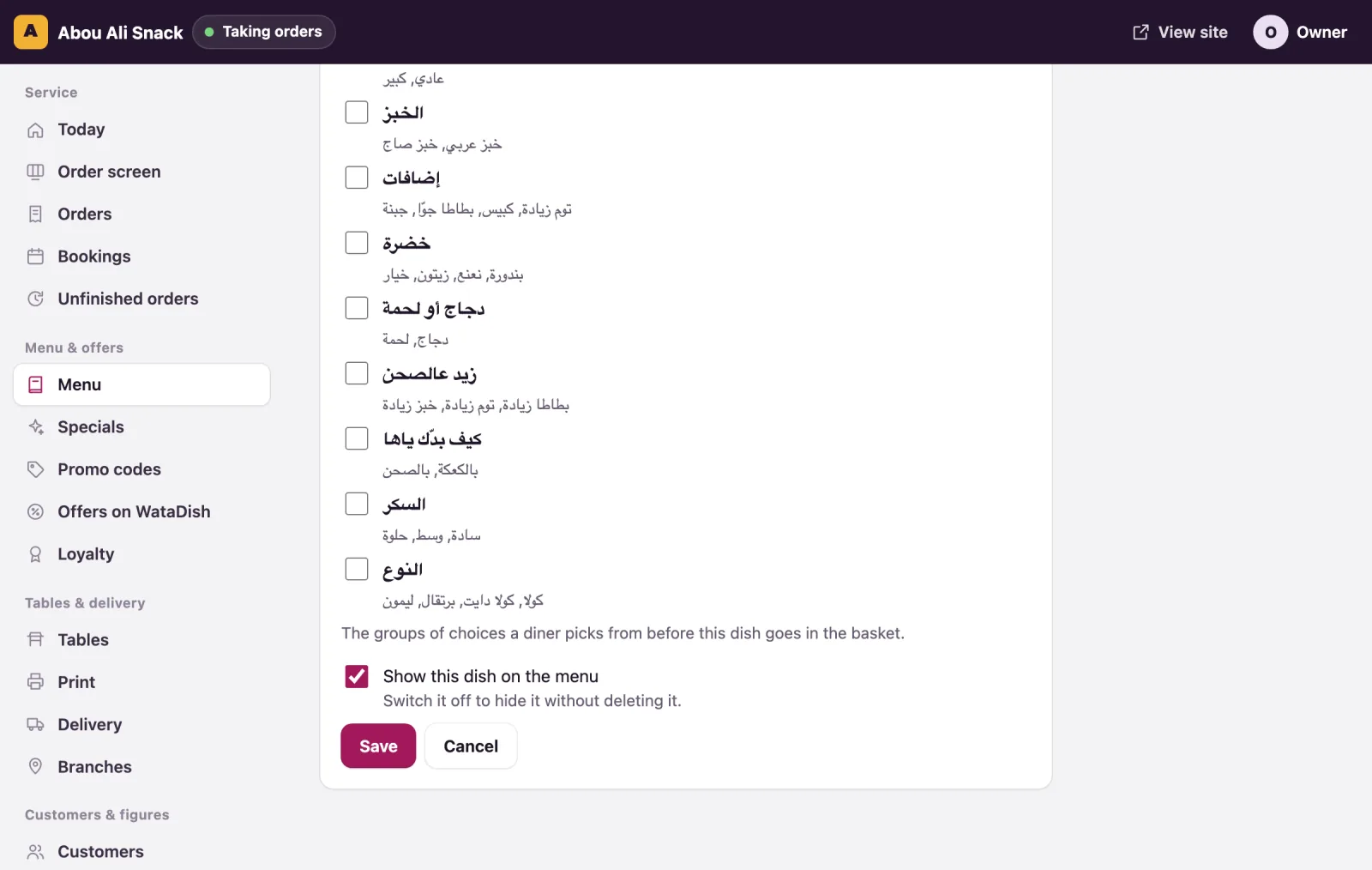
Open the dish from the Menu page with Edit. Under Sizes and extras every group is listed with its choices; tick the ones this dish offers and Save. The same group can be on as many dishes as you like, and a dish can carry several groups: a sandwich with Size, Bread and Extras asks three questions. A group with no choices is not shown to diners.
Note: The steps of a meal deal, where a customer picks dishes of your menu, are not groups of this page: you make them on the deal itself. See Meal deals.
Things to leave out
An extra can be shared by every sandwich, but what a diner may leave out depends on the dish's own ingredients, so they are listed on the dish itself:
- Open the dish from the Menu page with Edit, and under Ingredients write one per row, in each language of your menu, in the order you want them read. The form shows one row: press + Add an ingredient (or Enter) for the next, and Remove to take one off.
- Tick Customer can remove it on each one a diner may ask to go without (pickles, onion, toum), and leave it unticked on what the dish is not the dish without.
- Save.
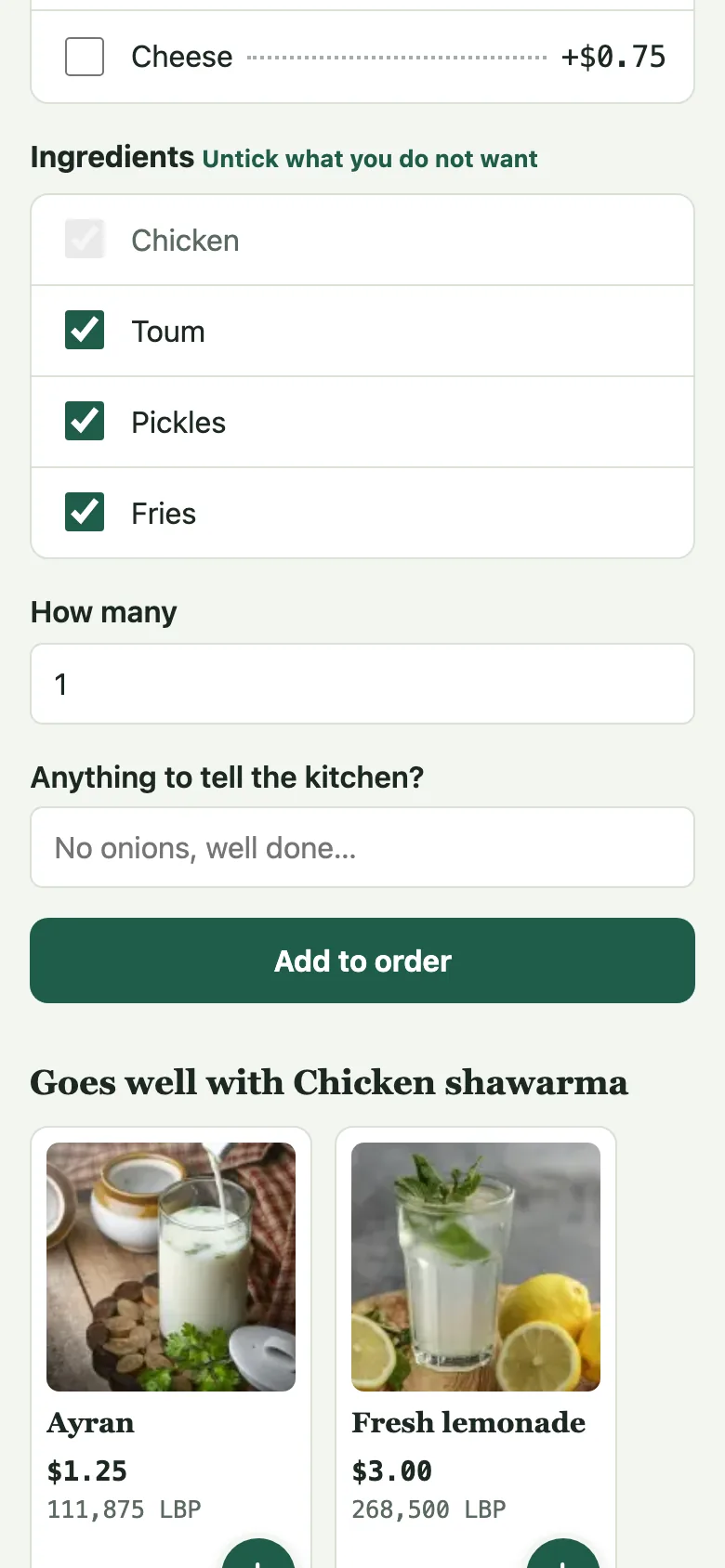
On the dish's page diners see the list with every ingredient ticked; they untick what they do not want, and the dish goes in their order with "− Pickles" under it, on the basket, the checkout, the order's page, the kitchen's screen, the receipt and the WhatsApp message alike, at no change in price. An ingredient that cannot be left out is shown ticked and greyed. A dish with something to leave out shows Choose on the menu instead of Add, so the diner passes its page, as a dish with sizes or extras does.
For anything else, every dish page has "Anything to tell the kitchen?" ("No onions, well done…"), on the basket page every line has Add a note for the kitchen, and the checkout has "Notes for the restaurant" for the whole order.
Change a group later
- To change a choice's name or price, edit it in its row. To remove a choice, clear its name and save.
- When a choice runs out, untick Available on it: diners see it greyed with "(Sold out)" and cannot pick it. If every choice of a required group has run out, the dish can still be ordered without it.
- Delete this group takes it off every dish that offers it; the question tells you how many. This cannot be undone.
What diners see
On the menu, a dish that asks for a choice shows Choose instead of Add, and opens its own page. There, each group is a question with its rule beside it: round buttons when at most one may be picked, tick boxes otherwise, and the price change beside a choice that has one. A choice that is not available is greyed. Under the choices come How many, "Anything to tell the kitchen?" and Add to order. A diner who sends the dish without a required choice is told "Choose one for “Size”.", and one who picks too many "Choose no more than 3 for “Extras”.". The order carries the choices picked, and its price includes their price changes.
Vous n’avez pas trouvé ce que vous cherchiez ? Écrivez-nous à support@watadish.com ou envoyez-nous un message sur WhatsApp: WhatsApp