


Aide · Tables, impression et livraison
Réservations de tables
Les clients réservent une table depuis votre site selon vos horaires et vos règles ; vous confirmez, refusez, installez ou notez une absence.
Inclus dans : StandardProBusiness
Bookings lets customers book a table from your site, at the times you are open. You confirm each request, or let every booking confirm itself, and on the day you mark people seated or a no-show. Everyone on your team opens it, staff included, to confirm and seat bookings; only a manager or the owner changes the booking rules. The page says whether your plan includes bookings.
Switching bookings on
- Open Bookings and go down to Your booking rules.
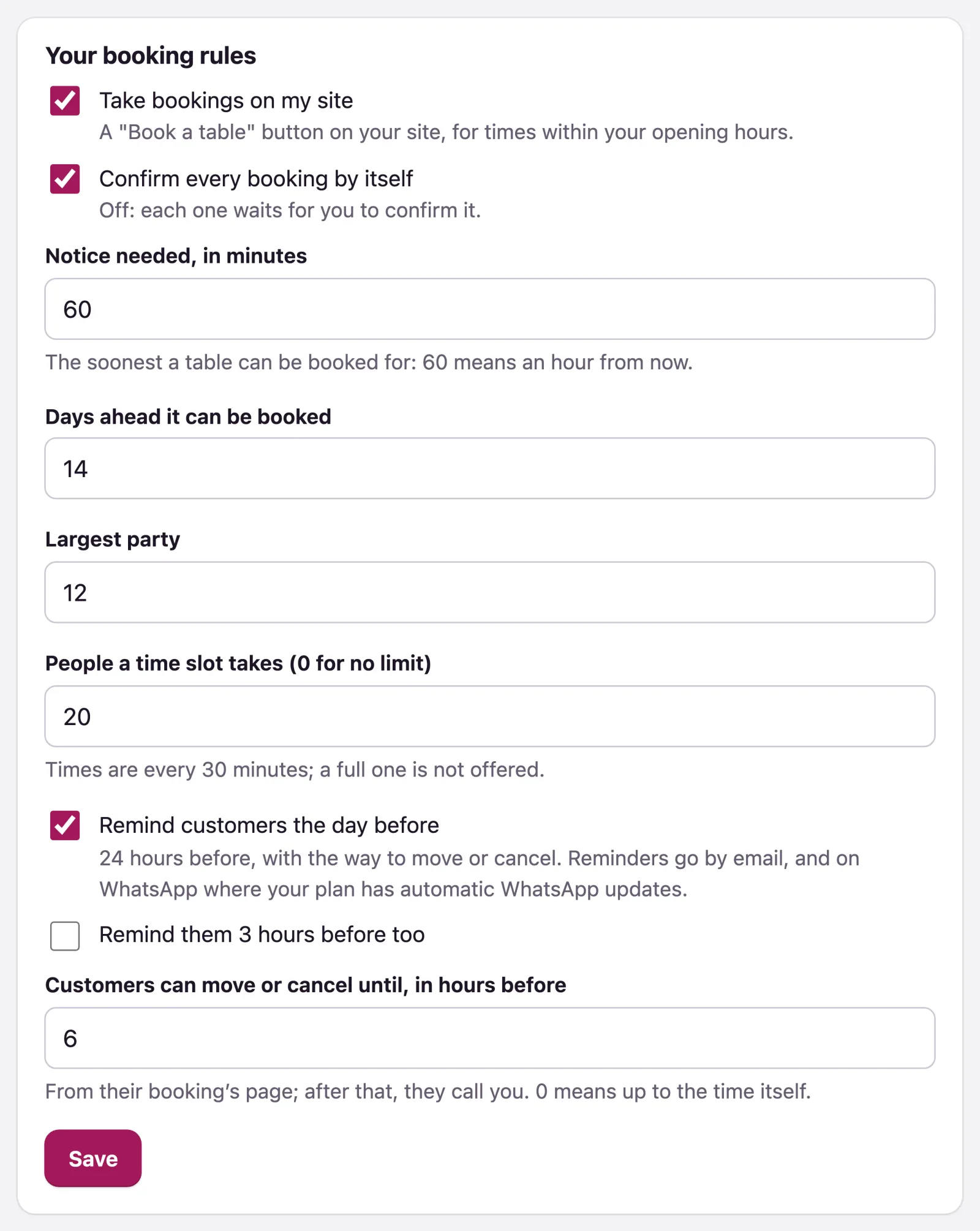
- Tick Take bookings on my site. Your site gets a Book a table button, for times within your opening hours.
- Tick Confirm every booking by itself if you do not want to confirm each one. Off, each one waits for you.
- Set the rules: - Notice needed, in minutes: the soonest a table can be booked for. 60 means an hour from now. - Days ahead it can be booked. - Largest party. - People a time slot takes (0 for no limit): times are every 30 minutes, and a full one is not offered.
- Press Save.
Bookings follow your opening hours in Settings. With branches, each branch's own hours apply.
What customers do
On your site, Book a table opens a short form: the day, a free time, how many people, their name and phone number, an email if they want updates, and a note. A request is emailed to you at once, and is on this page. The customer gets an email when you confirm or decline it, if they gave one, and their booking has its own page where they can move or cancel it.
Reminders and changes
In Your booking rules:
- Remind customers the day before (on unless you switch it off): a reminder 24 hours before the booking.
- Remind them 3 hours before too (off unless you switch it on).
- Customers can move or cancel until, in hours before (6 unless you change it, up to 48; 0 means up to the time itself).
Each reminder goes once, in the language they booked in: by email to customers who gave one, and on WhatsApp to the number they booked with where your plan has automatic WhatsApp updates (counted in your WhatsApp messages, like order updates). The email says the day and time, the party, your address and map link if you gave them, and links to the booking's page; the WhatsApp message says the day, time and party, with a button to that page. A table booked less than a day ahead gets no day-before reminder.
On that page, until the cut-off, the customer can pick another time or party, from the times you have free, or cancel. A moved booking stays confirmed if every booking confirms itself; otherwise it waits for you to confirm it again. You are emailed either way, and the list shows Moved by the customer. After the cut-off, the page asks them to call you.
The list
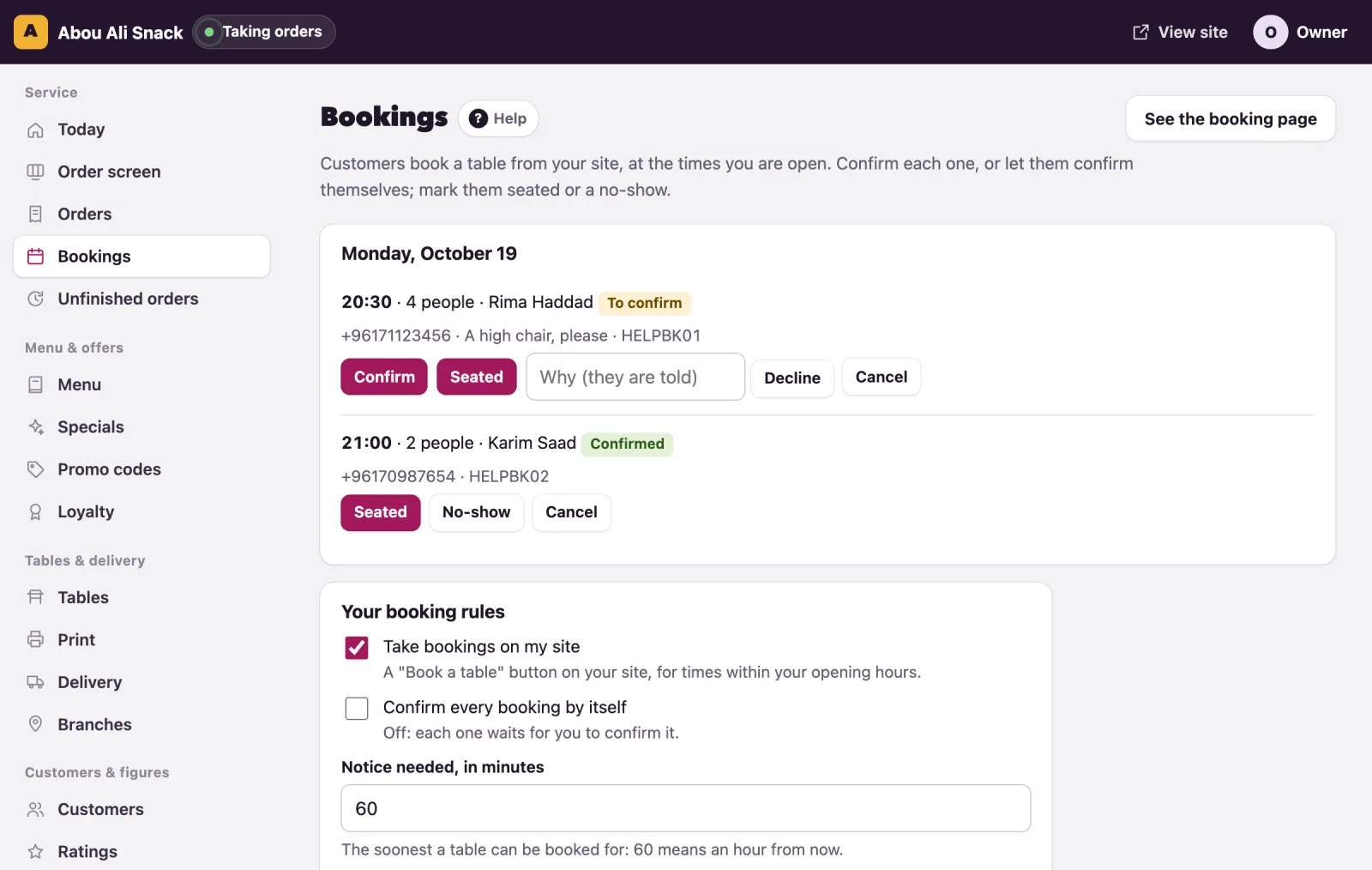
Bookings lists every booking from today on, day by day, with the time, the name, the party, the phone and the note. Each one shows its state, To confirm, Confirmed, Declined, Cancelled, Seated or No-show, and the buttons that fit it:
- Confirm a request. The customer is told.
- Decline it, with a reason they are told.
- Seated when they arrive, or No-show when they do not.
- Cancel one you can no longer keep. The customer is told.
If somebody else changed a booking first, you are told Somebody else changed this booking first., and the list shows it as it is now.
Note: A booking is between you and your customer: keep the table, confirm or decline in good time, and tell them if you cannot keep it. The customer's number shows until a day after the booking, and afterwards only if they agreed to your offers.
Vous n’avez pas trouvé ce que vous cherchiez ? Écrivez-nous à support@watadish.com ou envoyez-nous un message sur WhatsApp: WhatsApp